
Review and clean up large files
SProbot's large file report with version cleanup enables you to review and choose to trim unnecessary older versions of large files, or entirely delete large files which are obsolete or do not belong in SharePoint in the first place. Using the cleanup tool enables you to save on storage quickly and efficiently.
Why should large files be reviewed?
The accumulation of large files in your SharePoint environment over time can consume a significant amount of storage space, for two reasons:
- If large files are actively used collaboratively (edited by multiple people) their version consumption rapidly increases the overall storage footprint. This is because every single version of a file in SharePoint consumes the file's full size in storage. Practically, something like a 250MB PowerPoint presentation with 100 versions consumes 25GB in total, even though on the surface it only seems like 250MB.
- Very large files are often of the type of content which should not be stored in SharePoint at all. Storing content in SharePoint is beneficial if versioning, automation or permission management is necessary; if it's not, you may want to consider cheaper and simpler alternate storage locations. Content of this kind includes 4K or 8K video, database files, CAD drawings, personal PSTs, or other file formats which aren't related to the Microsoft Office apps.
How do you use the large file cleanup tool?
To select a site to cleanup up, you have a few options
- Choose one of the sites which contains large files using Reports > Reviews > Sites with large files
- If you've previously worked on a site and know that it contains large files, find it using Cleanup > Search
In the site you've selected to clean up, use the Content tab to view the large file report.
In the example below, the Silenus Fund Management site has been flagged for storage review because it's one of the 25 fastest growing sites on the tenant, and contains 1362 large files (over 50MB).
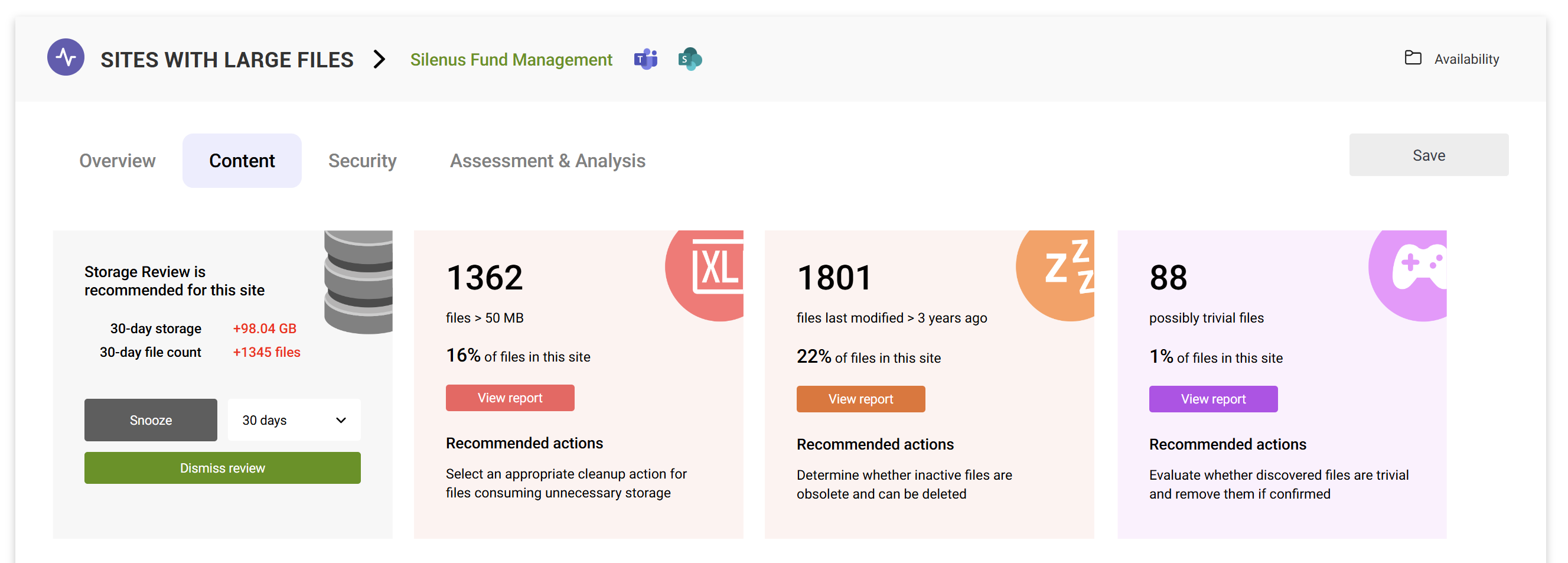
Viewing the report shows that:
- There are 1362 files with a latest version over 50 MB
- The total latest version size of these 551 files is 177.19 GB
- The total size of all versions of these files is 7681.72 GB
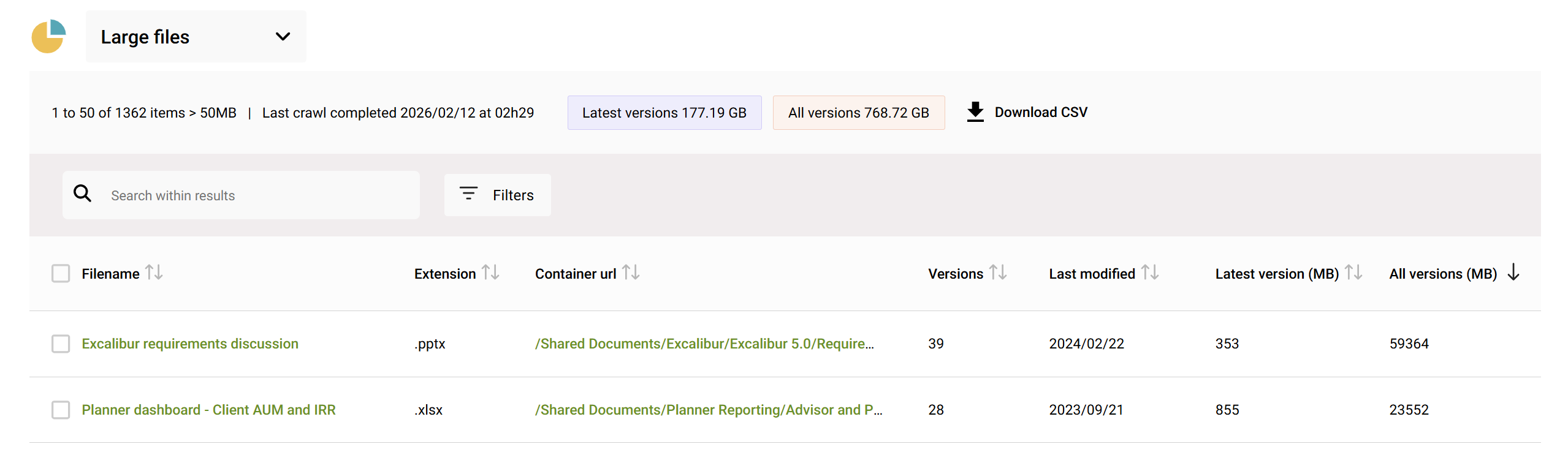
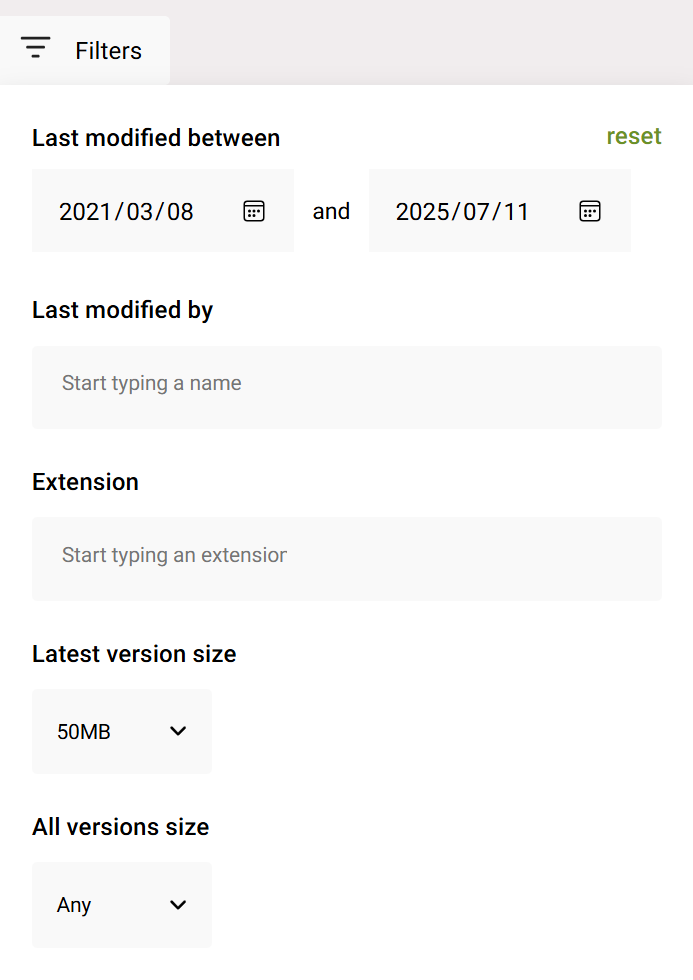
If you are looking for specific files you suspect might be present, you can search within these results, or filter to people, extensions, or size thresholds.
You can also export the full results of the report using Download CSV.
Delete large files
Often, you’ll discover outliers like huge video files, database backups, PSTs, or other heavy content that might be better stored elsewhere (or not at all). If you've identified files which should not be in the site at all, you can directly select and delete them using the Cleanup > Delete entirely action in the toolbar.
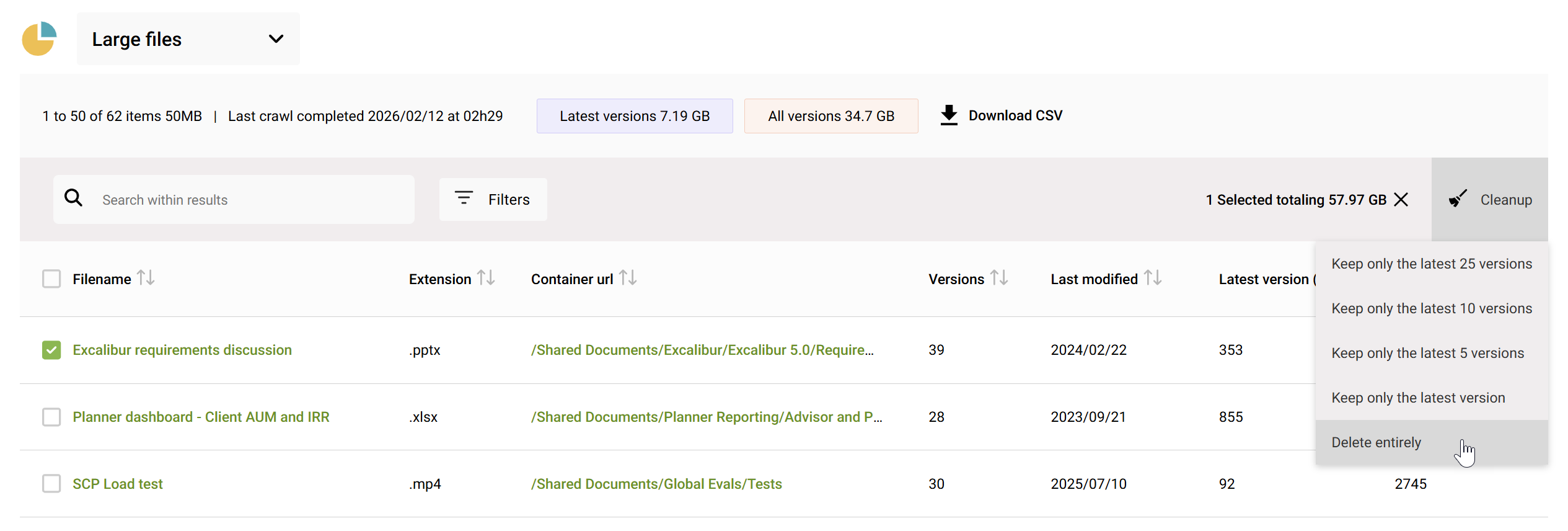
Deleting files this way sends them to the site's recycle bin, where they are retained normally until they are automatically cleared. If you need to free up storage immediately, you will need to delete them from the recycle bin.
Trim large file version history
Trimming version history can reclaim storage immediately – unlike deleting entire files or sites, deleting file versions bypasses the recycle bin; the space is freed at once without waiting for a retention period.
In our example, keeping only the latest version of Excalibur requirements discussion.pptx will save just over 58GB of storage (all versions total of 59364MB minus latest version 353MB = 57.62GB).
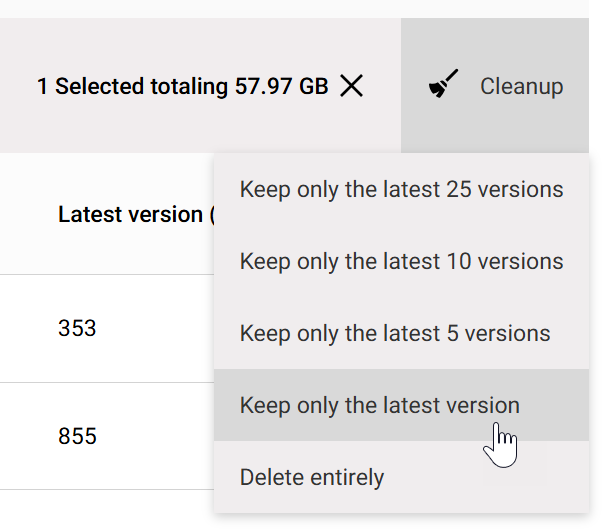
If you select to keep only the latest version (you can do this for multiple files), you'll need to confirm the action. Important: version deletions are immediate and permanent, unlike deletion of items in their entirety, which result in the item being moved to the recycle bin.

Once confirmed, the cleanup action is added to the queue for processing and is shown in Activity history.