
Use Cleanup recommendations to see and action savings
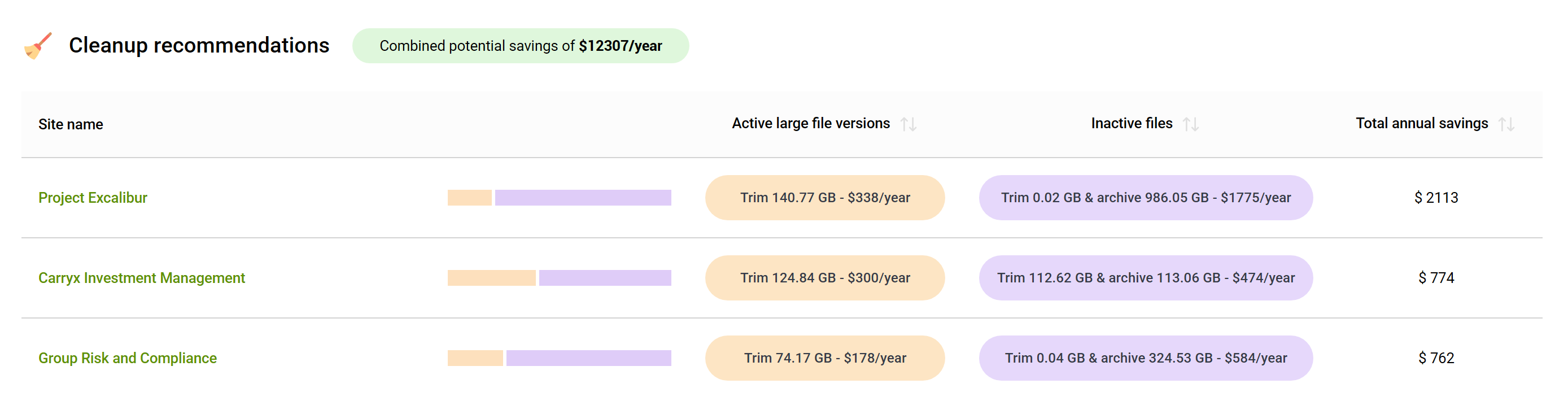
SProbot's Cleanup Recommendations give you a single location to view and then take action in just a few clicks to free up storage in sites which contain the most potential version trimming and archiving savings.
To unlock inactive file archiving, you need to enable file-level archiving on your tenant.
How are recommendations determined?
When SProbot crawls your tenant, it scans individual files to determine whether they are:
- Large (>50MB) and have been modified in the last 3 years
- Inactive and have not been modified for 3 years or longer (regardless whether they are large or not)
Versioning information is retrieved for both categories of files, and savings are calculated for version trimming and archiving actions per site. Sites with the most savings resulting from trimming and archiving are then displayed for you to review and take action on.
The combined savings potential is also calculated for your entire tenant.
Savings actions you can take
With just a few clicks, you can achieve savings in two ways:
Trim unnecessary versions from active large files
Click the Trim button in the Active large file versions column to clean all or selected versions other than latest.

The savings shown are calculated on trimming to keep only the latest version, but you have the option to select the latest 25, 10, or 5 versions.
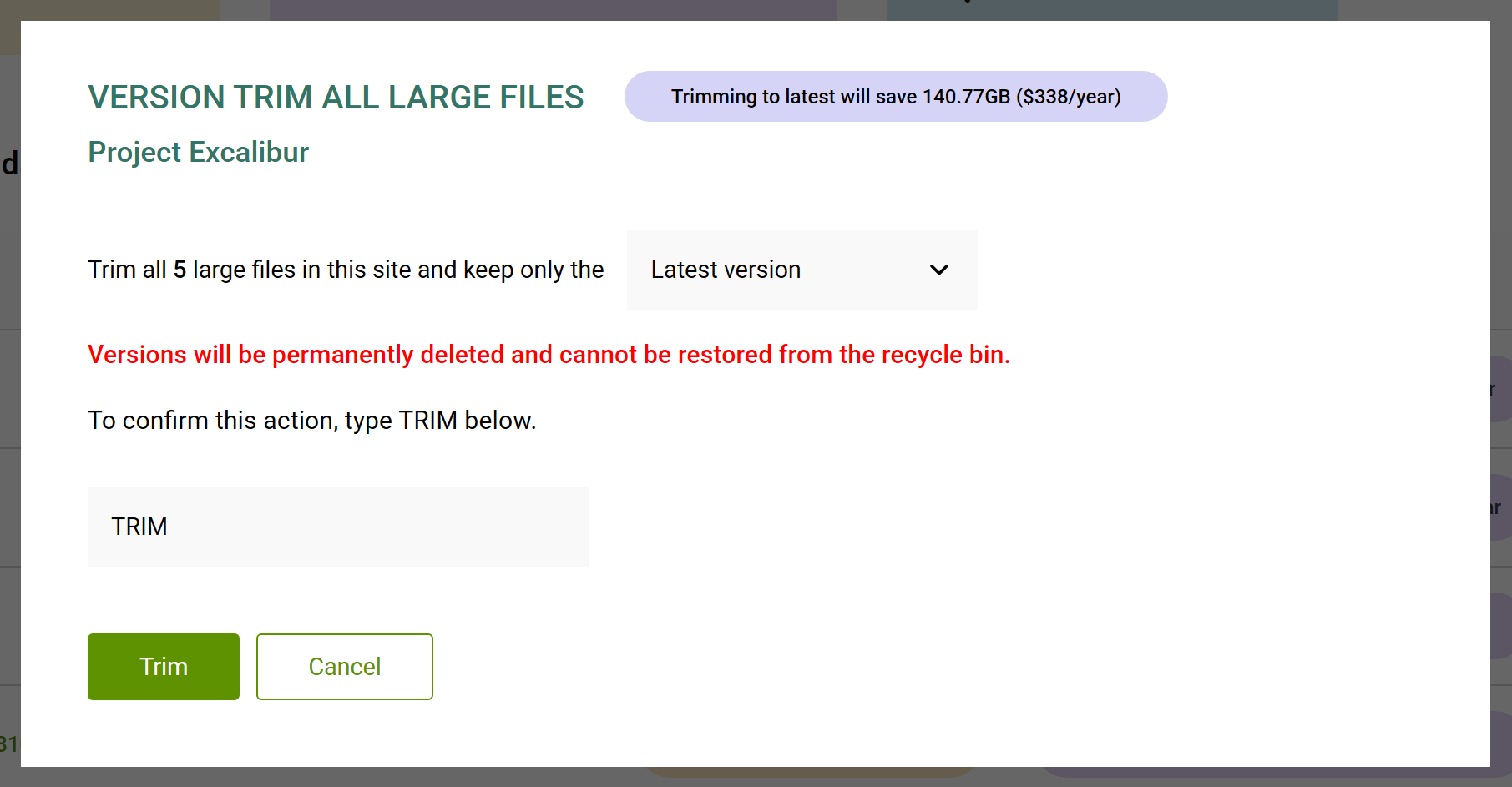
Once you initiate the trimming process, it is queued for processing in the background.
Please note: Version trimming is permanent, so please consider bulk actioning at this scale carefully before proceeding.
Depending on the size of the action, it may take anything from a few hours to a day or two to process.
Trim inactive files to the latest version and then archive them
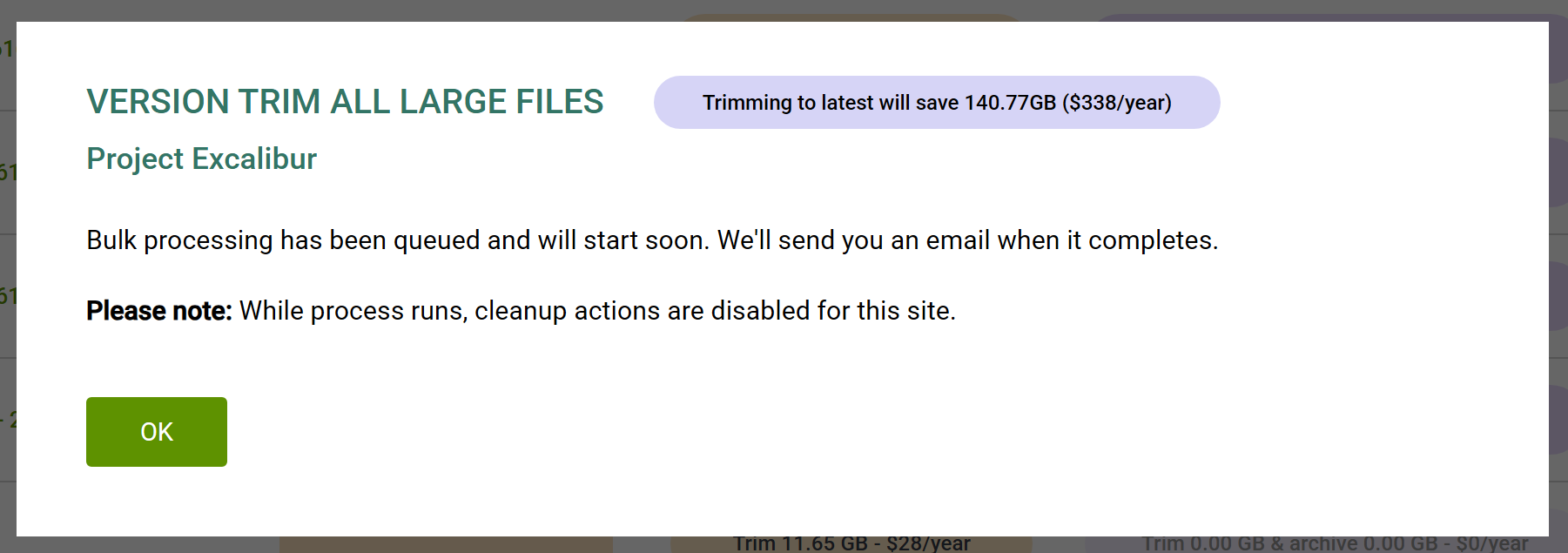
Click the Trim & archive button in the Inactive files column to archive all inactive files in the site, with the option to trim to the latest version before doing so.

The savings shown are calculated on trimming to keep only the latest version before archiving, but you have the option to retain existing versions.
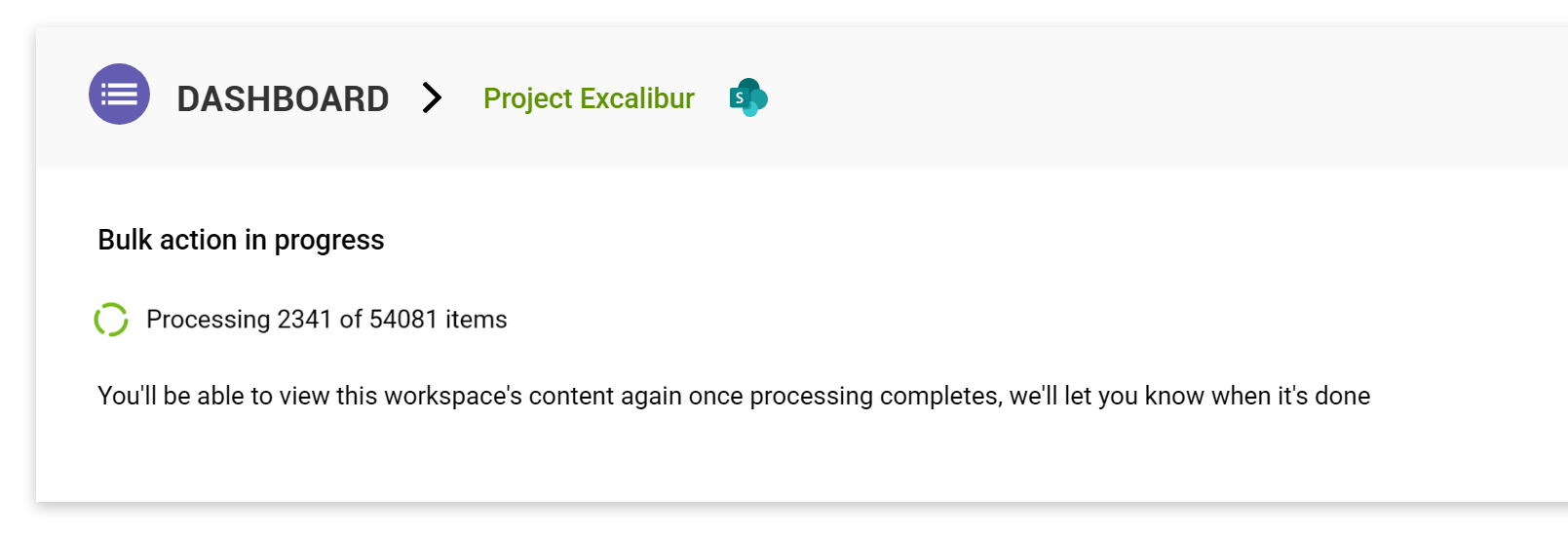
How do I check on the progress of a bulk cleanup action?
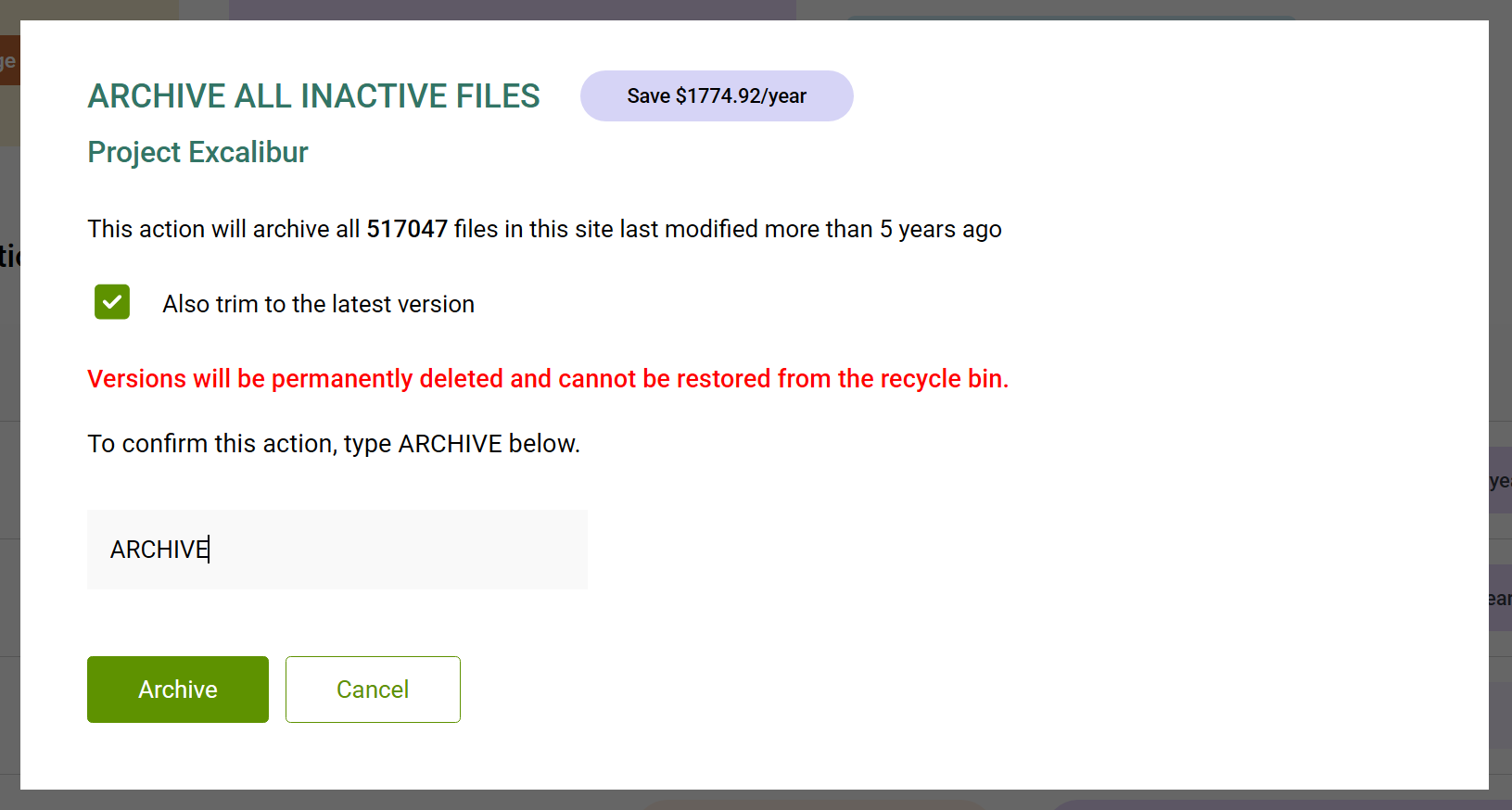
Cleanup buttons are disabled for sites on which trimming or archiving are currently taking place.

When you open the site, you can see the progress counter.
How are savings calculated?
Version trimming savings
When versions are trimmed, the storage they consume is directly reclaimed and thus reduces any active storage you would need to purchase (now if already over quota, or in future if still under quota) but an amount equal to $0.20/GB/month.
The dashboard displays the annual saving, which is GB trimmable * 0.20 * 12
Archiving savings
When inactive files are archived, they consume storage at the Microsoft 365 Archive rate of $0.05/GB/month. This is $0.15/GB/month less than the active storage rate.
All other versions trimmed before archiving reduce active storage as in the previous point, so are calculated in the same way.
The dashboard displays the total annual saving, which is (GB trimmable * 0.20 * 12) + (GB archivable * 0.15 * 12)
When files are archived, they are removed (there is usually a delay of a day or two) from active storage and are reflected against the archive subscription. You will see your available active storage increase when this happens.
📱Also see: Archive savings calculator