


Sharing links are an effective means to provide access to information while it remains in a single location in SharePoin.
Unlike sending copies of documents, which can quickly lead to version confusion and data sprawl, sharing links ensure that everyone is working from the same source of truth. This not only improves collaboration but also enhances security and compliance.
Unfortunately, because it's so easy to create sharing links, their use can also spiral out of control. Proactively reviewing and removing unneeded sharing links can help bolster your security posture and reduce accidental oversharing of sensitive content within your tenant.
What are sharing links?
Sharing links are URLs generated by users when they share a file or folder stored within a SharePoint site. These links enable recipients to access the shared content according to the permissions set by the sender, such as view-only or edit rights.

There are several types of sharing links, each offering varying levels of access, from the most to the least permissive:
- Anyone – Also known as anonymous links, these allow anyone with the sharing link to access the content, without the need to sign in.
- People within the organization – This option permits anyone within your organization to access the content via the link.
- Specific people – Only the named individuals, whether internal or external to the organization, can use the sharing link to access the content.
- People with existing access – This type of link does not alter or create any new permissions for the content. It simply provides a link for those who already have access, making it easier for them to find and use the content.
For details on SharePoint sharing link levels and configuration, see our blog post: How to configure SharePoint sharing settings.
Why is it important to manage sharing links?
Because sharing links can be created by anyone within your organization (and in some cases also by people that have been shared to outside of your organization), security and compliance can become a major concern. Here are the top reasons why you should be proactively be managing sharing links in SharePoint:
- Identify overexposed content – Over time, files may be shared more broadly than initially intended, potentially exposing sensitive content. Regular sharing link reviews help reduce the risk of over shared content.
- Obsolete access – The people receiving the linked content may no longer require access to the shared content. By removing old sharing links, unnecessary exposure is reduced.
- Data governance – Data governance policies may require regular audits of who has access to certain content. Proactively managing sharing links help ensure you remain compliant with internal policies and external regulations, such as GDPR.
- Data leaks – Old/forgotten links can be a security risk if they remain active longer than required. Regular cleanups help prevent data leaks.
- Improved visibility – Regular reviews help IT admins and content owners understand who their content can be accessed by and take any corrective action needed on over exposed content.
- Content lifecycle management – Over time, content will evolve or change. Old sharing links may be granting access to irrelevant or incorrect content. Reviewing links ensures access doesn’t persist unnecessarily.
How to proactively prevent oversharing – SharePoint Admin
To proactively prevent sharing links that unnecessarily expose content within SharePoint sites, configuring the sharing settings within the SharePoint admin center is the best place to start. Find out how to do this in our article How to configure SharePoint sharing settings.
How to manage existing sharing links – SharePoint UI
Site owners and members are able to review and manage sharing links directly from the SharePoint UI within each site. There are two methods at their disposal; the Manage access panel inside the document libraries and the Shared with external users report.
Method 1: Manage access panel
To review the links of a file or folder within a document library, right-click the item and then select Manage Access > Links. This will display the details of all the sharing links created for the selected item.
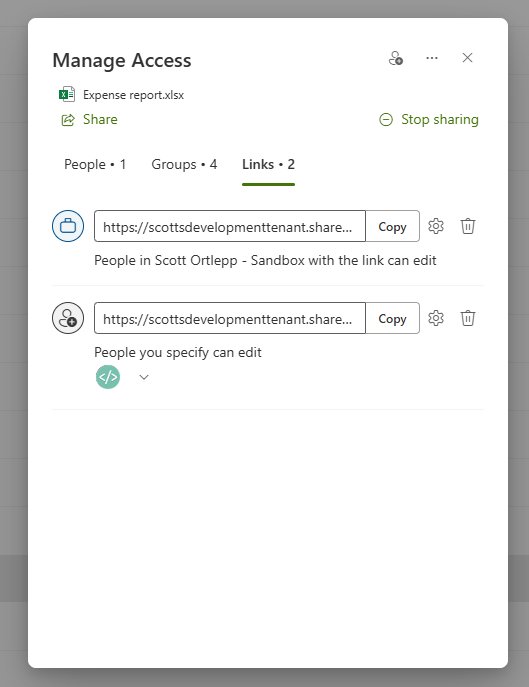
*Note - Sharing links on folders will give access to the folder and all items within the folder.
Method 2: Shared with external users report
The Site usage report in SharePoint automatically tracks sharing links with external users. Owners and members can access it via Settings > Site usage, then check the Shared with external users section.
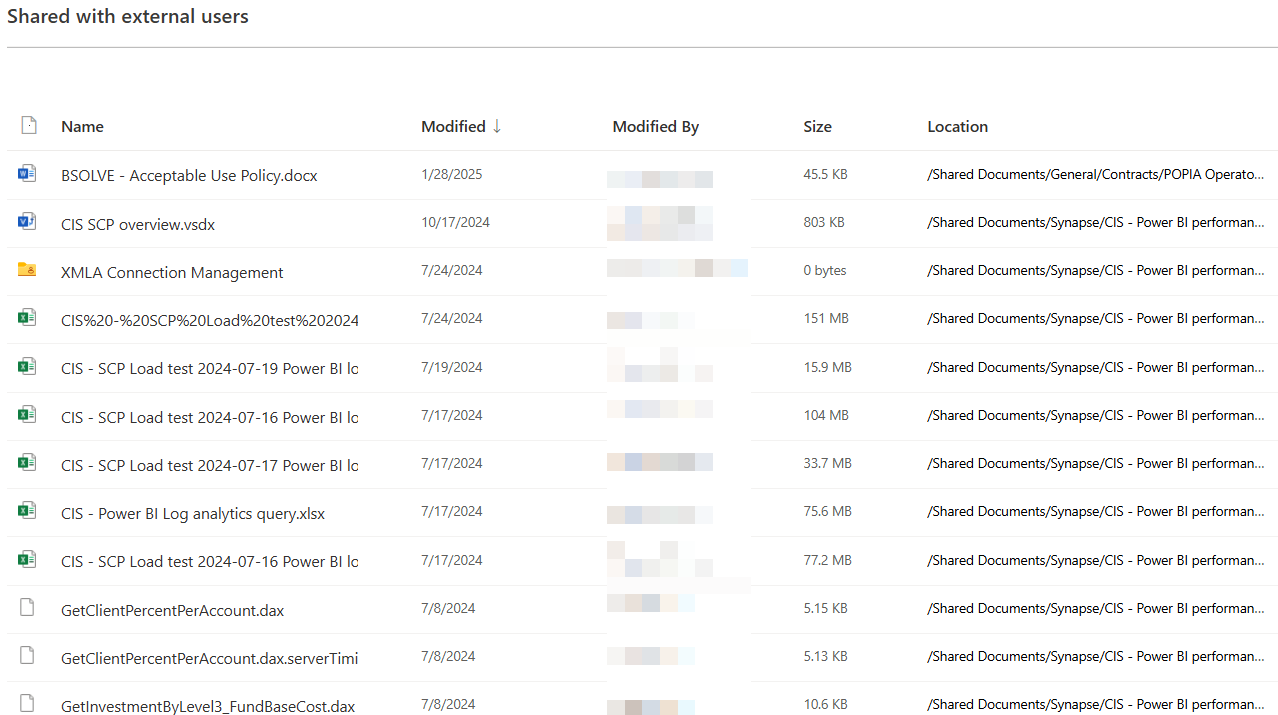
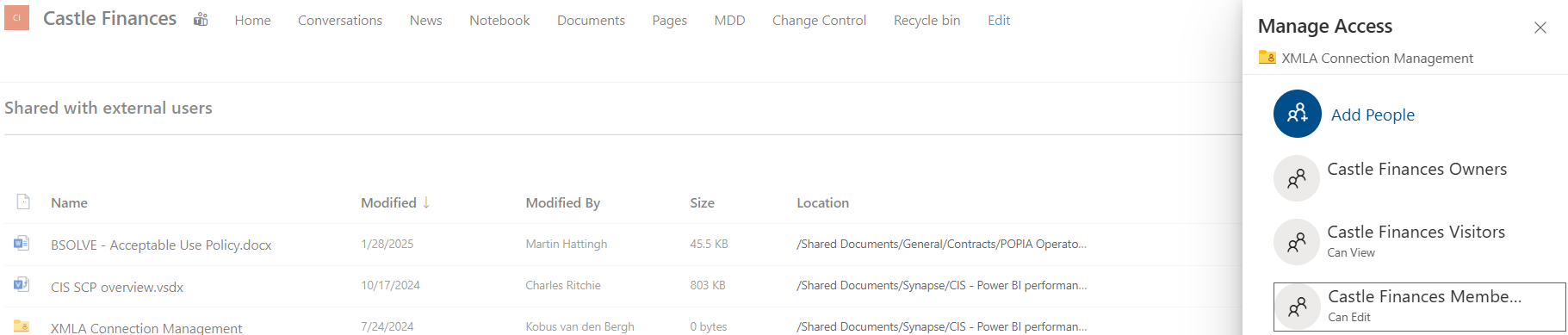
The report lets you Open shared files and folders or review permissions, and add new access (but not remove it) directly from the View permissions panel.
Advantages
- Always available – Users are able to perform these actions at any time.
- No admin privileges required – Any user with owner or member access will be able to perform these actions.
Disadvantages
- Manual – These actions are time consuming and error prone
- No bulk action – There is no functionality to bulk remove problematic sharing links.
- User interface – Microsoft has improved the sharing interface recently but it is difficult to perform a thorough review of a sites sharing links.
- Limited sharing link report – The sharing link report is limited to only external sharing links, giving the reviewer only a partial picture of their site.
- Scope – The Shared with external users report is limited to a single site.
How to manage existing sharing links – SharePoint admin center
The SharePoint admin center (via SharePoint Advanced Management) provides limited out of the box sharing link reports for “Anyone” links, “People in your organization” links, and “Specific people” links shared externally.
These reports highlight the sites with the most of each type of sharing link within the last 30 days, but do not give a detailed report on the sharing links themselves. This is useful for admins to quickly find where the most of any given type of sharing is taking place within their tenant.
To read more about Microsoft’s out of the box sharing link reports, refer to the Microsoft Learn article: Data access governance reports for SharePoint sites - SharePoint in Microsoft 365 | Microsoft Learn
Advantages
- Preconfigured – The reports are preconfigured to search for the kinds of links you care about most
Disadvantages
- Timeouts – Reports may time out with very large tenants.
- High-level only – Only covers sites with sharing links, not the links themselves.
- Not actionable – Sharing links are not directly actionable from these reports.
- Manual – Reports must be run manually to view tenant security insights.
- Limited scope – Only includes sharing links created in the past 30 days.
How to manage existing sharing links – PowerShell
SharePoint admins are able to review and manage sharing links via PowerShell by generating a sharing link report per library, reviewing the links and then deleting any unwanted links.
Generate a sharing link report
To generate a sharing link report, you can use the following script: Shared Links Permissions Report.ps1
Note – Original script by Salaudeen Rajack and Modified by Scott Ortlepp for this article - Generate Shared Links Permission Report in SharePoint Online - SharePoint Diary
Delete unwanted links
Once you have reviewed the Sharing links report generated in the previous section you can use the following command to remove individual sharing links:
Remove-PnPSharingLink -Identity "<item or document URL>" -LinkId "<link ID>"
Advantages
- Detailed – The reports are detailed and give you an overview of all sharing links within a library.
- Bulk Actions – Supports removing sharing links in bulk.
Disadvantages
- Admin dependant – Only admins will be able to generate the reports and action the sharing links.
- Time intensive – Generating, reviewing, and actioning the reports is time intensive.
- UI – The CSV reports generated are not user friendly.
How to manage existing sharing links – SProbot
With SProbot, there are no reports that you need to kick off or exports you need to find. SProbot will automatically crawl the tenant and find all sharing links.
To start a review of sharing links, simply open the Health check and navigate to the Security section where you will some high-level information about the security of your tenant, including sharing links.
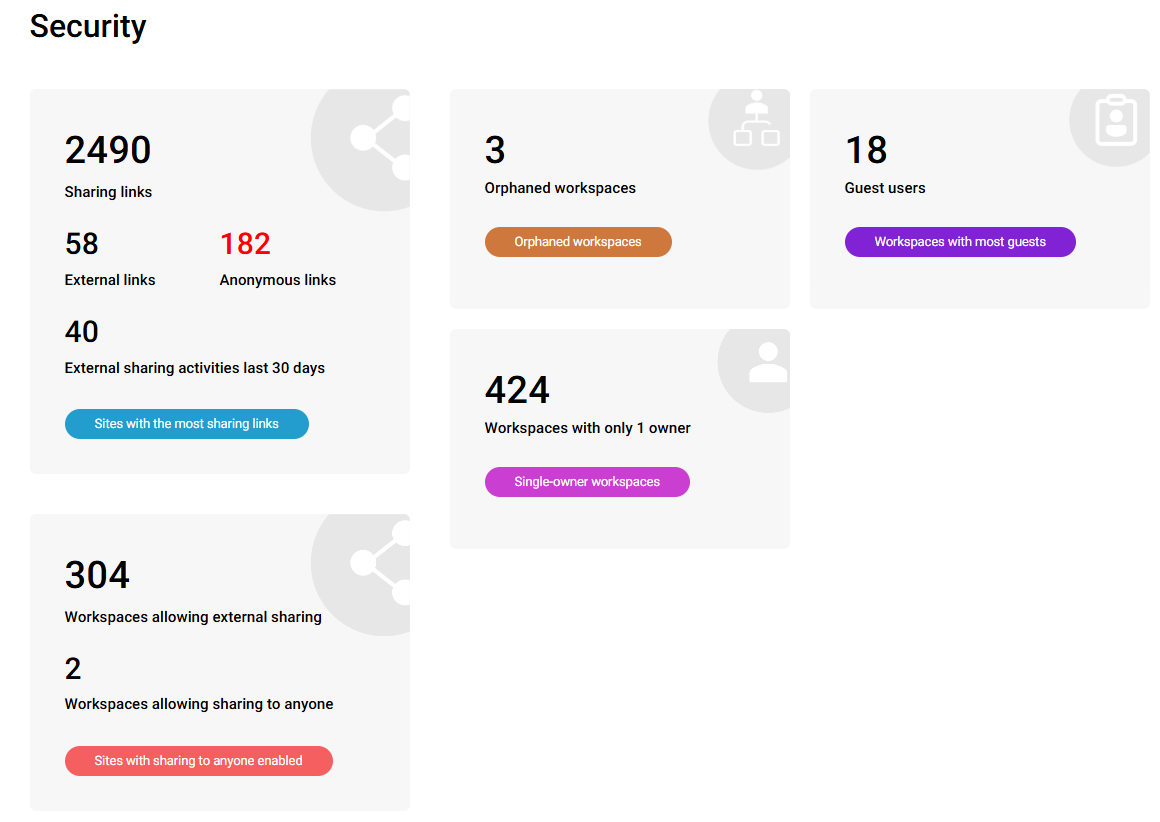
Sites with the most sharing links will take you to a more detailed report for all sites that contain sharing links.

This report enables you to quickly identify any problematic sites within your tenant. To view a site-level, actionable report for sharing links, simply open and manage the desired site and navigate to the Sharing links report within the Security tab.
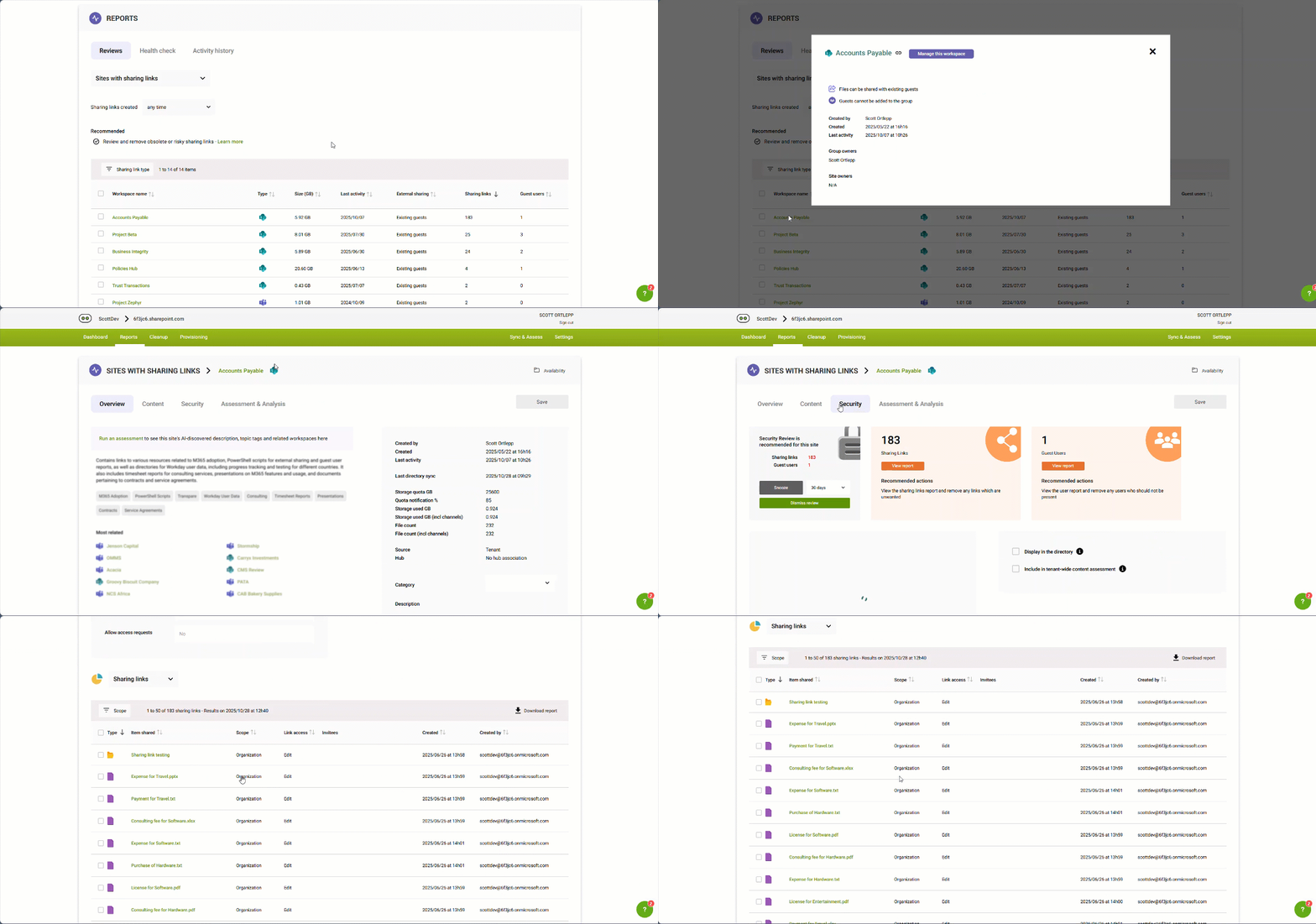

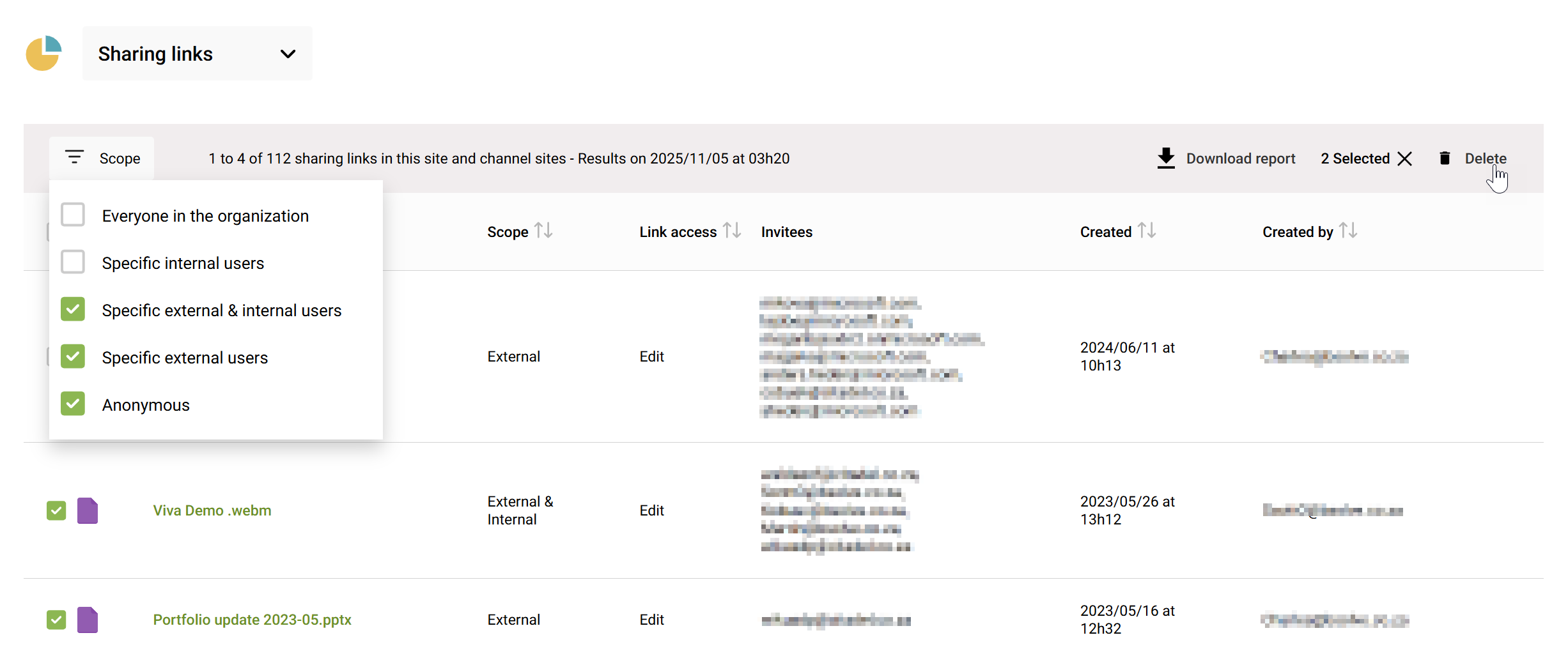
From here, you can review and manage individual sharing links and even delete unwanted sharing links in bulk.
Advantages
- Automatic – SProbot does the heavy lifting for you by continuously crawling through your tenant to reveal any new sharing links.
- Detailed insights – Via the Health check, SProbot provides detailed insights, from a tenant level, all the way down to individual links.
- Actionable – Sharing links are manageable directly from within SProbot.
- Old links – Old, potentially risky, sharing links are included in the reports, unlike the limited out of the box SharePoint sharing links report.