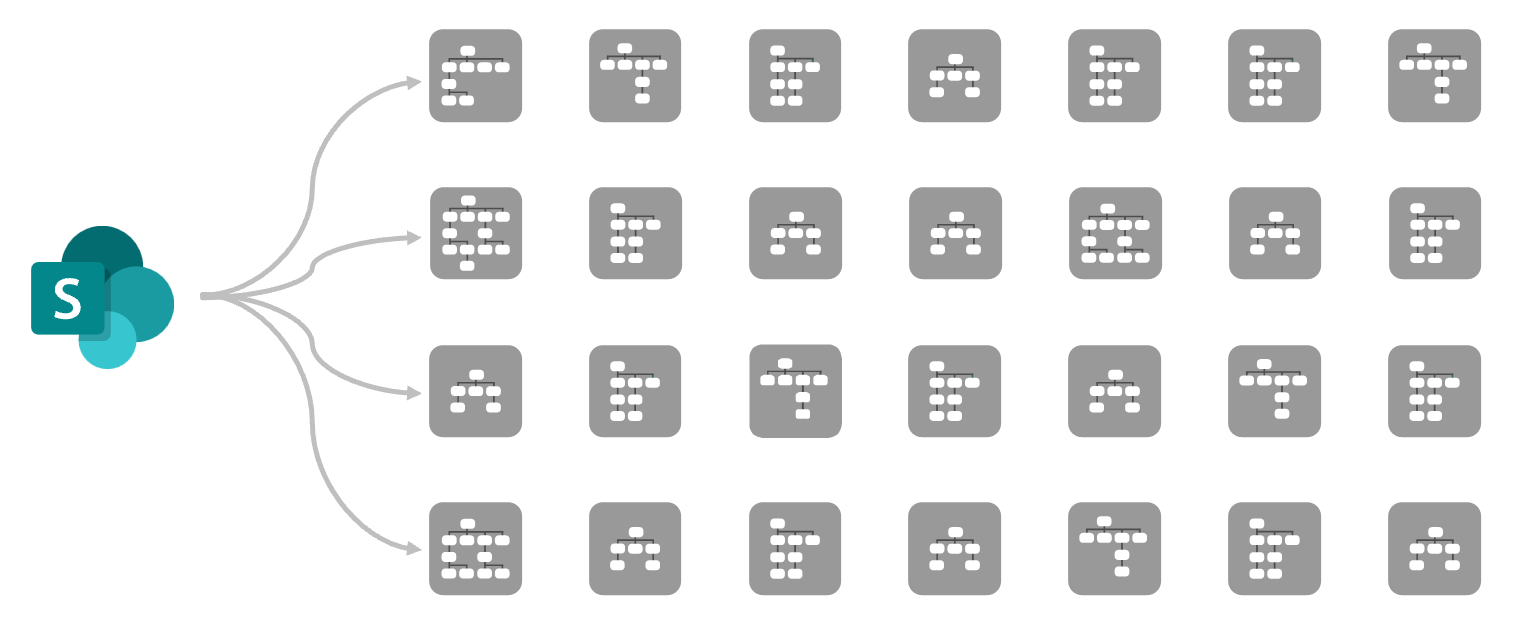
Teams and SharePoint make it easy to collaborate, and that is exactly the problem. When creating a new team, site, or channel is frictionless, most organizations end up with hundreds or thousands of workspaces that no one actively owns. Over time, that sprawl creates three predictable outcomes: storage bloat, governance headaches, and security exposure.
The good news is you can get control back without slowing the business down. This guide explains what sprawl looks like in Microsoft 365, why it drives storage growth faster than you expect, and the practical controls you can implement to prevent it from coming back.

TLDR
Teams and SharePoint sprawl happens when workspaces multiply without clear ownership and lifecycle rules. It drives storage growth through duplicate files, abandoned sites, and uncontrolled versions, and it increases risk through oversharing and stale permissions.
Key actions:
- Put guardrails on workspace creation without blocking collaboration
- Assign ownership and lifecycle rules to every workspace
- Identify inactive workspaces and choose archive vs delete consistently
- Automate reporting so storage and risk do not hide in the noise
What “Teams and SharePoint sprawl” actually means
Sprawl is not simply “lots of sites.” Sprawl is unmanaged growth. It shows up when:
- New Teams are created for short-term projects and never retired
- SharePoint sites exist without a clear business owner
- Multiple sites store the same documents because nobody trusts the “official” location
- Old content keeps accumulating because there is no retention or archiving routine
Teams sprawl and SharePoint sprawl are tightly linked because many Teams workloads store files in SharePoint behind the scenes. That means sprawl is not only a collaboration problem. It becomes a storage and cost problem as well.
Why sprawl inflates storage faster than most admins expect
Sprawl creates storage growth in a few repeatable ways. You do not need a dramatic event to see the impact. Small, constant waste adds up.
Duplicate content becomes normal

When there are too many workspaces, people stop searching and start re-uploading. The same deck, video, or design file ends up copied across Teams, sites, and channels. Each copy consumes storage and often multiplies version history.
Abandoned workspaces keep everything forever

A Team that no one uses still stores files, meeting recordings, notebooks, and channel artifacts. Without lifecycle rules, those assets do not expire.
Version history and large files create silent growth

Even when file sizes looks reasonable on the surface, versions can drive real usage. In most environments, users generate hundreds of versions of files with seemingly ordinary daily editing.
Oversharing increases long-term risk and long-term data footprint

Sprawl often correlates with messy permissions. When you cannot confidently delete something, you keep it. Storage bloat and security risk reinforce each other.
The governance playbook to curb sprawl without blocking the business
This section is designed to be actionable. You do not need to implement everything at once. Start with the highest leverage controls.
1) Set creation guardrails that still allow self-service
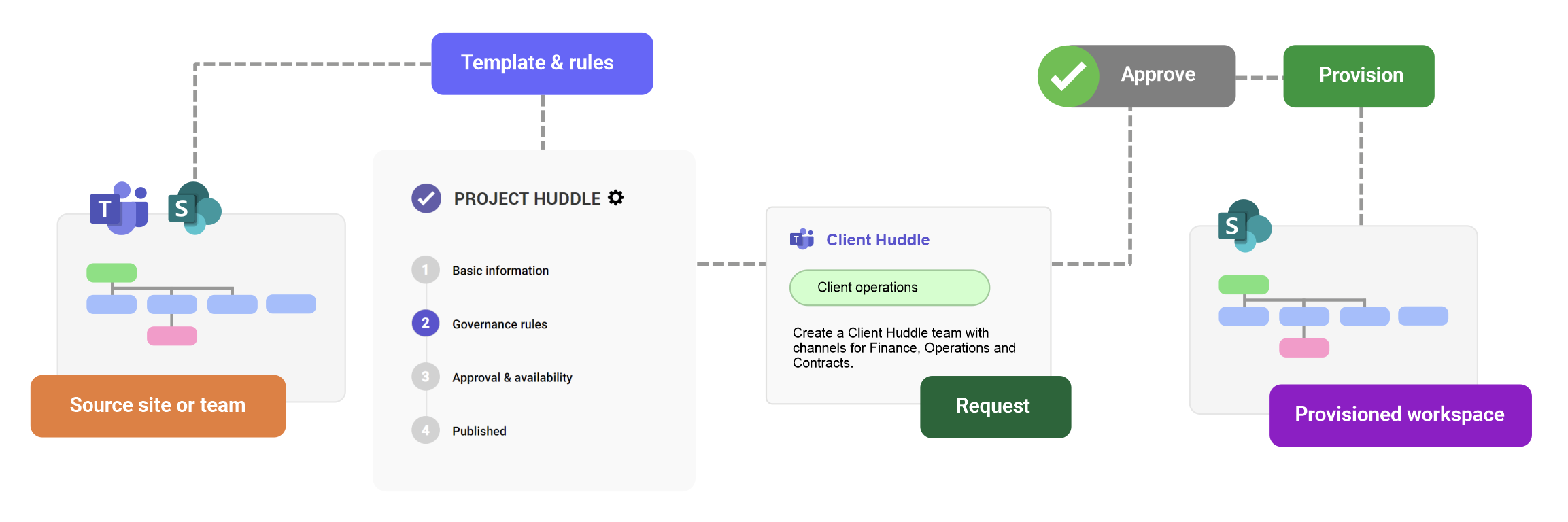
The goal is not to stop people from creating Teams and sites. The goal is to ensure every new workspace has an owner, a purpose, and a lifecycle.
Minimum guardrails to implement:
- Require at least 2 owners (primary and backup) for every Team and site
- Use a short request form with a naming policy defined, so the purpose of each workspace is clear
- Require users to provide a classification such as “Project”, “Department”, “External collaboration”, or “Temporary”
- Enforce expiration or periodic review for Temporary and Project workspaces
2) Make ownership real, not just a field
A workspace without a responsible owner is where sprawl begins. Ownership should mean:
- The owner confirms membership and sharing quarterly
- The owner approves archiving or deletion when the workspace is inactive
- The owner is responsible for where the “source of truth” content lives
If you do nothing else, do this. Clear ownership is the foundation that makes cleanup possible later.
3) Define lifecycle states and standard actions
To prevent endless debate later, define states and what happens in each one. A simple model is enough.
Suggested lifecycle states:
- Active: normal use, normal access
- Dormant: not used recently, review required
- Archived: read-only, retained for reference
- Deleted: removed based on policy and approvals
When you reach Dormant, your process should force a decision: archive or delete.
If you have not already, use this guide to decide the right path:
🔗 Archive vs Delete: managing inactive SharePoint sites to save storage
4) Standardize what “inactive” means
“Inactive” should be measurable. Pick a definition that reflects how your business works, then apply it consistently. For example:
- No file activity in 90 days
- No membership changes in 180 days
- No page views or visits in 90 days
- No owners assigned, or owners who left the organization
Be careful with a single metric. A site may have little activity but still be legally relevant. That is why lifecycle plus ownership matters.
🔗 How to identify and clean up orphaned SharePoint sites
5) Create a repeatable cleanup rhythm
One cleanup project per year is not enough. Sprawl returns. Instead, build a recurring rhythm:
- Monthly: report on top storage growth, new workspaces, and stale owners
- Quarterly: review dormant workspaces and take an action
- Bi-annually: review governance settings, naming, and lifecycle rules
This is how you avoid the “we cleaned up once and it grew back” cycle.
What to measure so sprawl does not sneak back
If you cannot see sprawl trends, you will always be reacting late. Track these signals:
- Number of new Teams and sites created per month
- Percentage of workspaces missing an owner
- Percentage of workspaces with no activity for 180+ days
- Storage growth rate by workspace and by department
- External sharing count for dormant workspaces
A good benchmark is not “zero sprawl.” A good benchmark is “we can explain growth and take action quickly.”
How to get a tenant-wide cleanup report fast
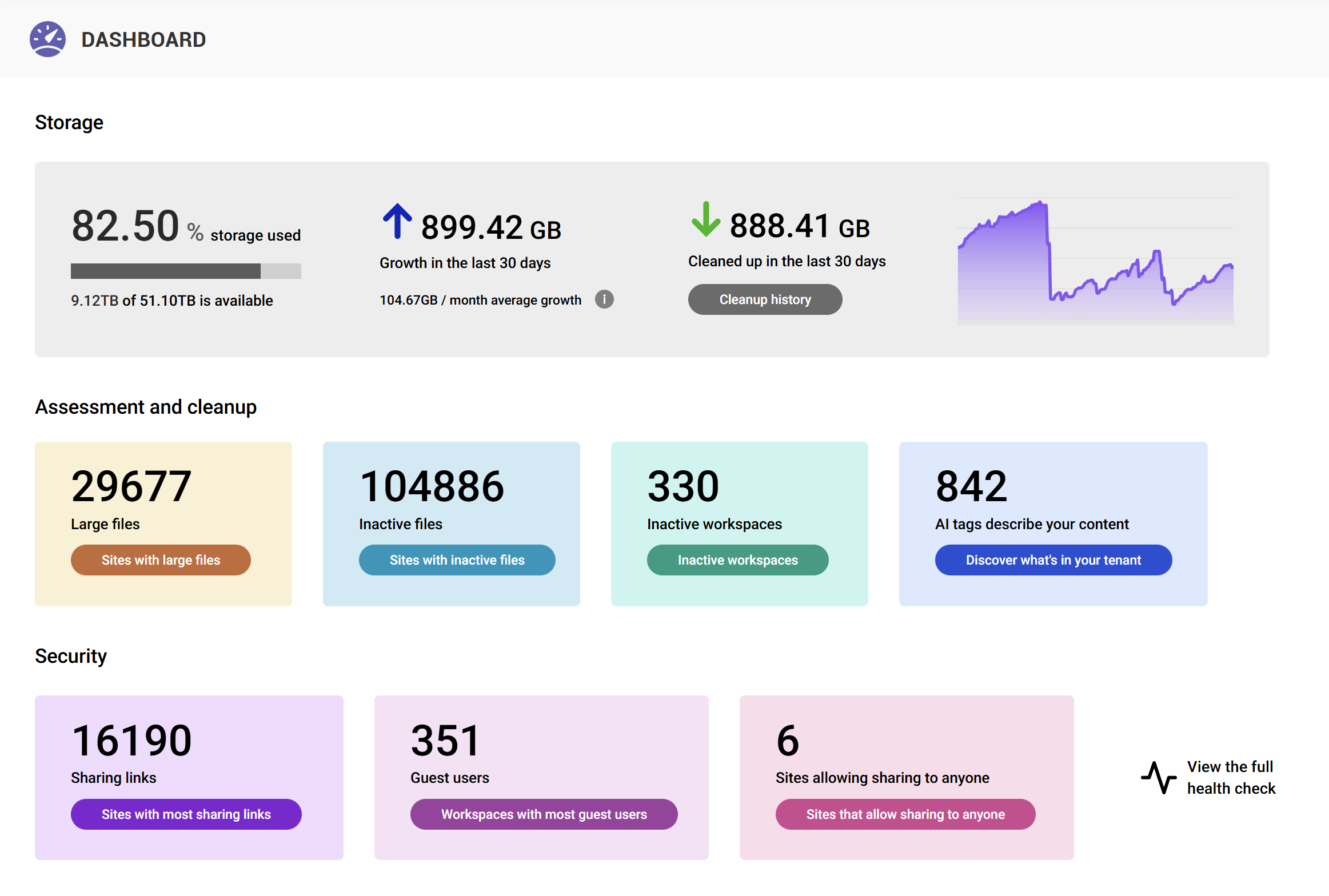
If your tenant is already large, manual investigation is slow. You can speed up the process by generating a tenant-wide view that highlights:
- Inactive Teams and SharePoint sites
- Large sites and libraries
- Duplicate or redundant content patterns
- Risk signals such as stale permissions or external sharing hotspots
Conclusion
Sprawl is not a moral failing by users. It is the natural outcome of easy creation without lifecycle enforcement. When you add light guardrails, real ownership, and a repeatable cleanup rhythm, you can protect collaboration while keeping storage costs and governance risk under control.
If you want the fastest path from insight to action, start with a tenant-wide cleanup report and focus on the biggest inactive and oversized workspaces first.
FAQ
What is Teams sprawl?
Teams sprawl is the uncontrolled growth of Microsoft Teams workspaces, often without clear ownership, naming consistency, or lifecycle rules. It usually results in abandoned Teams and duplicated content.
Is Teams sprawl the same as SharePoint sprawl?
They are different symptoms of the same issue. Teams sprawl creates SharePoint sprawl because Teams files are stored in SharePoint sites connected to Teams (which are automatically created each time a team is created).
How do I reduce Teams and SharePoint sprawl quickly?
Start by identifying inactive workspaces and assigning owners. Then standardize a process to archive or delete inactive Teams and sites on a recurring schedule.
Should I archive or delete inactive SharePoint sites?
It depends on retention requirements and business needs. Archiving preserves content as read-only for reference, while deletion removes it to reclaim space. Use a consistent decision process across the tenant.
What should I measure to prevent sprawl from returning?
Track new workspace creation rate, missing ownership, inactivity percentages, storage growth by workspace, and external sharing on dormant workspaces.