

SharePoint comes with several native reporting features, but they often leave administrators wanting more. If you’ve tried to use the built-in tools to report on your environment’s usage, storage, or security, you likely know the challenges: the data is scattered across multiple interfaces, and you only get a slice of the whole picture. This has led many organizations to adopt third-party SharePoint reporting tools to gain deeper insights and a unified view. In this post, we’ll compare what you get out-of-the-box with SharePoint versus what external tools offer, so you can understand the gaps and how third-party solutions fill them.
Native SharePoint reporting: Useful but limited
Out of the box, Microsoft provides a few places to check on SharePoint activity and data:
Site Usage pages
Every SharePoint site has a built-in Site Usage page showing metrics like page views, active users, and popular content. However, it only covers the last 90 days and is siloed per site – there’s no single place to see all sites at once.
SharePoint Admin Center
In the Microsoft 365 admin portal, the SharePoint admin center lists all sites with info like storage used, last activity, and sharing status. You can sort and filter this list and perform basic actions (e.g., delete a site, change owners, archive a site). But it doesn’t let you drill into what’s inside those sites or get aggregated trends beyond simple sorting or filtering by column.
Microsoft 365 Usage Reports
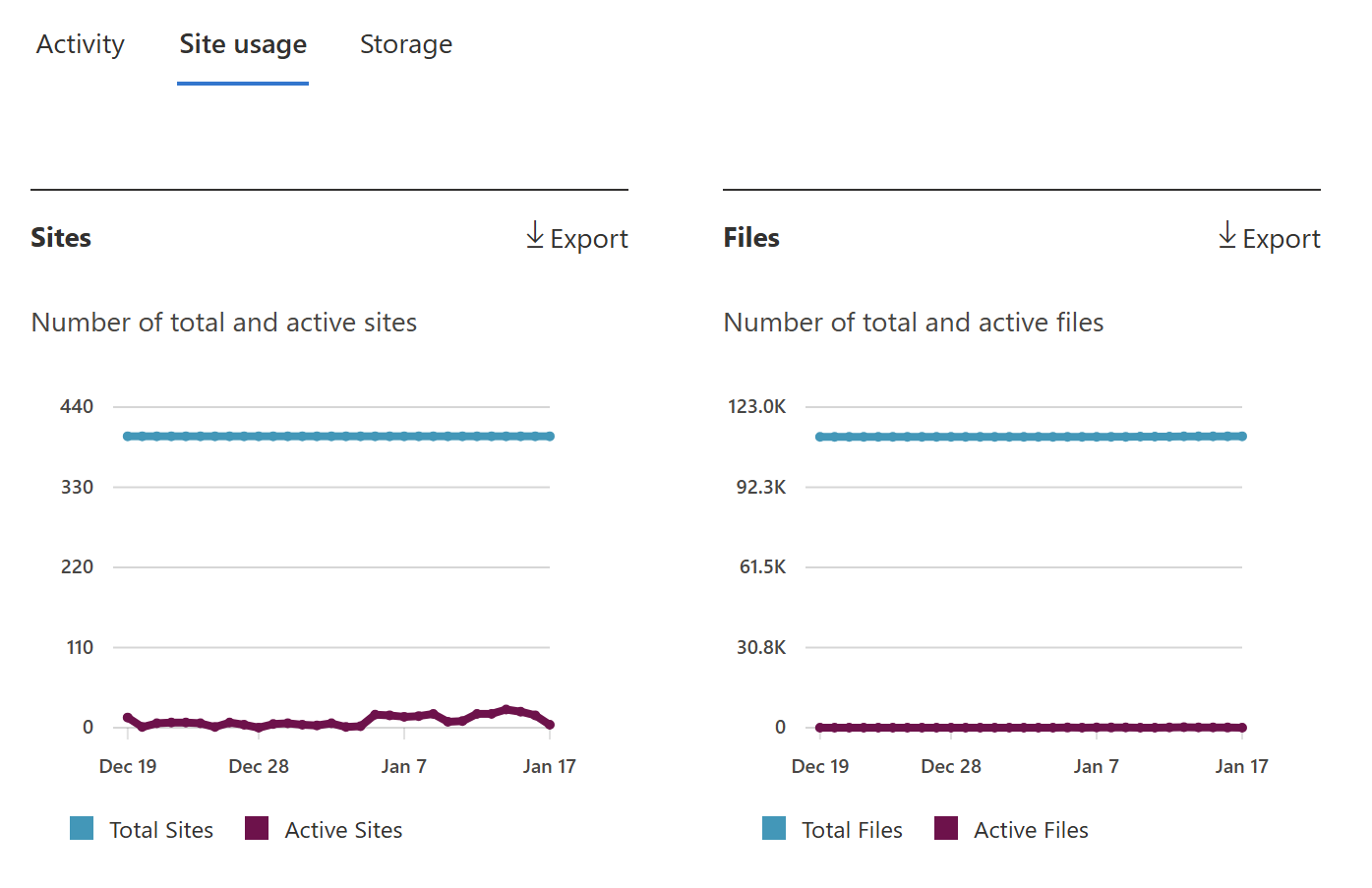
The broader Microsoft 365 Admin Center offers usage analytics for SharePoint (and other services). For example, you can see total files, storage consumed, and active sites across the tenant, often with 7, 30, 90, or 180-day charts. This is great for a quick health check, but again, it’s high-level. If you need specifics (like which sites or users are driving those numbers), you have to manually correlate data or generate and export reports using PowerShell.
Audit Logs (Compliance Center)
For very detailed information on user activities (like who viewed a file or deleted a site), Microsoft provides audit logs. Admins can run searches in the Compliance Center to get logs of nearly every action in SharePoint. The drawback is that these logs are raw and require you to build queries and parse results. Plus, the default retention is short (90 days by default for many tenants), meaning you can’t easily get older data without setting up special retention or exports.
Key limitations of native SharePoint reporting capabilities
- Fragmented Data: Each native report covers a slice of information. There’s no single dashboard that compiles all your SharePoint data (storage, activity, permissions, etc.) in one place. An admin might have to open the usage page on dozens of sites one by one, plus check the admin center and logs, to manually piece together a full picture.
- Basic Metrics Only: The out-of-the-box reports focus on straightforward metrics (counts of files, visits, storage used). They generally do not analyze or interpret the data. For example, they won’t point out “these 50 sites contain a high number of versions” or “here are your top 10 largest documents” - you’d have to figure that out yourself from raw data.
- Short Time Window: Native SharePoint analytics are limited to recent data (mostly 90 or 180 days). If you want to study trends over the past year or compare year-over-year growth, the built-in tools won’t suffice. You would need to export data regularly to build that history manually.
- No Alerts or Guidance: Microsoft’s reports show numbers but don’t tell you what to do. If your storage is nearly full, the admin center won’t suggest which sites to clean up. If there’s a site with overly permissive sharing, there’s no automatic flag in SharePoint itself - it’s on the admin to notice it. Essentially, native tools are passive; they require you to interpret the data and take action externally (via PowerShell, manual changes, etc.).
Given these limitations, relying solely on native features is often like trying to manage SharePoint with blind spots. This is why many organizations turn to third-party solutions to extend SharePoint’s reporting capabilities and make admin insights more actionable.
What Third-Party SharePoint Reporting Tools Offer
Third-party SharePoint reporting tools are designed to address the gaps mentioned above. Vendors like SProbot, Syskit, Orchestry, Rencore, Lightning Tools, and others (e.g., ShareGate, AvePoint) provide specialized software that connects to your SharePoint (and broader Microsoft 365) data and presents it in more useful ways. Here’s how external tools compare to native features on key points:
Let’s break down a few concrete examples of how third-party tools improve on native reporting:
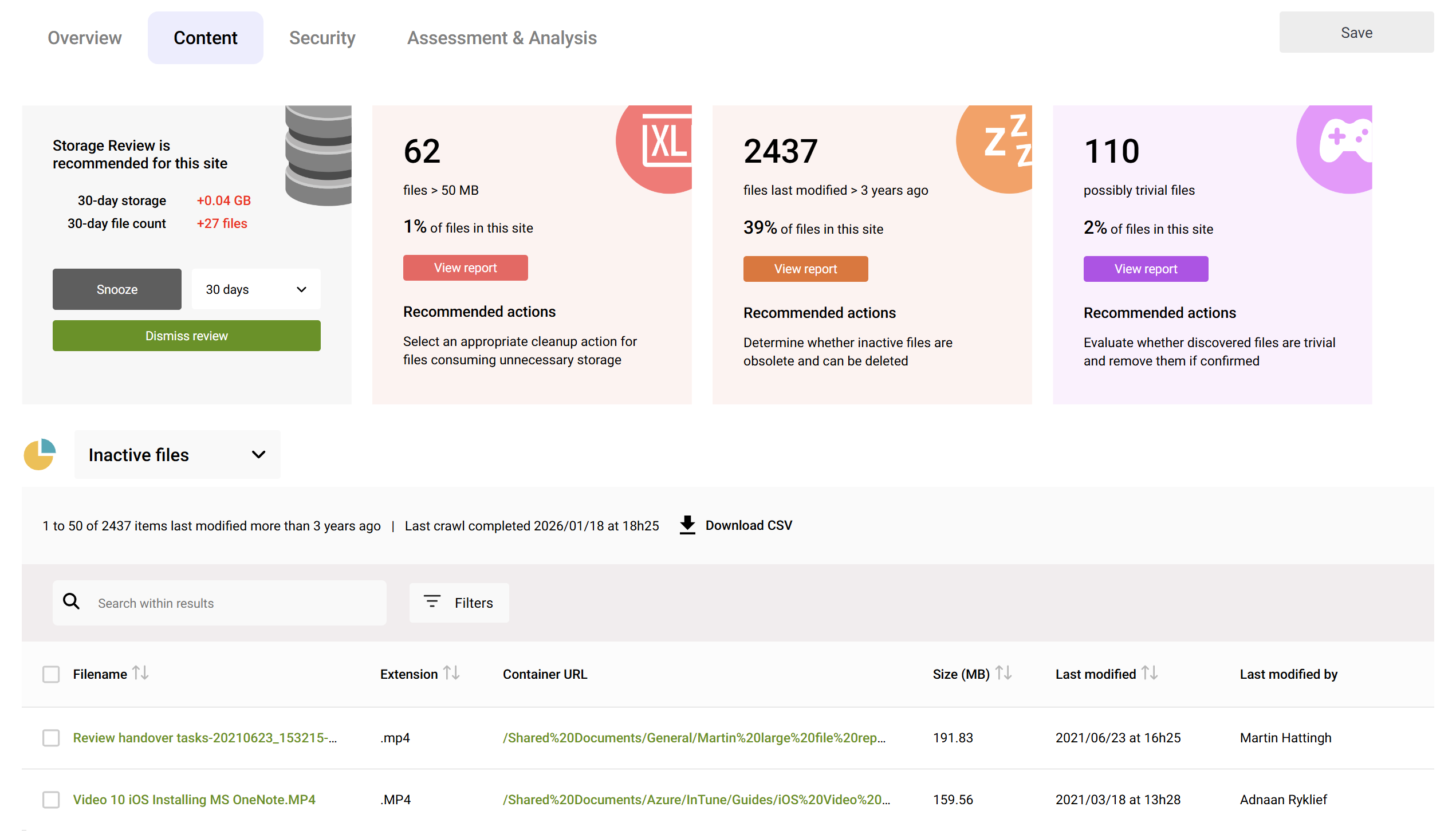
- Holistic View of the Environment: With a third-party dashboard, you can log in and instantly see key stats for your entire tenant. For example, SProbot’s health check shows total sites, how many are inactive, storage used vs available, number of external users, and more - all in one screen. Syskit Point similarly gives a tenant-wide overview spanning SharePoint, Teams, and OneDrive in one place. This beats clicking through hundreds of site usage pages to get the same info.
- Rich Security and Permissions Reporting: External tools excel at answering “Who has access to what?” quickly. Lightning Tools DeliverPoint, for instance, lets you click on a site or user and get an immediate report of permissions, something that would require complex scripts natively. SProbot and Syskit can enumerate all external sharing links or all guest users and their access in a couple of clicks – invaluable for security audits. In contrast, native SharePoint would make you comb through each site’s settings or export the audit log for these answers.
- Identifying Inactive or Orphaned Content: Native reports might show you how many files are in a site or the last activity date per site, but a tool like Orchestry or SProbot goes further: they can list all sites that haven’t been touched in, say, 6 months, or highlight documents that no one has opened in years. This helps admins target cleanup efforts. Orchestry, in particular, focuses on lifecycle management - it can even automate sending notifications to site owners of inactive sites, a step beyond just reporting the data.
- Advanced Storage Analysis: If your SharePoint storage is filling up, a third-party tool will tell you why and where. SProbot, for example, surfaces the largest sites and even identifies how much space is tied up in old versions of files (something native SharePoint doesn’t report). It might show that “Project X site - 100 GB, 40% of which is older versions of 10 files” - insight that would be nearly impossible to get natively without scripting. Armed with that info, you know exactly where to trim versions or archive files to free space.
- Policy Enforcement and Alerts: Some tools like Rencore Governance or AvePoint tie reporting with policy checks. They will not just show data, but actively alert you if something breaks your rules (e.g., if a site has no owner or if confidential data is shared externally). You can set these tools up to continuously monitor your SharePoint against a set of governance policies. Native SharePoint has no equivalent - an admin would have to manually check for these issues periodically.
In short, third-party SharePoint reporting software transforms raw data into actionable intelligence. They save admins time by automating the heavy lifting of data aggregation and analysis. Instead of spending hours pulling data from different admin pages and Excel files, you get pre-built reports and even proactive recommendations.
Comparison Summary
To put it succinctly for a decision-maker evaluating options, these are the reasons a third-party SharePoint report tool is worthwhile:
Ease of Access to Information
Native tools require navigating multiple UIs and possibly exporting data for analysis. Third-party tools offer one-stop dashboards and consolidated reports, which is more efficient and less error-prone.
Insight Depth
Native reports give you numbers; third-party tools give you interpretation. For a busy executive, seeing a clear highlight like “5% of sites contain 80% of the stale data” is far more useful than just knowing total storage used.
Proactivity
Relying on native features, you often find out about issues when it’s almost too late (e.g., storage nearly exhausted, or a security issue after a breach). External solutions tend to be proactive - sending alerts or showing trends that warn you ahead of time. This can prevent problems or at least mitigate them faster.
Breadth of Coverage
While SharePoint native reports cover SharePoint only, many third-party solutions also incorporate data from related services (Teams, OneDrive, Exchange) into their analysis. For example, Syskit and Orchestry both cover multiple Microsoft 365 workloads. This is a bonus because SharePoint doesn’t exist in a vacuum - usage is often interconnected with Teams/Groups.
ROI (Return on Investment)
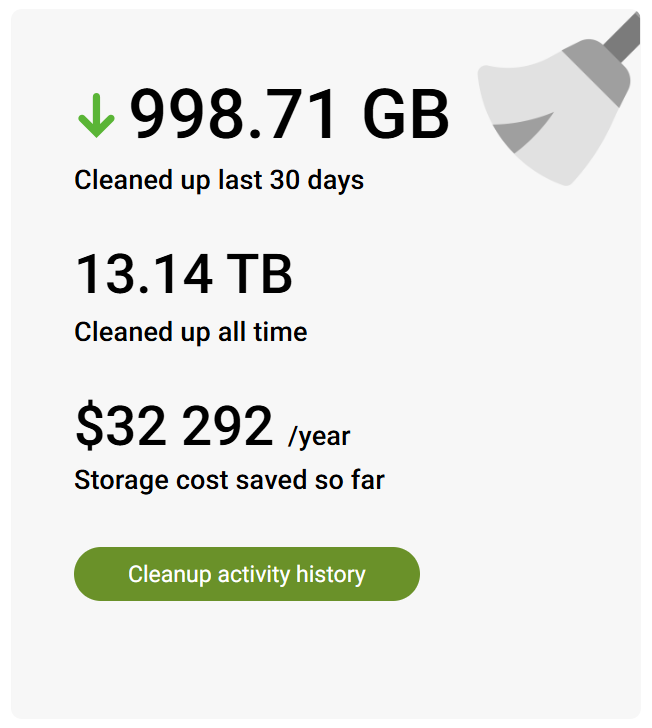
There is a cost to third-party software, but consider the time saved and risks reduced. Admins can spend less time on manual reporting and more on strategic improvements. Also, features like storage optimization or license management in some tools can directly save money (e.g., identifying unused licenses or unnecessary data to delete).
Conclusion
Native SharePoint reporting features give you the basics for monitoring your environment’s health, but they have clear capability gaps when it comes to deep-dive analysis, historical trends, and actionable next steps. Third-party SharePoint reporting tools step in to fill those gaps, offering comprehensive insights across your SharePoint data. Solutions like SProbot, Syskit Point, Orchestry, Rencore Governance, and Lightning Tools DeliverPoint (among others) each enhance different aspects - from unified dashboards and in-depth permission reports to policy enforcement and cleanup automation.
For a SharePoint admin or an IT manager, the combination of native and external tools can provide the best of both worlds: use Microsoft’s built-in reports for quick, day-to-day checks on current activity, and rely on a third-party SharePoint reporting solution for the heavy analytics and governance work that keeps your environment clean, compliant, and efficient. In the end, investing in the right reporting tool means fewer blind spots in your SharePoint oversight and more confidence that you’re on top of everything happening in your digital workplace.