

TLDR: Organising large file volumes in SharePoint requires a deliberate structure, consistent metadata, and proactive monitoring. Large, unplanned sites and libraries become slow, confusing, and costly to maintain. Experts across the SharePoint ecosystem recommend distributing content across sites and libraries, using metadata instead of deep folders, applying governance, and monitoring growth continuously. Tools like SharePoint’s built‑in analytics and SProbot’s storage insights make it easier to identify oversized sites, large files, and version bloat.
Why large file volumes create storage challenges in SharePoint
Common types of storage bloat
- Oversized sites with years of unmanaged content
- Large unused files
- Excessive version histories
- Orphaned or inactive sites
- Files that are unsuitable for SharePoint (archives, media dumps, VM images)
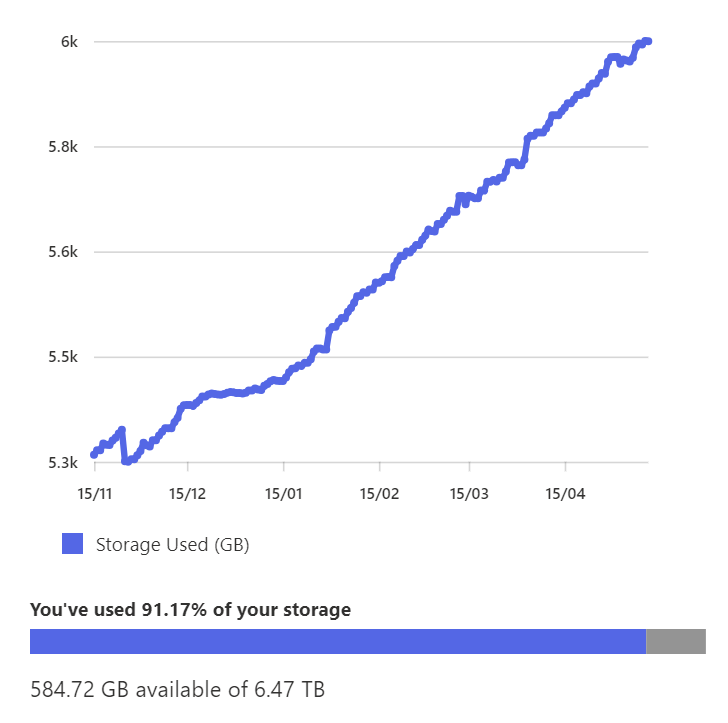
Why these issues matter
- Increased tenant storage consumption
- Harder content discovery
- Compliance risks
- Potential performance issues in libraries with very large numbers of items
- Increased cost and complexity during migrations
Common misconceptions about SharePoint cleanup
🤔 “Users will clean up their own content”
In practice, user‑driven cleanups do not address tenant‑wide storage issues such as stale sites and version bloat; admins must provide structure and oversight.
🤖 “SharePoint will manage storage automatically”
SharePoint provides retention features, but it will not automatically reduce storage or consolidate your architecture; proactive design and monitoring are required.
❌ “Deleting a few files fixes a large site”
Targeted cleanup requires understanding which sites, files, and versions drive usage and addressing root causes like folder depth, lack of indexes, and unmanaged versions.
Best practices for organising large volumes of files in SharePoint
Plan an information architecture before uploading at scale
Modern SharePoint works best when you distribute content across sites and libraries aligned to business areas or projects, not when you pour everything into a single mega‑library. Most MVPs advise thinking in terms of sites instead of giant folder trees to avoid scale and sync issues, and aligning each library to a specific purpose within a site.
Use multiple document libraries to segment content
Creating separate libraries prevents oversized views, improves navigation, simplifies permissions, and avoids hitting library limits. Also, separating content types across libraries improves filtering and management.
Use metadata instead of deep folder structures
Most experts agree that limiting folder depth is a good idea, so don't go deeper than 2 or 3 levels. The SProbot team doesn't think that folders are completely obsolete though, they simply work in many scenarios as long as they are used sensibly.
Leverage custom views, filters, and indexed columns
Several issues arise when views load more than 5,000 items without indexed columns. This well-known list view threshold has been an issue (partly by design) since the dawn of SharePoint lists, and it's recommended that content owners and admins be educated about the effects and remediation steps.
Avoid excessive unique permissions
Too many unique permissions make libraries more complex to manage, and slow down permission evaluation. Ideally, permissions should be managed at site level where they benefit from the full visibility of group management (for the majority of modern group-connected sites), and at most at library level. Folder and item-level permissions should be avoided as far as possible.
🔗 The ultimate guide to SharePoint team site permissions
Apply consistent naming conventions
Clear, human-friendly naming for documents, folders, libraries, and sites reduces confusion and duplication.
Use version history wisely and control bloat
Versioning is essential, but excessive versions inflate storage. In past, versioning limits needed to be manually set on libraries (to avoid the default 500-version cap), but algorithm-driven automatic versioning limits now addresses this with much less input required.
Create and apply a practically implementable governance plan
Sensible governance rules can form the foundation of a manageable vs chaotic SharePoint environment. In a nutshell, governance sets rules for:
- Ownership
- Permission setup and review
- Creation of new container
- Retention and disposal timelines
Monitor growth and performance continuously
Don't assume that users will take care of their content. Proactively check the health of your tenant on a monthly or quarterly basis to ensure that there are no serious gremlins or trends which could be problematic in future.
How SProbot helps SharePoint admins manage large file volumes
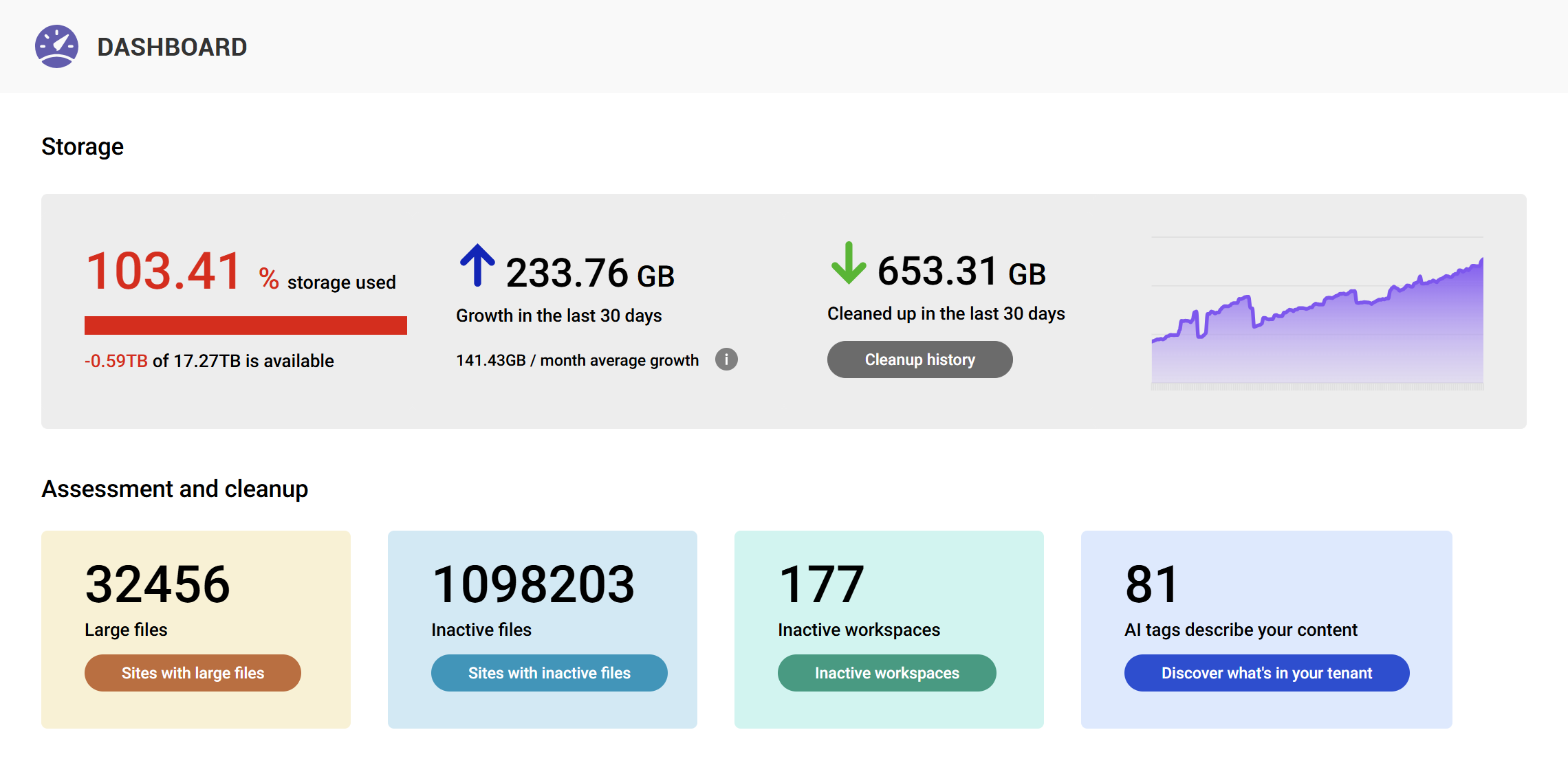
Automated reports that surface storage risks
SProbot automatically crawls tenants at site and item level to highlight and enable actioning of potential problems in the areas of:
- Oversized files
- Stale sites
- Sites and files with excessive version spread
- Inactive files
- Growth trends
Identifying opportunities for cleanup
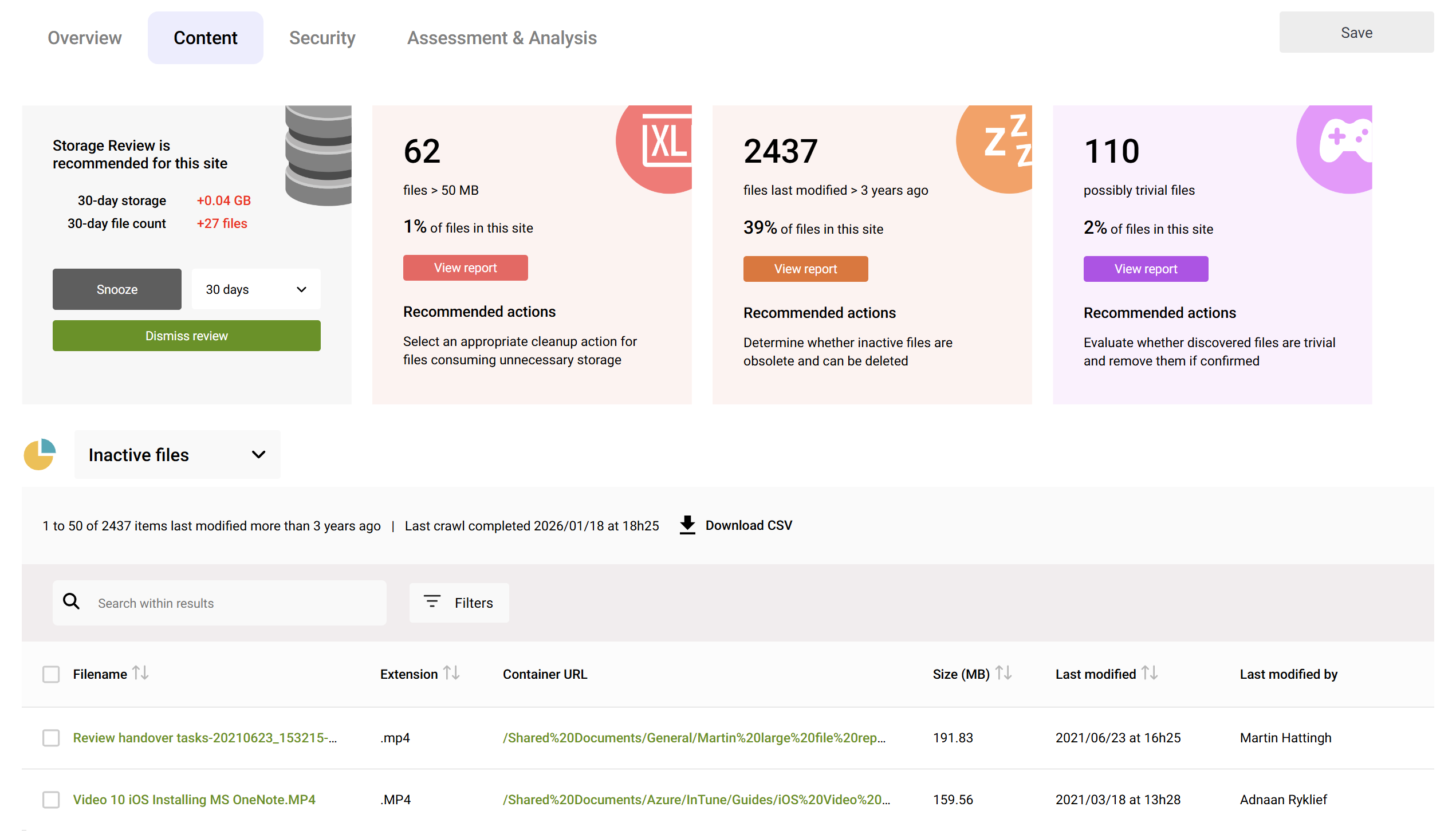
Helps admins spot inactive, outdated, or unnecessary content for potential cleanup.
Version cleanup insights
Identifies sites affected by excessive version history so admins can target trimming policies.

Improved decision-making
Consolidated dashboards and reviews without any need to run scripts.
FAQ
What causes the most SharePoint storage bloat?
Inactive sites, oversized files, and excessive versions.
Does SharePoint automatically clean up old content?
No. SharePoint does not automatically clean up storage; admins must evaluate and act.
Can SProbot delete files?
Yes, SProbot queues and actions deletes requested by an admin, and then stores a full activity history of all actions for future reference.
Can versioning really consume TBs?
Yes. In highly collaborative environments, version history in most instances far exceeds the size of the active file sizes. On many 20TB tenants, versions routinely consume >5TB.