Answer in brief: If you’re a SharePoint admin or IT manager, storage planning is one of those tasks that rarely feels urgent - until it’s very urgent. Tenants hit limits faster than expected, Teams files quietly pile up behind the scenes, and version history can balloon a single presentation into hundreds of gigabytes. This article gives you a practical way to take control: SharePoint storage gotchas, typical growth drivers, and a calculator you can use to project your next 12 months of costs with the option to clean up instead of just purchasing extra storage.
We’ll also explain exactly how the calculator works so you can defend the assumptions in a budget meeting or a governance review.
How SharePoint storage works
The storage model sometimes catches admins out. Here are few things to know which might affect how you approach optimization.
Storage is pooled across the tenant
SharePoint storage is pooled across your organization: you get 1 TB per tenant plus 10 GB for each eligible license. This shared pool is used by all SharePoint sites, including those powering Microsoft Teams. There’s also a 25 TB per-site maximum, but this is very seldom an issue if you're following Microsoft's best practice guidelines.
Version history counts
Every file version consumes storage. With the new Version History Limits controls, you can set organization defaults (Automatic/Intelligent, or manual caps/expiration) to constrain growth, but historic versions already accumulated still count until they're trimmed.
Recycle Bin isn’t “free space.”
Deleted items remain recoverable for 93 days (across first- and second-stage Recycle Bins), and they still count toward your storage until permanently removed.
What actually drives your storage growth
- Teams adoption - Channel files live in the team’s SharePoint site.
- Large files co-authored by many people - Versioning stores full versions, so the versioning impact of edits on media-rich files like PowerPoint decks which are already storage-heavy is exacerbated.
- Large files not suitable for SharePoint - Large files like PSTs, ISO images, ZIP backups and databases which don't benefit from versioning, metadata and automation offered by SharePoint should be considered for relocation on alternative platforms.
- Inactive-but-not-archived sites - Old content sits idle but still consumes the primary storage pool.
- Inactive files in active sites - Most tenants contain a large number of inactive files, but these often need to be retained for compliance purpose.
Calculate your consumption and cost
👉 The calculator will help you answer three questions:
- How much storage will we need over the next 12 months?
- What will it cost if we do nothing?
- How do optimization steps (version trimming, archiving) change the curve?
Input your core tenant metrics
Step 1 - Tenant quota and current consumption
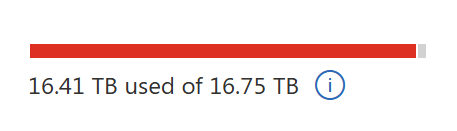
Start with your base quota. Get this from the SharePoint admin center (16.75 in the example below, round this up to 17TB in the calculator).
Step 2 - Average monthly growth (GB)
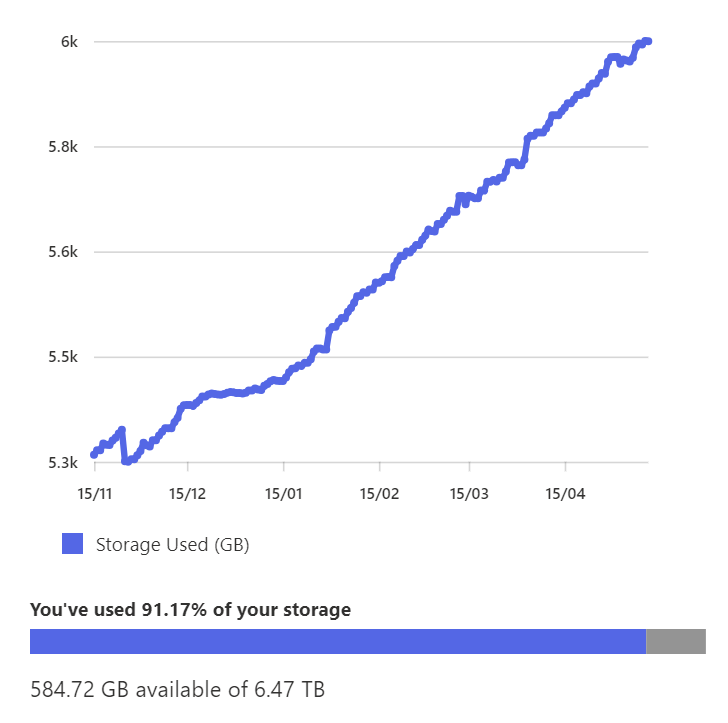
SProbot displays this in the Health Check, but you can calculate this figure by referencing the Storage Report in the M365 admin center. Look for the Usage trend graph, hover over it, then record the value at the start and the end of the chart.
[End value] - [Start value] / 6 = Monthly average growth
If your values are in TB, remember to convert them to GB by multiplying by 1024.
Optional savings component
If you select to incorporate savings from cleanup with SProbot, you can see how average savings seen across tenants using SProbot might reduce storage on your tenant. This includes:
- Archiving inactive sites
- Removing large files which shouldn't be in SharePoint
- Version trimming
- Deletion or relocation of inactive files
Before you buy more: more practical levers you can pull
- Set org-wide Version History Limits to prevent further version sprawl - Choose Automatic/Intelligent for progressive trimming or configure caps + expiration. Then align existing libraries using PowerShell or SProbot.
- Purge Recycle Bins regularly - Build this into your ops cadence; it’s part of your quota until purged.
How the calculator does its math
1) Tenant capacity and overage threshold
We use the quota you have retrieved from the SharePoint Admin Center as the baseline. This quota might be the original quota assigned by licensing (1TB pooled + 10GB per licensed user), or the current quota with storage you have already purchased, so we do not account for storage already purchased in the calculation. The forecast tracks your current usage plus growth. When projected usage exceeds the existing quota, the calculator estimates how many GB you’d need to purchase each month.
2) Growth modeling
We apply your average monthly growth (GB) linearly, with the default value of 250GB based on the default 15TB tenant size when the calculator loads. If you have real admin center data, start with the usage trend slope from the SharePoint storage report for the last 180 days and update the field to your tenant's actual growth.
3) Optimization levers
- Archiving inactive sites - Archived sites have a 75% cost saving over sites in live storage, so the calculator reflects an average 5% (conservative) total saving on most tenants.
- Deletion of unwanted large files - Most tenants contain more files which shouldn't actually be in SharePoint than admins realise. SProbot admins regularly discover extremely large PSTs, ISOs, ACCDBs and MDBs within team sites because users thought it a "safe" location to store them.
- Version trimming - We treat this as a one‑time reclaim (if you plan a cleanup sprint) and exclude ongoing reduction to monthly growth (because future versions are capped/expired if you implement automatic versions and this is not attributable to SProbot).
- Deletion or relocation of inactive files - Most tenants contain a very large number of inactive files spread across both active and inactive sites. Regulatory requirements usually prohibit simple deletion of these files, but the calculator does account for percentage which is truly removable due to not meeting any compliance requirements.
4) Purchasing logic
If projected usage stays under your included quota, additional storage cost remains zero. If you exceed, the calculator applies the per‑GB add‑on rate for that month’s required extra capacity. It's recommended that you validate actual pricing in your tenant before committing budgets as Microsoft may in some rare instances apply special pricing.