Answer in brief
SharePoint storage pricing is not just a question of how much additional storage costs. Before buying more capacity, most organisations should compare the cost of purchasing Microsoft storage add-ons with the storage that could be reclaimed through cleanup or archiving. In many cases, version history, inactive files and inactive sites consume significant storage that can be recovered without increasing monthly costs.
Before deciding on a storage strategy:
- Calculate how close your tenant is to its storage limit.
- Estimate how much space could be reclaimed through cleanup.
- Compare the cost of additional storage with the effort and impact of cleanup.
- Consider archiving inactive content before purchasing more storage.
- Use a storage calculator to model future growth and storage exposure.
- Review version-heavy files and inactive content that may be consuming unnecessary capacity.
Many organisations discover that version history, inactive files and inactive sites consume a significant portion of their available storage. Before buying more capacity, it is often worth understanding how much storage can be recovered first.
For the full budgeting + forecasting breakdown, see: The real cost of SharePoint storage: capacity and pricing explained
What’s included in your Microsoft 365 plan
Most Microsoft 365 tenants include pooled SharePoint storage calculated like this:
1 TB (base) + 10 GB per licensed user
This pooled storage is shared across SharePoint sites in the tenant (including Teams‑connected sites).
An important nuance to consider:
A single SharePoint site can grow very large (up to 25 TB per site), but that doesn’t increase your tenant’s pooled capacity - you still need enough pooled storage available to accommodate a site of this size.
What happens when you need more storage
When your tenant exceeds its included pooled storage, the standard path is to purchase Microsoft’s add-on storage offering.
Office 365 Extra File Storage (the add-on)
Microsoft provides extra SharePoint storage via the Office 365 Extra File Storage add-on, purchased in 1 GB increments in the Microsoft 365 admin center.
Two things to know before you plan a purchase:
- If your subscription is via CSP or Volume Licensing, you may not be able to buy it directly from Microsoft in the admin center (you’ll need your partner).
- Your exact purchase flow can differ depending on billing setup (Microsoft Customer Agreement vs older subscription agreements).
How much do SharePoint storage add-ons cost?
In most tenants, additional SharePoint storage is commonly seen around:
- $0.20-$0.24 per GB per month (if purchased annually)
- Which is ~$204 per TB per month
However, the price you see can differ slightly by:
- region/currency conversions,
- local taxes, and
- purchase channel (direct vs partner/CSP).
That’s why the most reliable approach is: verify the price shown at checkout inside your tenant before you finalize a budget.
Pricing questions admins ask
When administrators research SharePoint storage pricing, they are often trying to answer a broader question than simply "how much does storage cost?". They need to balance storage growth, governance requirements and budget constraints while deciding whether additional capacity is actually necessary.
Common questions include:
- Is buying more storage cheaper than cleaning up?
- How much storage can typically be reclaimed?
- Should inactive sites be archived before buying capacity?
- How much storage is consumed by version history?
- How do I estimate future storage requirements?
- When does purchasing additional storage become unavoidable?
For many organisations, the most useful approach is to compare storage costs against cleanup opportunities before making a purchasing decision.
How to buy the add-on (quick steps)
Microsoft’s full walkthrough is here: Add more SharePoint storage to your subscription.
Step 1 - Go to the Microsoft 365 admin center
Step 2 - Navigate to Billing > Purchase services

Step 3 - Find "Office 365 Extra File Storage" (This may be named differently in your tenant)
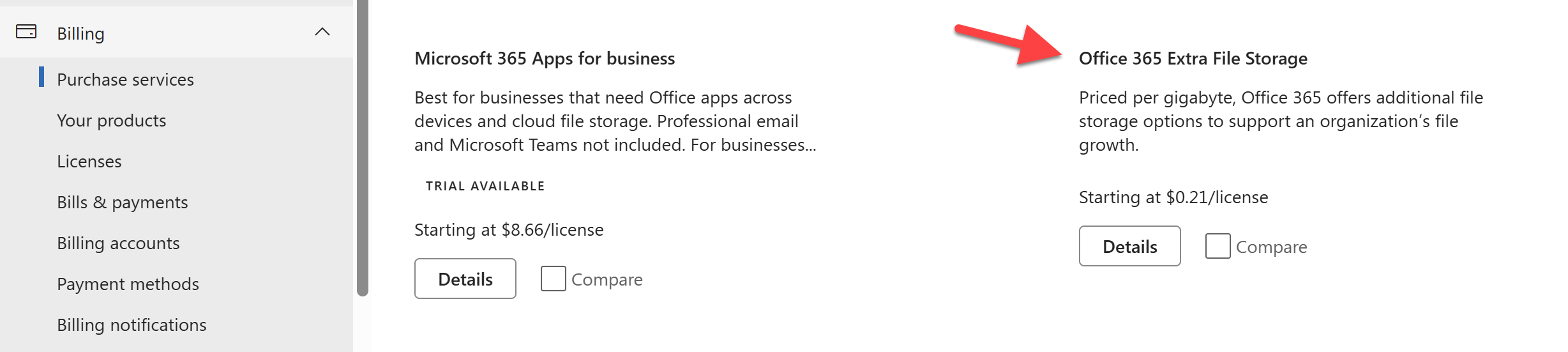
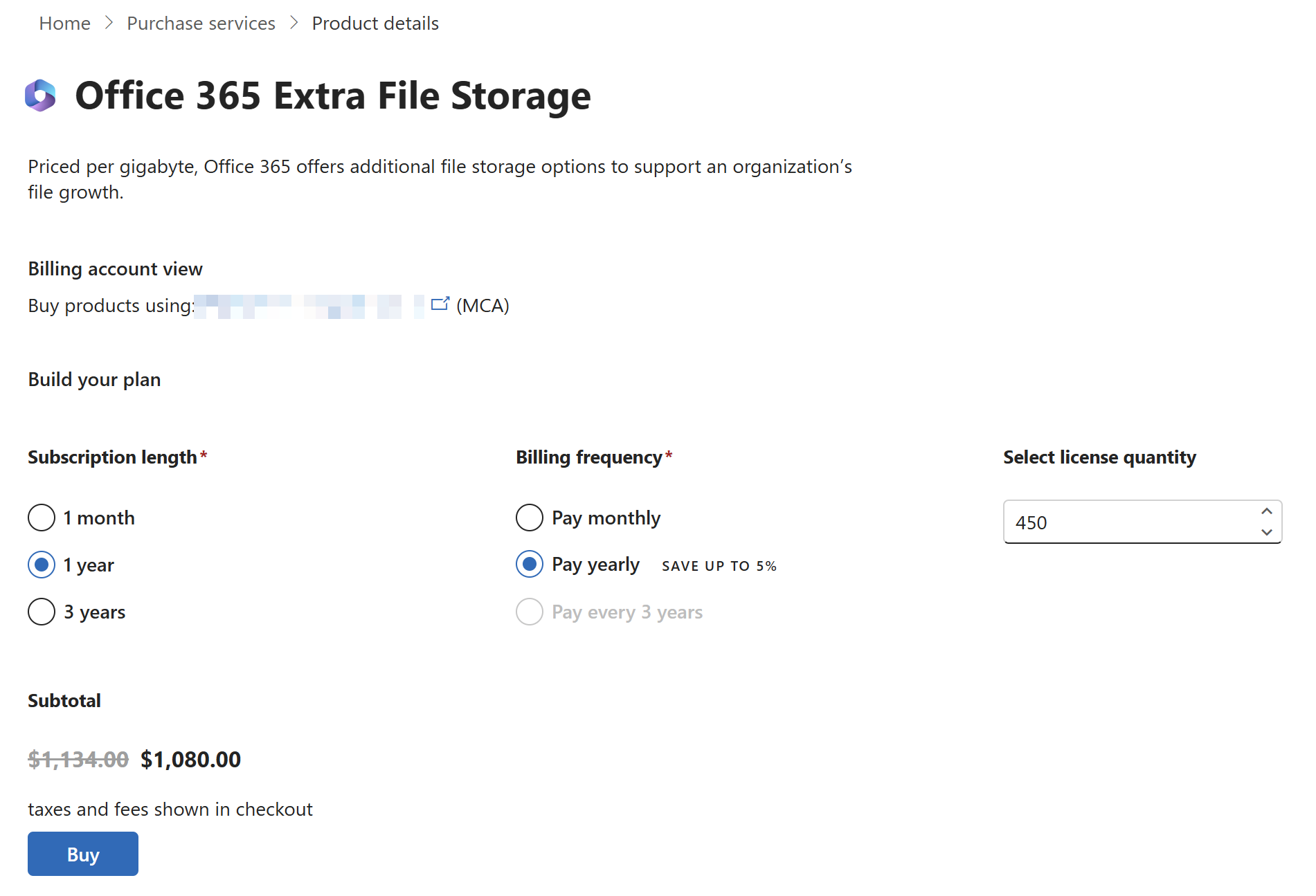
Step 4 - Review pricing details and process your transaction.
You'll notice a 5% discount for purchasing with an annual billing frequency instead of monthly.
When paying Microsoft makes sense (and when it doesn’t)
Buying extra storage can be perfectly reasonable when:
- Your tenant is growing steadily and storage is truly needed
- You’ve already implemented cleanup basics and still need more headroom
But many tenants can delay spending by reclaiming space first. Common culprits include:
- Version history (hundreds of versions per file),
- Inactive sites that no one uses
- Large files that are outdated
- Content lingering in recycle bins / retention scenarios
In practice, it’s common to reclaim a meaningful portion of storage simply by doing structured housekeeping - before you commit to ongoing monthly spend.
A cheaper path: optimize before you buy
Before adding paid storage, consider whether you can clean up unnecessary ROT (redundant, obsolete, trivial) content first. On most tenants, 15-30% of storage can be reclaimed.
- Archive inactive sites (or delete where safe)
- Trim excessive version history
- Reduce version history limits globally to prevent unnecessary growth
- Remove large unused files
- Clean up inactive files from within active sites
- Empty recycle bins as part of a routine
If you want to make this repeatable, tools like SProbot help by reporting where storage is going, and turning those insights into cleanup actions.
FAQs
What is the Microsoft add-on called?
Typically Office 365 Extra File Storage, purchased in the Microsoft 365 admin center in 1 GB increments.
How much SharePoint storage is included with Microsoft 365?
Most Microsoft 365 tenants receive a pooled SharePoint storage allocation that combines a base allocation with additional capacity associated with licensed users.
Is buying more SharePoint storage always the best option?
No. Many organisations can reduce storage consumption through version management, inactive-file cleanup or site archiving before purchasing additional capacity.
Can a SharePoint site really grow to 25 TB?
Yes - up to 25 TB per site, but your tenant still needs enough pooled storage available to support that.
What contributes most to SharePoint storage growth?
Common contributors include version history, inactive sites, inactive files, large media content and long-term content accumulation.
How do I estimate future SharePoint storage requirements?
Use storage forecasting based on current consumption, growth trends and expected organisational change. A dedicated storage calculator can help estimate future capacity requirements and budget exposure.
Should I archive inactive sites or delete them?
The decision depends on business and compliance requirements. Content that must be retained is usually a stronger candidate for archiving, while unused content with no ongoing value may be suitable for deletion after appropriate review.
Why does my add-on storage price differ from $0.20/GB?
Pricing can vary by region, currency conversion, taxes, and purchase channel. The best source is the price shown at checkout in your tenant