
How to use SProbot to free up storage
Now that your SharePoint data has been crawled by SProbot and you have a wealth of reports, it might feel daunting to decide where to begin your cleanup.
SProbot provides many angles to view your content – from high-level insights in the Health Check, to granular reports of large or inactive files. This guide will help you focus on the right sequence of actions to free up storage quickly and efficiently.
We’ll start with the fastest, highest-impact wins and then progress to more detailed, time-intensive cleanup steps. Along the way, you’ll learn which SProbot tools to use for each step and how to take action.
Tip: Reports > Health check is always an easy way to navigate between the various reports because each metric clicks through to a review or cleanup tool.
Phase 1 – Fast, high-impact actions
In Phase 1, focus on broad strokes: identify entire sites or very large items that can be removed or archived. These actions require relatively little analysis per item, yet can liberate significant storage quickly.
Cleanup step 1 - Archive inactive sites
One of the quickest ways to free up a lot of space is to target whole sites that are no longer in use. The Inactive workspaces review pinpoints sites or Teams that haven’t seen activity in along time and might be candidates for archiving or deletion.
Unused sites can be problematic beyond just storage – for example, people and AI tools (like Copilot) might surface outdated content from those sites, leading to confusion or flawed decisions. By archiving or removing truly inactive sites, you both free up storage and prevent old content from cluttering search results and AI answers.
How to identify and archive inactive sites
1. Open the Inactive workspaces review
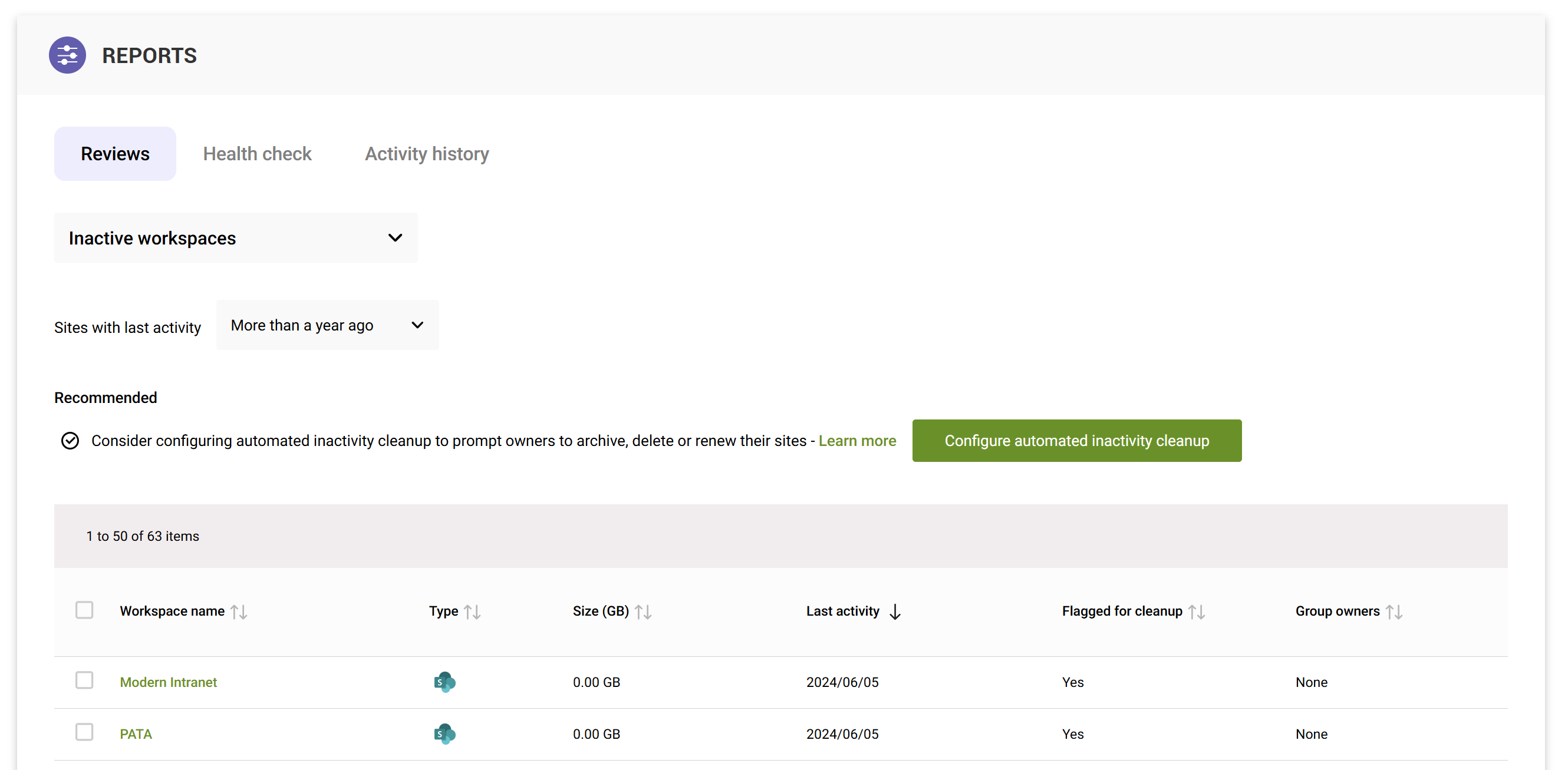
Navigate to Reports > Reviews and select Inactive workspaces. This report will list all sites and Teams that haven’t had activity within the timeframe you choose. You can adjust this (e.g. No activity in last 6 months, 1 year, etc.) using the Sites with last activity dropdown.
2. Sort and examine the list
The review will show each site's last activity date. Sort by last activity (ascending) to see the stalest sites first. Identify sites that haven’t been touched in, say, over a year or two - these are prime targets for cleanup.
Notes on Last activity:
- In SProbot, Last activity uses the LastItemUserModifiedDate property for a site, which is based on updates, not views.
- In the case of Teams workspaces, it's important to be aware that activity in both SProbot and the SharePoint Admin Center is related to the SharePoint site of a team only, and does not include any activities in Teams (like channel conversations), so it's recommended to confirm archives or deletions with owners to avoid any doubt.
3. Confirm relevance with owners
For each candidate site, reach out to the listed owner(s) to double-check that the site isn’t needed anymore. Often, these sites are truly abandoned, but it’s good practice to get confirmation. In many cases owners will agree the site is no longer needed (or you may discover the site’s content has moved elsewhere).
4. Archive or delete the site
Select the inactive site(s) and choose Archive (or Delete) in the action bar at the top.

Archiving is generally safer - it preserves the content in a frozen state (read-only) and can be reversed if needed. Deletion should be reserved for sites you are certain can be removed permanently. SProbot will handle the process and mark the site accordingly.
Tip: The Freeze option (not available for teams) locks a site to read-only, if you want to prevent any further updates while you evaluate its future.
* For the Archive button to be available, you need to have Microsoft 365 Archive configured on your tenant.
** Archiving is currently only available for SharePoint sites without teams. If you have selected multiple items and don't see the Archive button, check that these do not include teams.
Remember that archiving via SProbot or Microsoft 365 Archive is reversible. If an archived site turns out to be needed, it can be restored relatively easily. This makes it a low-risk action - even if taken in error, it can be undone. And if an archive truly was mistaken, users will typically raise a support ticket fairly quickly. In contrast, deleting a site sends it to the SharePoint admin recycle bin for 93 days. Within that window it can be restored, but it's more involved than toggling the archive state.
Cleanup step 2 - Evaluate very large files
After dealing with whole sites, the next biggest wins come from pinpointing exceptionally large files and deciding if they belong in SharePoint or should be removed or moved to alternate systems or storage.
SProbot’s Sites with large files review helps you find where your largest content lives.
Often, you’ll discover outliers like huge video files, database backups, PSTs, or other heavy content that might be better stored elsewhere (or not at all). Also, large files with too many versions can exponentially inflate storage (more on version cleanup in the next step). For example, a single 125 MB file with 350 versions can consume ~44 GB of storage due to version history! Identifying these outliers is low-hanging fruit for cleanup.
How to find and manage large files
1. Open the Sites with large files review
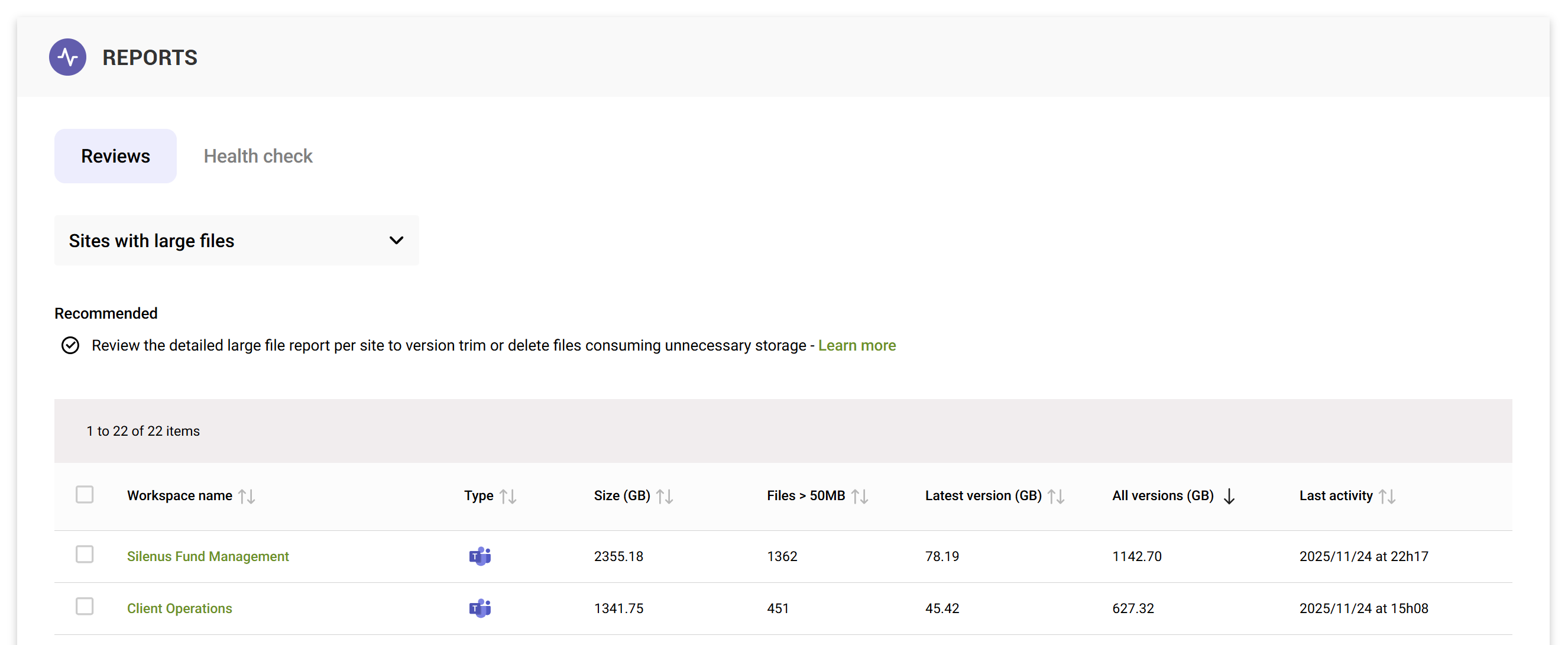
Go to Reports > Reviews and select Sites with large files. SProbot will list sites that contain large files, along with metrics like the total size of all versions in the site (shown in the All versions (GB) column) and the current size of the latest versions.
2. Sort and pick top candidates
By default, this review is sorted by the All versions (GB) column, which highlights sites where versioned content is consuming a lot of space. These could be sites with a moderate number of files but very large version histories, depending on number of files (the Files > 50MB column).
3. Drill into a specific site's details
For each site of interest, preview it and choose Manage this workspace (this opens the site detail view).
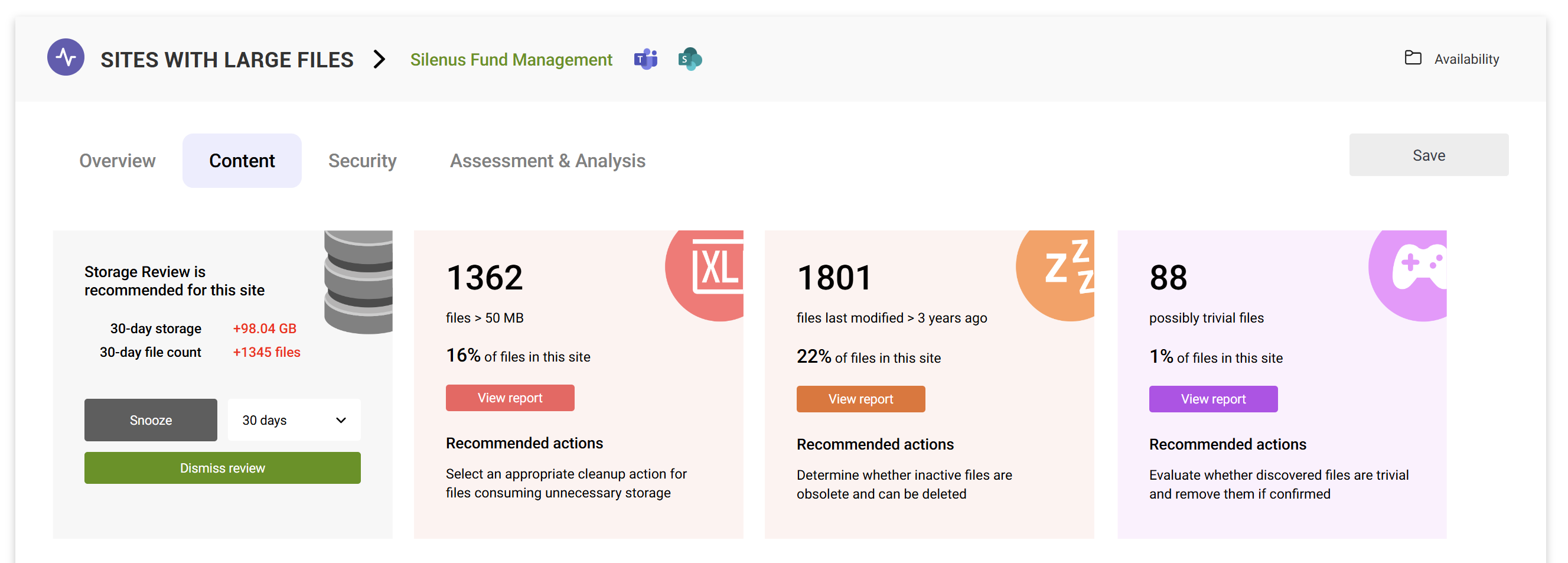
Navigate to the Content tab. Here you’ll see reports for Large Files, Inactive Files, and Trivial Files (if you have an AI subscription).
View the Large Files report.
4. Review the large file report
The detailed report lists individual files, their size, and version information. Sort this list by Latest version (MB) to see the biggest single files, or by All versions (MB) to see which files have the heaviest version history.
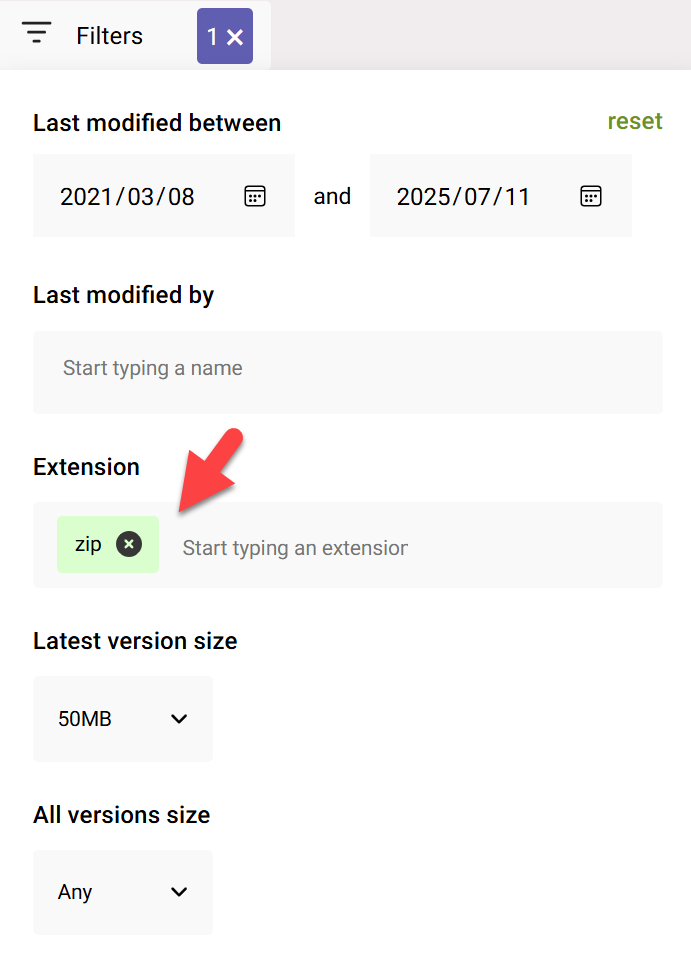
Look at the file names and extensions – are they videos, zip archives, database files, email PST archives, etc? These types of files might not need to live in SharePoint at all.
You can use the Filter button and Extension field if you're hunting for specific file types.
5. Decide on the action for each large file
For each candidate file, decide whether to delete it, move it, or version-trim it.
- If the file is not needed: Use Cleanup > Delete to send it to the site’s recycle bin immediately.
- If the file is needed but doesn't need to be in SharePoint: If it does not benefit from versioning, co-authoring, metadata or other rich SharePoint functionality, consider moving it to more appropriate, likely cheaper storage. For instance, huge video files could reside in a streaming service or a media container within Azure blob storage; large archives might also belong in blob storage.
- If the file is needed in SharePoint: If it must stay, perhaps due to active collaboration, then keep it – but check if it has an excessive version count or consumption (see next section on version trimming).
By focusing on these giant files first, you often eliminate tens or hundreds of gigabytes of data. It’s not uncommon to find, for example, an outdated 10 GB database backup or an email PST that someone uploaded to a SharePoint library “just to have a copy” – and no one realized it was chewing up storage. Removing these yields instant savings and often has no negative impact on users (sometimes the users themselves forgot the file was even there!).
Cleanup step 3 - Trim versions in sites with high version spread
After removing whole sites and standalone large files, the next major opportunity is to address file version bloat. SharePoint’s versioning is very useful, but it also means that a file’s storage footprint can explode if hundreds of versions accumulate.
SProbot customers have seen seemingly harmless 300MB files sprawl to ~1500 versions with a total size of >600GB. This means older versions are consuming ~99%of the space!
Trimming version history can reclaim storage immediately – unlike deleting entire files or sites, deleting file versions bypasses the recycle bin; the space is freed at once without waiting for a retention period.
SProbot helps identify and tackle version bloat at three levels
Firstly, in the Storage section of the Health check, you can see how much storage is consumed across your entire tenant by latest versions compared to all other versions. This is your starting point to understanding how much storage you might be able to free up.

Secondly, the Sites with large files review (from the previous step) goes down to the site level to highlight in which sites these version gaps are present.
Thirdly, within an individual site’s Large Files report, you can compare Latest version vs All versions for each file and trim versions individually or in bulk.
How to trim versions
In the large file report within a site, you can see the spread between the Latest and All versions values in the toolbar, and also for each individual file.
Tip: Pick the site with the largest difference between Latest versions and All versions size for the quickest high-impact cleanup.
In the example below, Excalibur requirements discussion.pptx has 39 versions with a total version footprint of over 59GB, but its latest version is only 353MB. This means it was previously a very large file which has been trimmed down with recent versions.
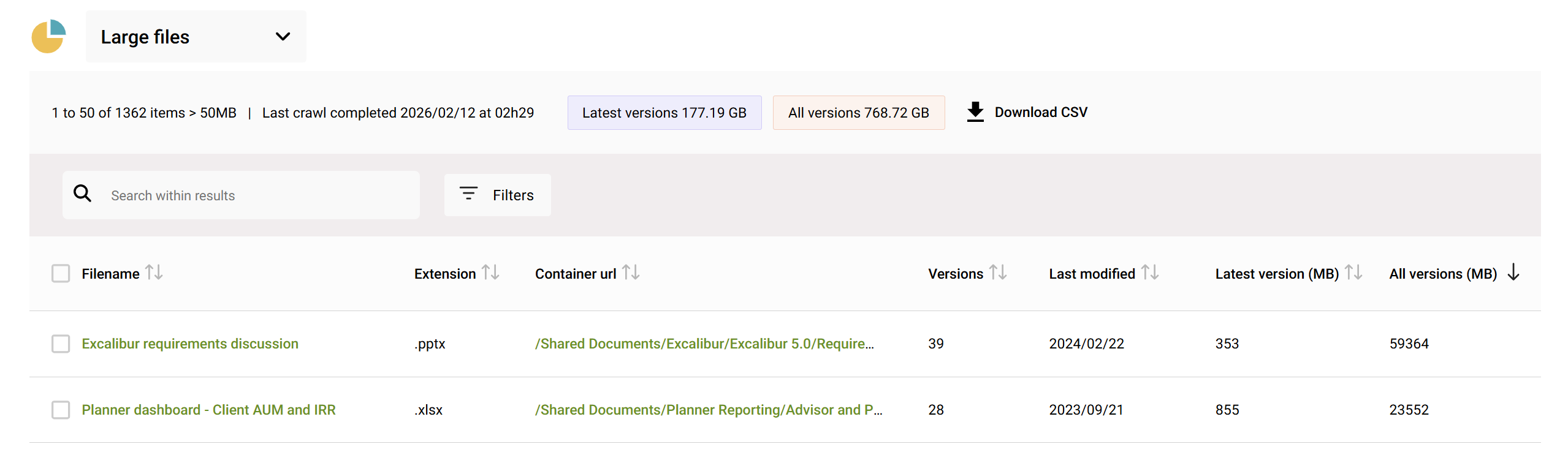
To trim versions for this file, select it and use the Cleanup dropdown to select a trimming option.
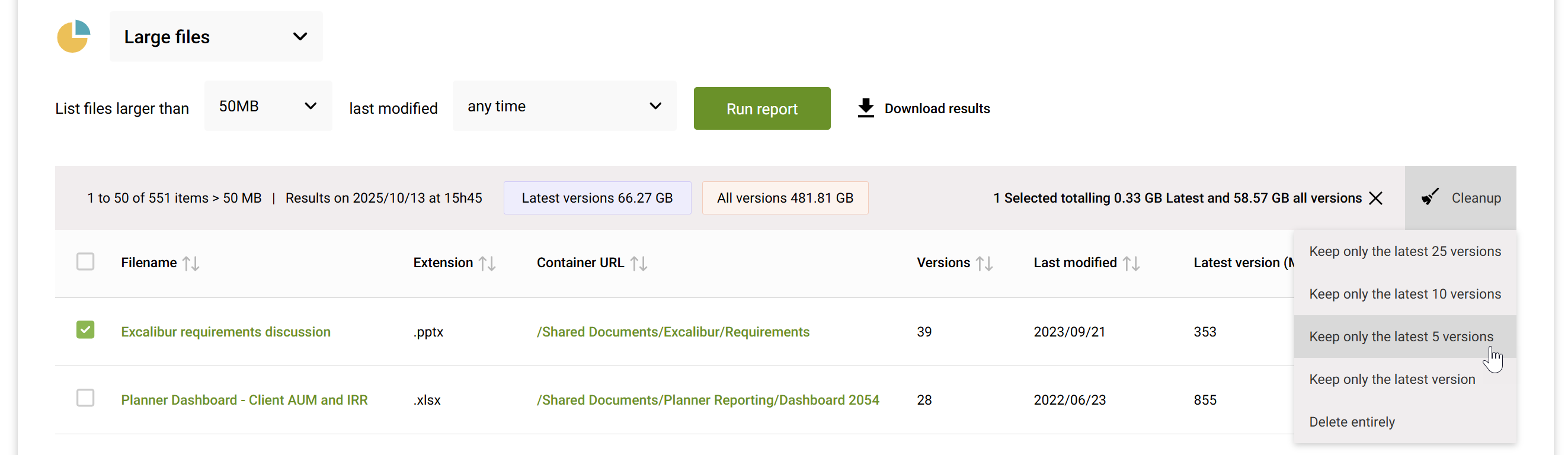
Important: version deletions are immediate and permanent, unlike deletion of items in their entirety, which result in the item being moved to the recycle bin. You'll be prompted to confirm the action whether you're trimming one or multiple versions.
Once you've triggered a cleanup action, it's added to the queue and processed, and can be viewed in Activity history.
How many versions should I keep?
The ideal number of versions to retain depends entirely on each specific department or team's requirements. Some teams might only ever reference the latest versions of files they produce after, while others actively collaborate, view and restore previous versions as part of their workflow.
We recommend enabling automatic version limits for newly created sites (which is based on the design principle that restore value of a version degrades as the version ages), and to then use the degradation principle when trimming versions on existing sites. This means that it's safer to trim old files to only the latest version, but to keep say 25 versions when trimming newer files. In each instance, you should discuss the trim threshold with the site owner(s) to ensure that trimming isn't too aggressive.
Phase 2 - Medium impact, gradual actions
Phase 2 focuses on inactive content within active sites. These are the “dusty corners” of SharePoint: files that haven’t been touched in years residing in sites that are still in use.
Individually, an old file here or there isn’t a big deal, but across a tenant they contribute to a lot of wasted space (and search results clutter). After the quick wins of Phase 1, Phase 2 involves a bit more analysis and coordination, as you’ll be dealing with many files and engaging site owners to decide what can go.
Identify and delete inactive files
A SharePoint site can be active (people visit or edit something occasionally) but still contain hundreds or thousands of files that no one has opened in years.
The Sites with many inactive files review help reveal sites that have a large proportion of files not modified within the last 3, 5 or 7 years, depending on the threshold setting in your tenant (Settings > Thresholds, the default is 5 years).
The default view shows sites where more than 50% of files are inactive, but you can also select 25% or 75% to increase or decrease the number of results.
In the example below, 98% of files in the Sales site haven't been modified in at least 5 years, even though the site itself has a very recent Last Activity timestamp of 2026/02/02. This means that there are only 36 files which are active.
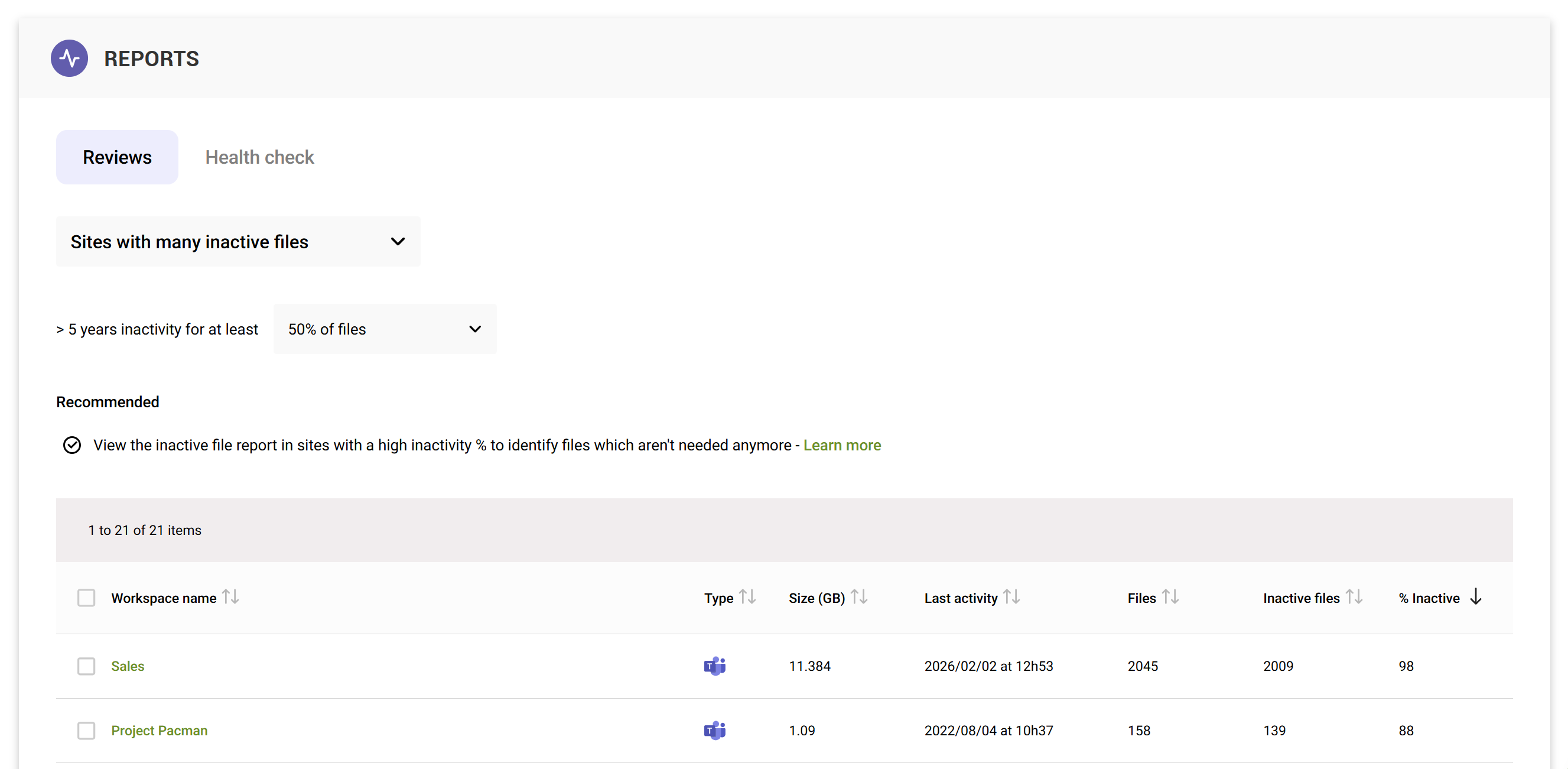
If we preview this site, choose Manage this workspace and navigate to the Content tab, we'll see the Inactive files report.
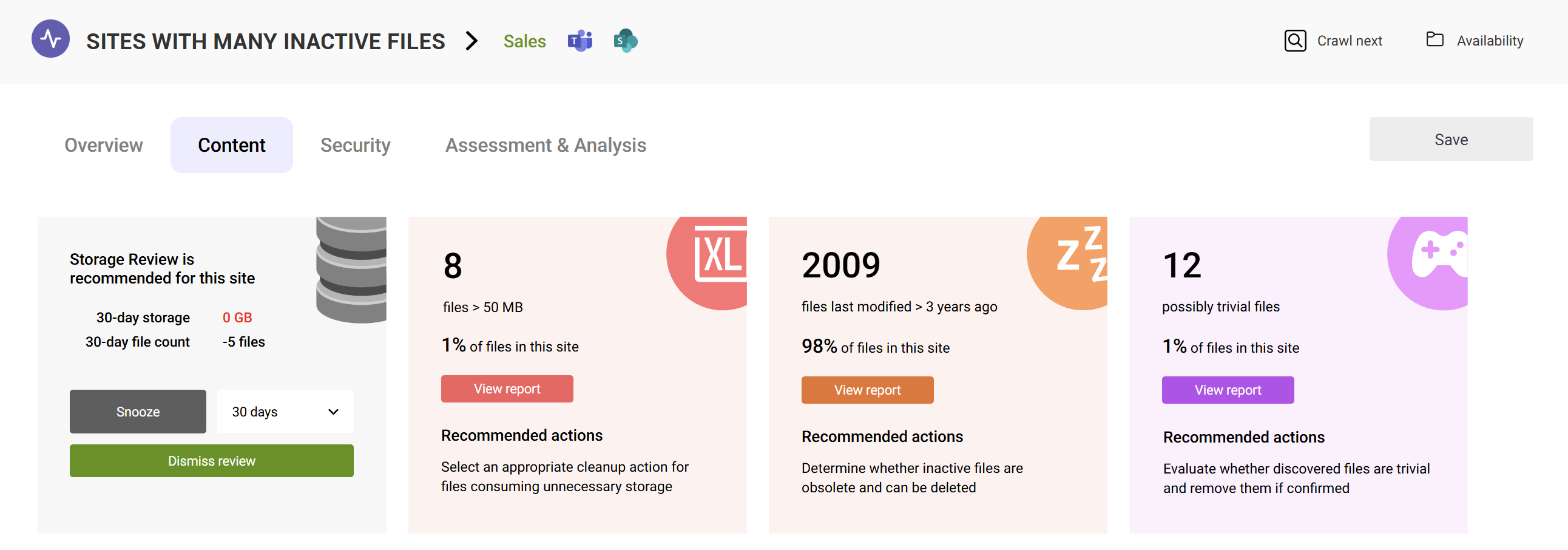
Viewing the report results shows that the largest inactive files were last modified in 2017, and the owner (or at least the person who last updated it) is blank, so does not exist on the tenant anymore. This makes it very likely that this file is not in use anymore, but it's always a good idea to check this with the site owner to be sure.
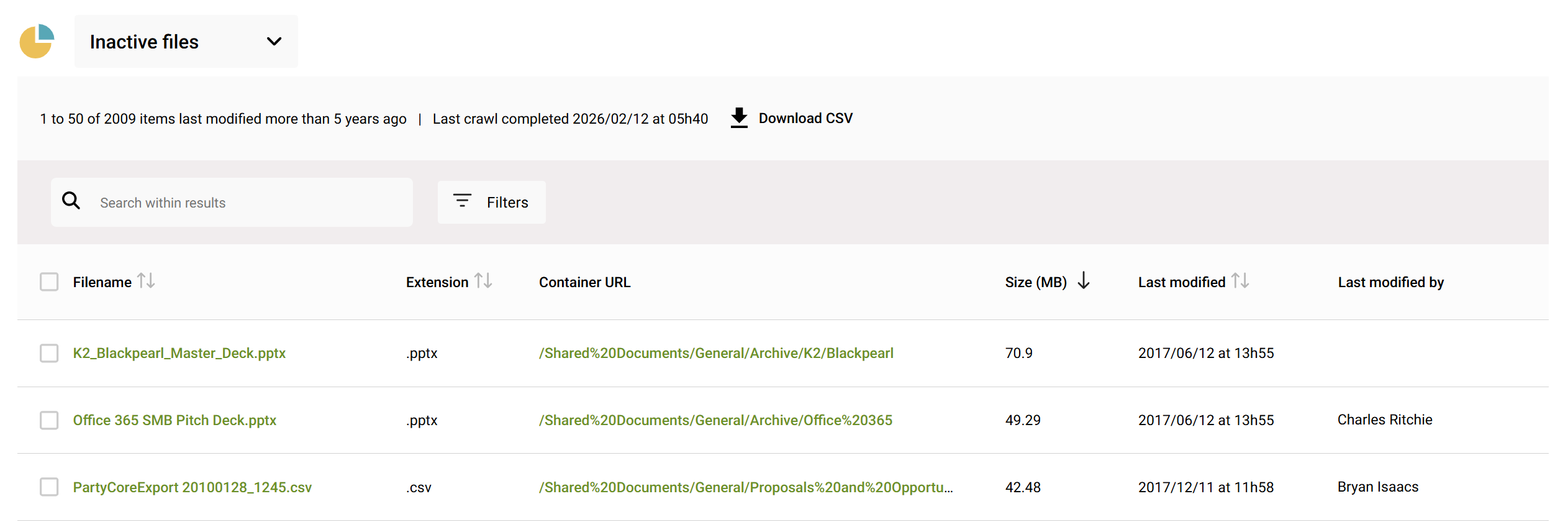
To make it easier for site owners to confirm, you can export the entire report for further review by using Download CSV.
Once you've identified files which can be safely deleted, you can remove them using the Cleanup > Delete action.
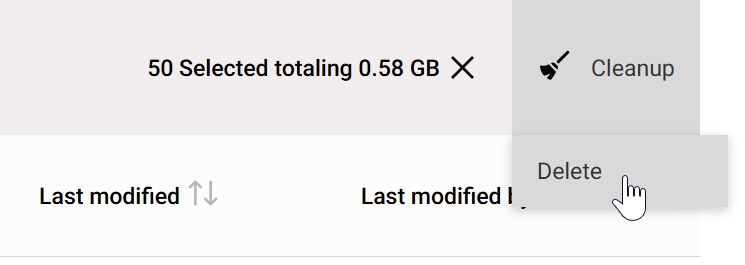
Deleting files this way sends them to the site's recycle bin, where they are retained normally until they are automatically cleared. If you need to free up storage immediately, you will need to delete them from the recycle bin.
Phase 3 - Remaining nuggets
After you've cleaned up the low hanging fruit and biggest consumers, there is still opportunity to chase down the remaining little pockets of waste or risk. These typically don’t free up huge amounts of storage on their own, but collectively they add up. Even if the storage impact is minor, you benefit from reduced clutter.
We recommend addressing these edge cases using Cleanup > Tools
Orphaned sites
Sites can become orphaned in two ways:
- When there is a single group owner (for Microsoft 365 group-connected sites) or one site owner (for communication sites or other non-group-connected sites) and this person's account is deleted, usually when they leave the organisation.
- When a site falls under a retention policy, and the group is deleted but the site remains in place due to the retention hold. The site is then group-orphaned.
You can use Cleanup > Tools > Orphans to identify and take action on orphaned sites.

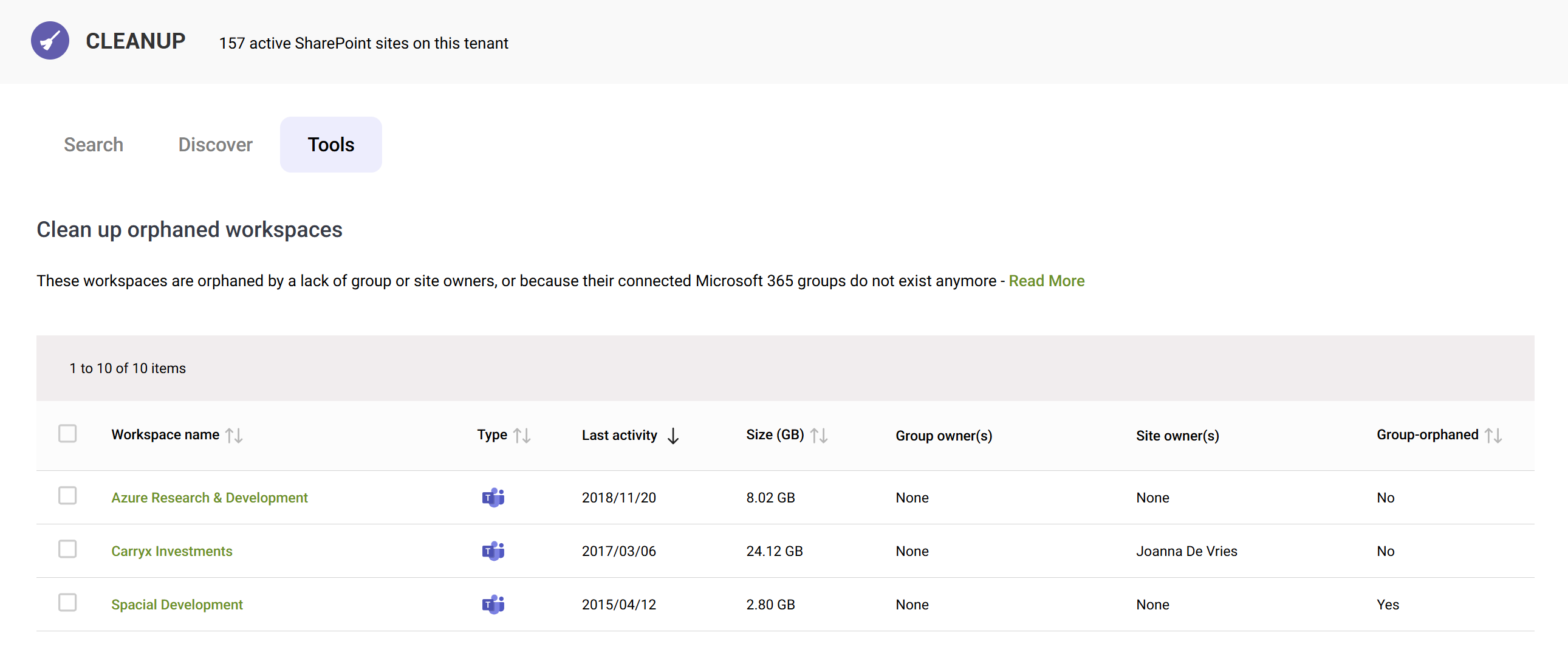
In the example above:
- Azure Research & Development is a group-connected site (because it's a team) which does not have a group owner.
- Carryx Investments is a group-connected site which doesn't have a group owner, but it does have a site owner (Joanna De Vries). This is risky because when looking at this workspace from the Teams perspective, this owner won't be listed, and she won't have access to the team (because she's only in the site and not the group) so won't be aware of conversations or communication at group level.
- Special Development is a group-connected site which was group-orphaned when its group was deleted but the site remained. Because it does not have any site owners, it is completely unmanaged (with neither group owners nor members).
Orphaned sites might not meet our criteria for storage cleanup unless they are also inactive, but it's still good practice to investigate and either assign an owner, or archive them if they end up actually not being needed anymore.

Duplicate-named teams
It’s surprisingly common to find duplicate SharePoint sites/Teams in most organizations.
Microsoft Teams does not prevent people from using a name that’s already taken – it will just create a site with a numeric suffix in the URL (e.g., Project Alpha and another Project Alpha which ends up as projectalpha2.sharepoint.com).
This can result in:
- User confusion ("which Project Alpha do I use?")
- AI confusion ("which Project Alpha is the authoritative one?")
- Potentially wasted storage, in many instances duplicate-named teams may contain content with a similar purpose, with potential for consolidation.
You can use Cleanup > Tools > Duplicates to view a list of teams with duplicate names.
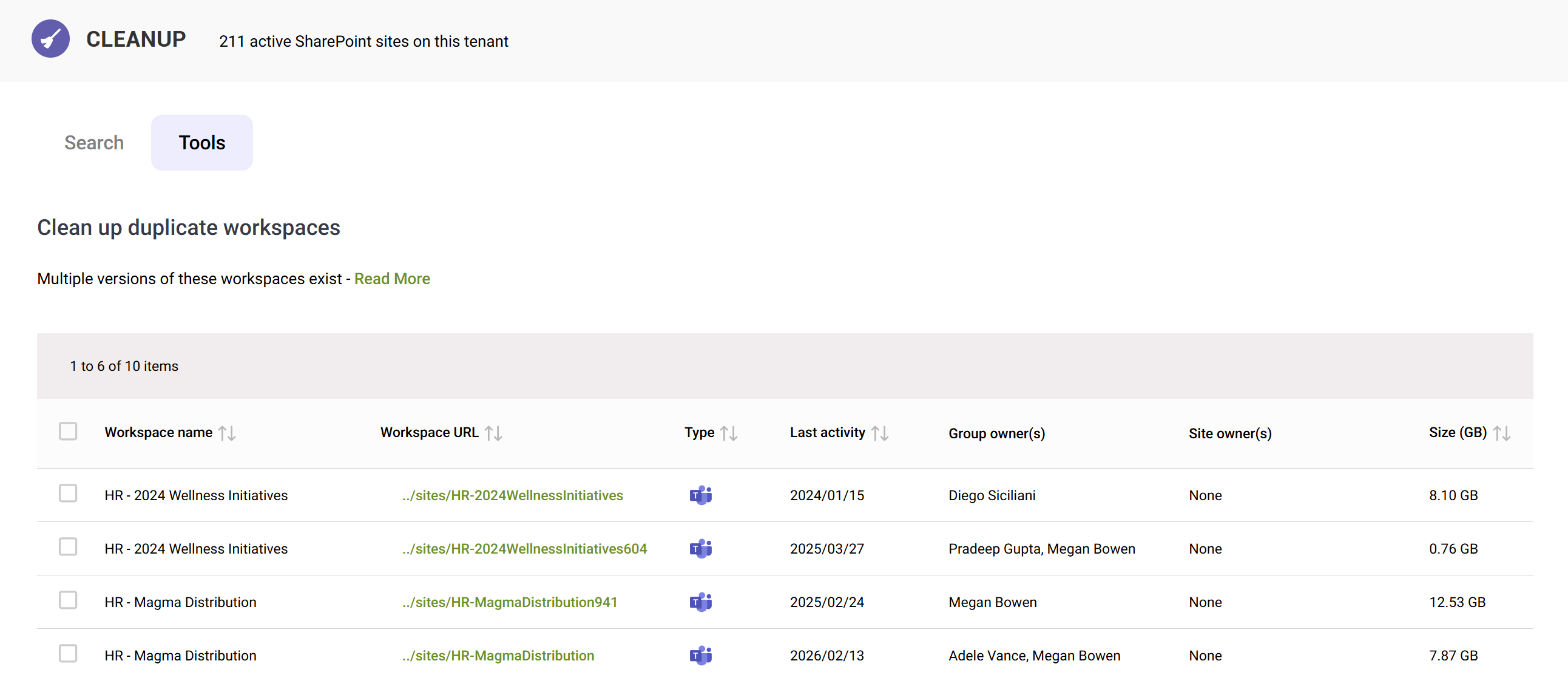
SProbot does not offer any automated migration/merging functionality, but we recommended you look at the affected sites in more detail to determine possible options and then work with owners to devise a plan.
- Check if one of them is clearly more active or up-to-date. Often one is the “real” one and the other was a false start.
- Look at membership/owners: sometimes the two groups of people overlap heavily (indicating an accidental duplicate by the same team), or they might be different (which could indicate two different things that just coincidentally got the same name).
- Reach out to the owners of the teams/sites and ask if they’re aware of the other instance. Often, they’ll say “Oh, I didn’t realize there was another site named that!” which confirms it’s a duplicate scenario.
Empty sites
Empty SharePoint sites or Teams are those that were created but never really used – they contain little to no content (no documents, no list items, maybe just a blank homepage).
They don’t take up much storage (beyond a few megabytes of initial site provisioning), but they pollute your tenant’s directory and search results.
If you have the AI plan, you can use Cleanup > Tools > Empties to identify sites which no user-generated content besides the default libraries and home page.
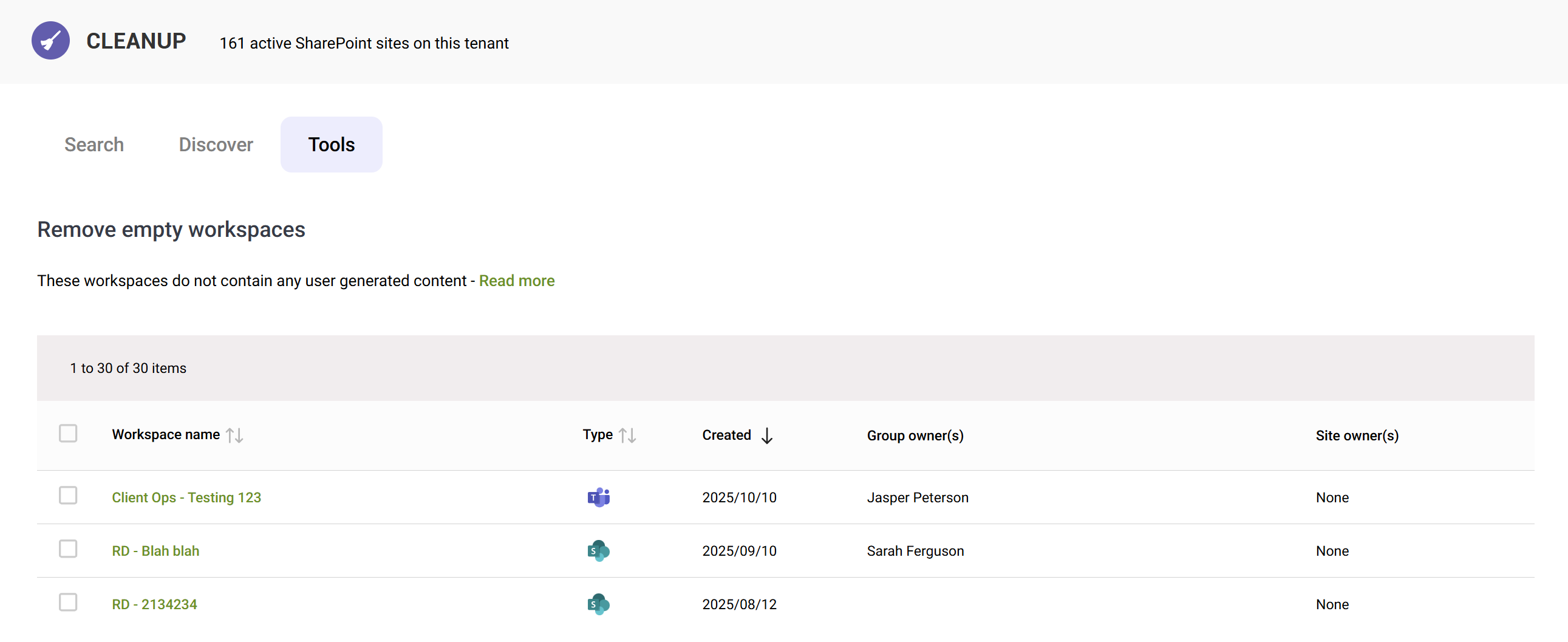
You can then directly remove unwanted sites using the Delete cleanup action.
Test/sandbox sites
Almost every IT admin has at some point created a “Test” site or team – a sandbox to try out a new feature or demonstrate something.
End users do this too, playing with a new Team to see how it works. They might have names like “John Doe’s sandbox” or“Test123” and often contain dummy content or none at all. While one test team/site isn’t a problem, these can collectively consume storage and certainly clutter up the tenant.
If you have the AI plan, you can use Cleanup > Tools > Test items to identify sites which are likely to be test or sandbox sites based on site titles, library, or a large number of folder or file titles.
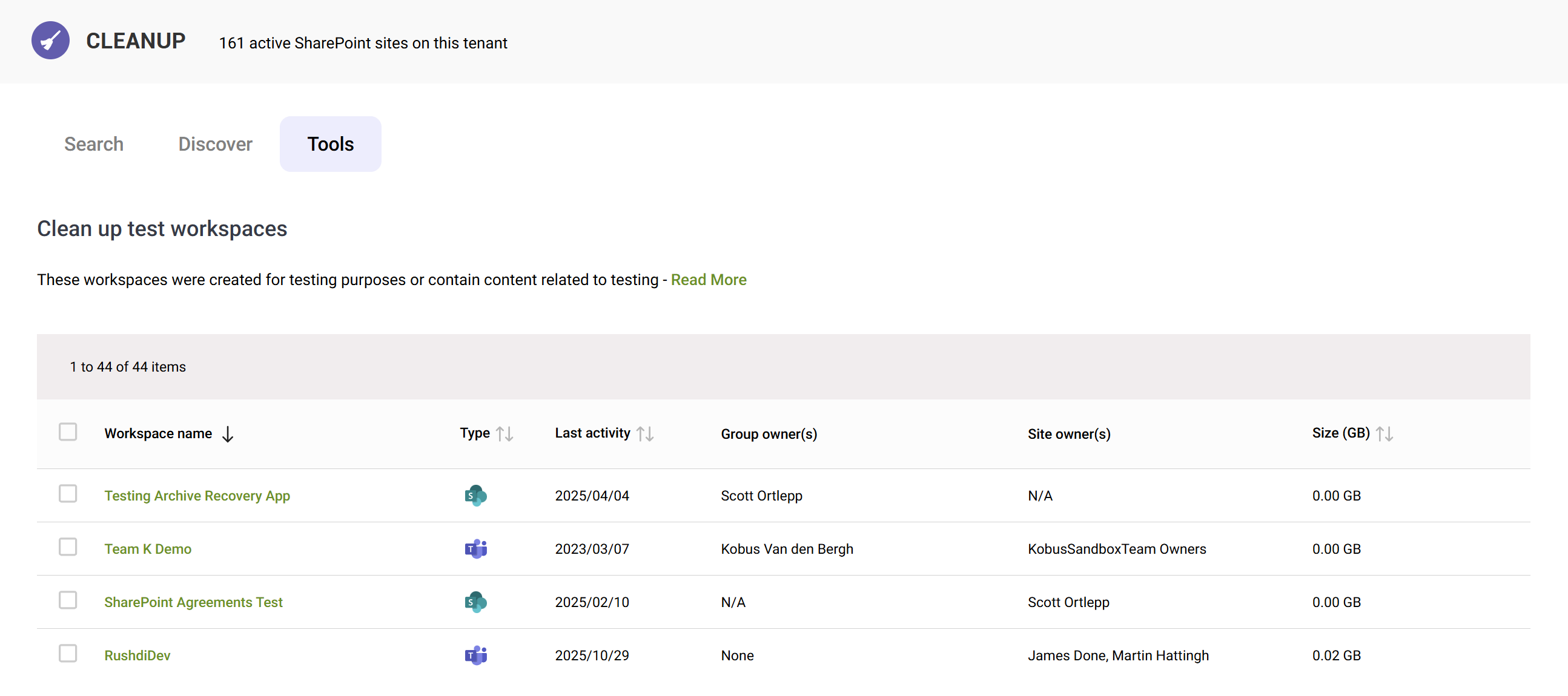
You can then directly remove unwanted sites using the Delete cleanup action.