


TLDR: SharePoint Online uses a pooled storage model: every tenant gets 1 TB plus 10 GB per licensed user, regardless of which Microsoft 365 subscription tier is selected. Higher‑level plans do not increase the default storage allocation for SharePoint. Admins run out of space not because of subscription limits but because of inactive sites, large files, unnecessary file versions, and unwanted data stored in SharePoint. Cleanup and monitoring remain essential even in large tenants with E5 or E7 licenses.
1. Understanding SharePoint storage limits
1.1 How subscription plans determine storage
SharePoint Online storage is calculated with a simple formula applied across nearly all Microsoft 365 business and enterprise plans: 1 TB of base storage plus 10 GB per licensed user. This calculation is identical whether the organization uses Business Basic, Business Standard, E3, E5, or even E7. No subscription tier provides more SharePoint storage by virtue of the tier alone. The only way the allocation grows is by adding more licensed users or purchasing additional storage.
This model is fully pooled. The additional 10 GB per user is not allocated to individuals; instead it contributes to one tenant‑wide pool that all SharePoint sites draw from. Education tenants also use pooled storage, reinforcing that the model is consistent across subscription types.
Each SharePoint site can grow to a maximum of 25 TB, but that site‑level cap is independent of subscription tiers and does not change plan‑to‑plan. Sites may become read‑only if the tenant’s pooled storage is exhausted.
1.2 Why organizations run out of storage
Even large tenants hit storage limits because consumption grows silently. Key contributors include oversized sites containing inactive files, media-heavy content, abandoned project spaces, and files with excessive version history. Large one-time migrations also inflate storage when legacy content is moved without review.
1.3 What subscription tiers actually impact
Subscription tiers determine licensing features, security capabilities, and archive add-ons, but they do not alter the default SharePoint storage calculation. Capacity remains strictly tied to the pooled model (1 TB + 10 GB/user).
2. Common misconceptions about SharePoint storage
2.1 ⏫ “We can just increase site quotas”
Site quotas only affect the allocation for individual sites. They do not increase the tenant-wide storage pool that all sites share. Raising site quotas simply shifts consumption around and does nothing to prevent the tenant from reaching its overall limit.
2.2 🧹 “Users will clean up their own content”
User-driven cleanup rarely works at scale. Teams often store large files for collaboration, and users may not know which content is still needed. Version history also grows unnoticed.
2.3 💲“Higher subscription plans increase SharePoint storage”
No plan tier automatically increases storage. E5 licenses offer more security and compliance features but use the same storage calculation as E3 or Business Standard. Additional storage must be purchased explicitly if the pooled limit is exceeded.
3. Practical ways to reduce SharePoint storage
3.1 Identify inactive or obsolete sites
Use the SharePoint Admin Center to check last activity dates. Inactive project or department sites often contain large amounts of stale content. Reviewing and archiving or deleting obsolete sites is one of the fastest ways to reclaim capacity.
3.2 Identify large or unused files
Storage Metrics helps locate unusually large files and unused content. These files include oversized media, outdated project assets, and unwanted personal files mistakenly stored in collaboration sites. Removing or relocating them reduces consumption immediately.
3.3 Investigate and trim version history
Document libraries can accumulate hundreds of versions per file. Version history is included in storage consumption, and versions in most cases consume many multiples the storage of the final artifacts. Microsoft recommends reducing version counts or trimming older versions where appropriate.
3.4 Monitor growth trends and storage spikes
Monitoring is essential to detect runaway growth early. Storage spikes often correlate with migrations, bulk uploads, or Teams-driven content bursts. The Microsoft 365 Admin Center provides storage usage views updated on a 24‑hour cycle.
4. How SProbot helps
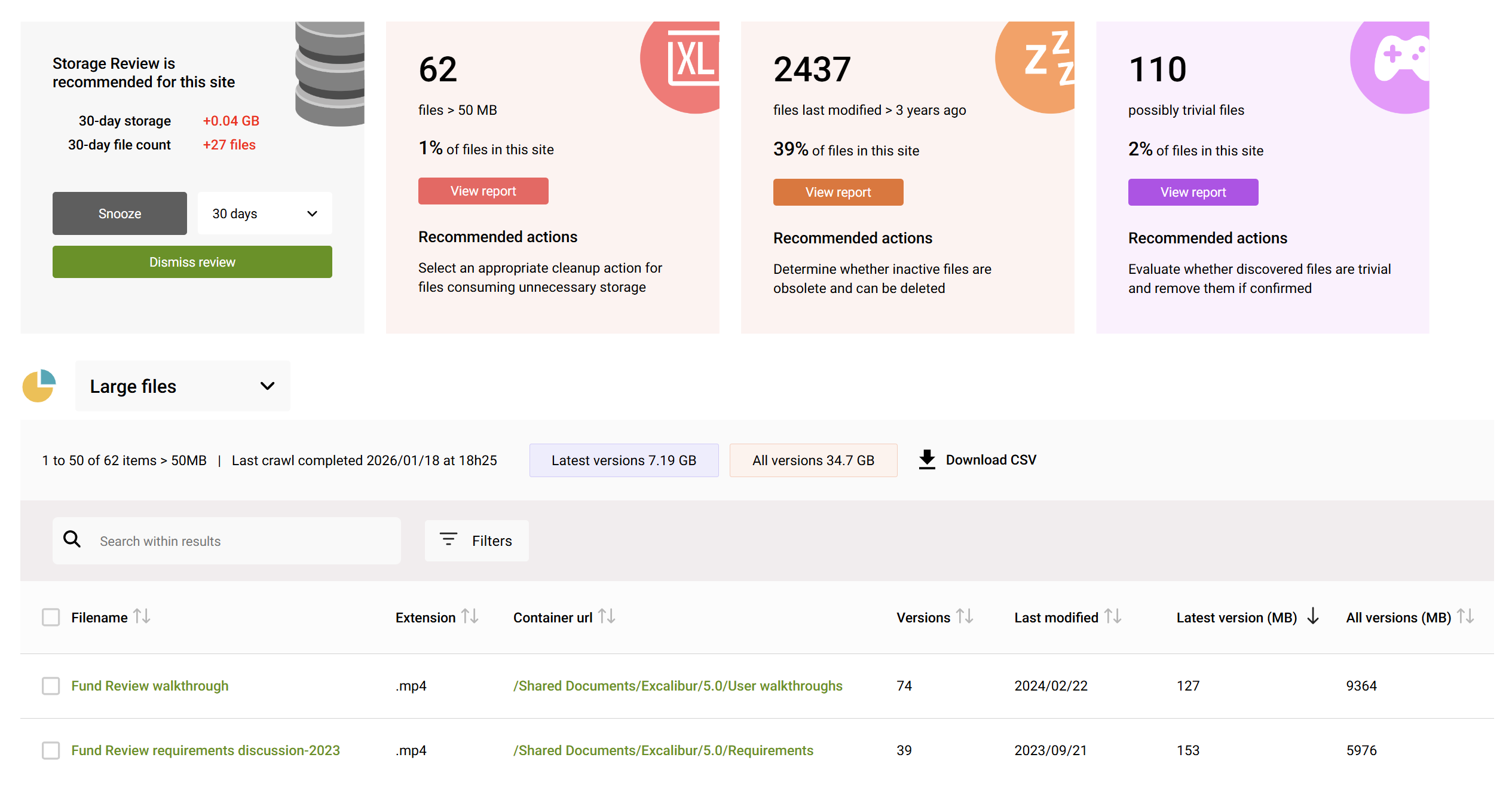
4.1 Automated reporting on oversized sites and large files
SProbot identifies oversized sites and large files contributing to storage growth within these sites. Admins get insight into which sites require attention without navigating a plethora of admin pages.
4.2 Detect inactive sites
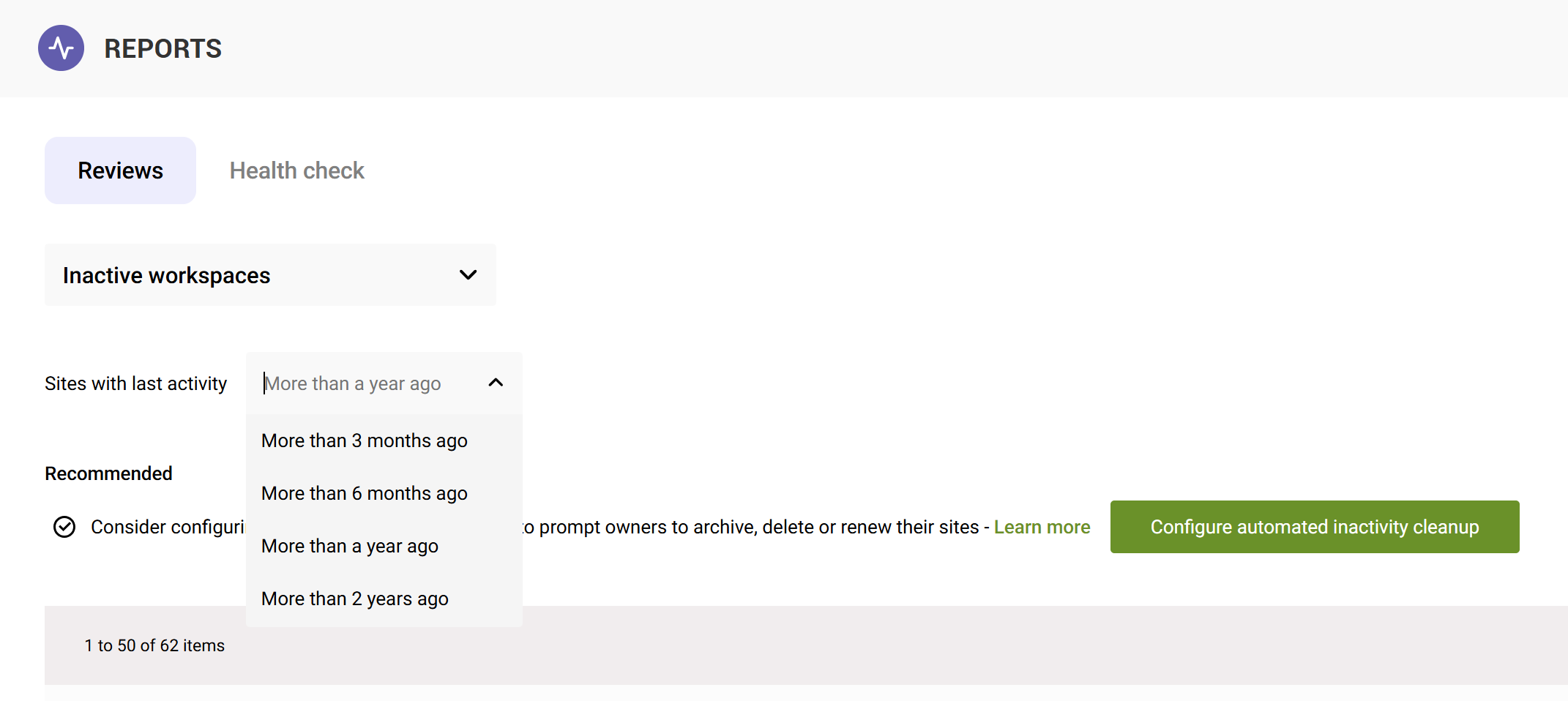
SProbot highlights sites showing little or no activity, allowing admins to prioritize archival or deletion where appropriate.
4.3 Version cleanup analysis
SProbot identifies version-heavy files, allowing admins to plan version trimming based on actual consumption patterns instead of guesswork.

4.4 Monitor storage trends over time
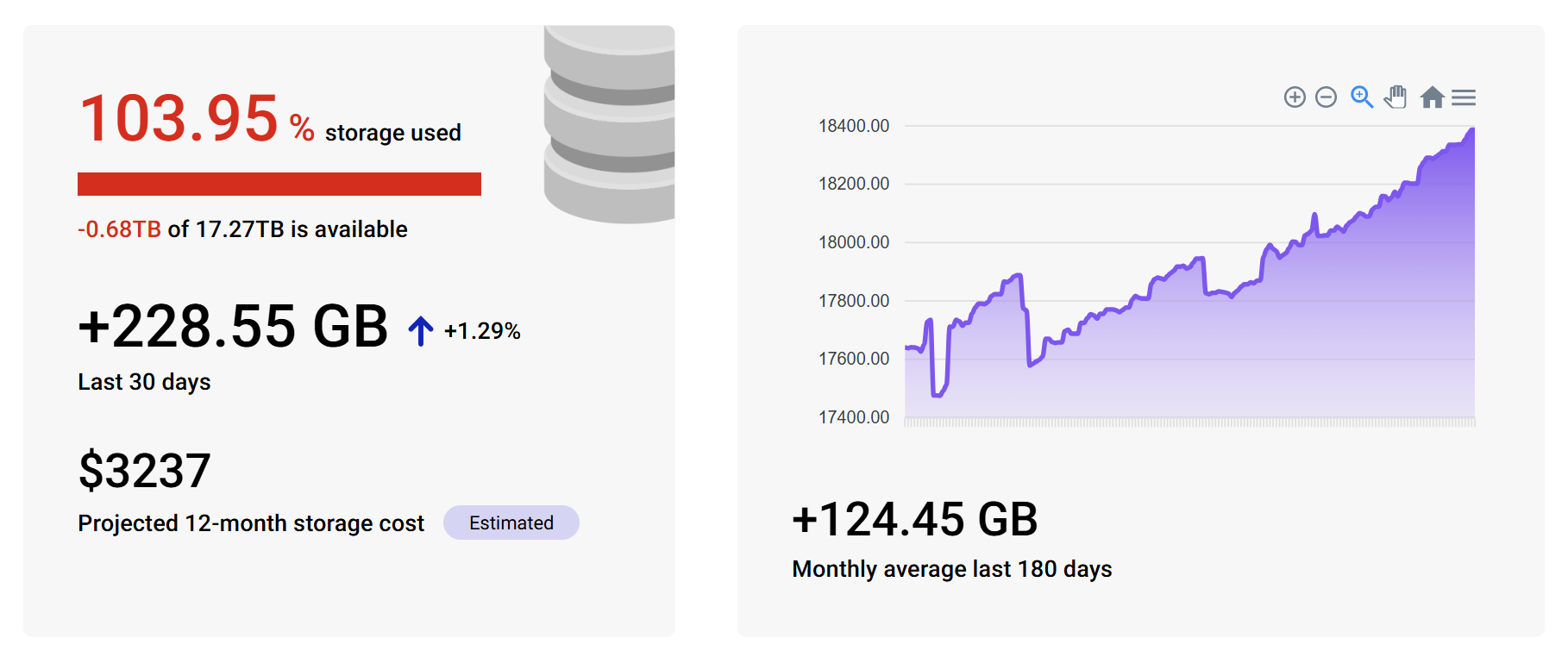
Reports show storage growth and forecasted costs across sites and files, making it easier to spot upward trends early. This helps admins plan cleanup activities before hitting storage limits.
5. Conclusion
Subscription plans do not determine your SharePoint storage capacity. The calculation remains constant: 1 TB plus 10 GB per licensed user. Real-world storage challenges stem from how content grows, not from plan type.
Effective cleanup and monitoring help prevent overspend, reduce risk of read-only states, and maintain a healthy SharePoint environment.
FAQ
Does upgrading my subscription increase SharePoint storage?
No. All major plans use the same formula: 1 TB plus 10 GB per licensed user.
How does pooled storage work?
All licensed users contribute to one shared tenant allocation. Storage is not assigned per user.
Why does my storage keep growing?
Inactive sites, large files, and version bloat all steadily increase storage use.
How do I check my storage usage?
Use Microsoft 365 Admin Center > Reports > Storage to view pooled usage and trends, or use SProbot's Health Check for detailed insights.
Can SProbot help me identify what consumes storage?
Yes. SProbot produces reports on oversized sites, large files, inactive sites, and version-heavy files to guide cleanup planning.