Answer in brief
If you're a SharePoint admin or IT manager, running out of space rarely happens suddenly. Storage growth usually comes from version history, inactive content, growing Teams usage, and files that no longer belong in SharePoint. This calculator helps you estimate future storage requirements and understand the cost impact of continued growth.
Before purchasing additional storage, it is worth understanding whether some of that growth can be addressed through cleanup, archiving, or version management. The calculator provides an estimate of future storage exposure, while tools such as SProbot help validate how much reclaimable storage may actually exist in your tenant.
This calculator can help you:
- Estimate storage growth over the next 12 months
- Understand when your tenant may exceed its quota
- Compare the impact of storage growth and optimisation
- Assess whether cleanup may be more cost-effective than purchasing additional capacity
- Plan future storage budgets more confidently
If you're trying to understand SharePoint storage costs first, see How much is SharePoint storage? Cost, capacity and cleanup options explained.
How SharePoint storage works
Many SharePoint storage challenges originate from misunderstandings about how Microsoft allocates and consumes storage across a tenant. Organisations often focus on the visible size of files while overlooking version history, inactive content, recycle bin retention, and Teams-generated storage growth. Understanding these factors before using the calculator helps ensure the resulting estimates are realistic and useful for planning purposes.
Storage is pooled across the tenant
SharePoint storage is pooled across your organization: you get 1 TB per tenant plus 10 GB for each eligible license. This shared pool is used by all SharePoint sites, including those powering Microsoft Teams. There’s also a 25 TB per-site maximum, but this is very seldom an issue if you're following Microsoft's best practice guidelines.
Version history counts towards storage
Every file version consumes storage. With the new Version History Limits controls, you can set organization defaults (Automatic/Intelligent, or manual caps/expiration) to constrain growth, but historic versions already accumulated still count until they're trimmed.
Recycle Bin content still consumes storage
Deleted items remain recoverable for 93 days (across first- and second-stage Recycle Bins), and they still count toward your storage until permanently removed.
🔗 SharePoint storage cost per TB: when to buy more storage and when to clean up first
What actually drives your storage growth
Storage growth is rarely caused by a single factor. Most environments experience a combination of content growth, inactive content accumulation, and operational behaviours that gradually increase storage consumption over time. Identifying these drivers helps improve the accuracy of the calculator and highlights where optimisation opportunities may exist.
The most common growth drivers include:
- Microsoft Teams adoption
- Large files with extensive version histories
- PST files, database files, backups, and other content not ideally suited for SharePoint
- Inactive sites that remain in production storage
- Inactive files retained for business or compliance purposes
- Poor version management practices
- Duplicate content across multiple sites
Calculate your consumption and cost
This calculator estimates future storage growth using your current tenant usage, storage quota, and expected monthly growth. It also includes optional cleanup assumptions so you can compare a growth-only scenario with an optimisation scenario. The objective is not to produce an exact billing forecast but to help determine whether storage purchases should be investigated before your tenant approaches capacity limits.
The calculator will help answer three practical questions:
- How much storage might we need during the next 12 months?
- What could additional storage capacity cost if we do nothing?
- How could cleanup activities change the outcome?
Input your core tenant metrics
Tenant quota and current consumption
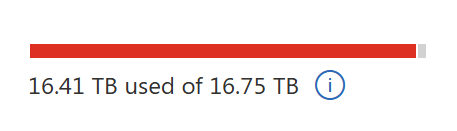
Retrieve your current SharePoint storage quota and storage consumed from the SharePoint Admin Centre.
Average monthly growth
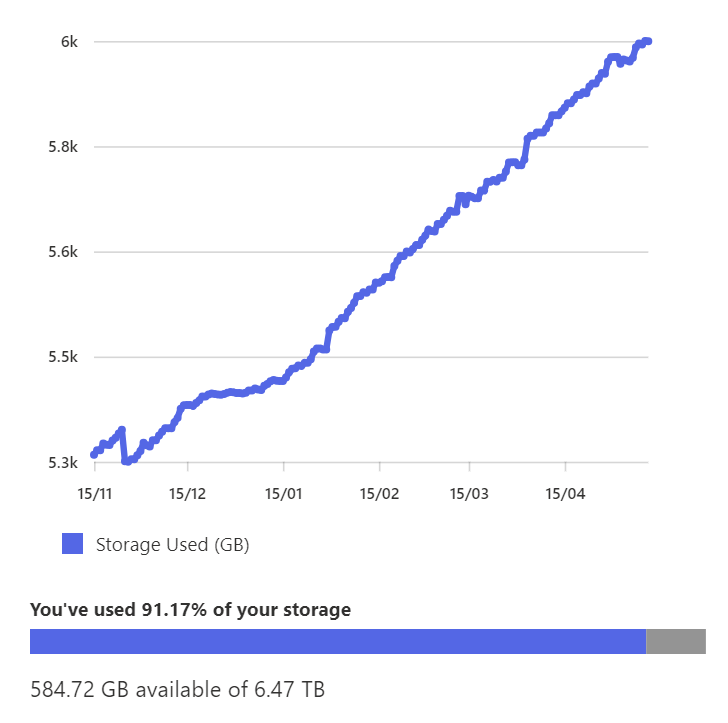
Calculate this figure by referencing the Storage Report in the M365 admin center. Look for the Usage trend graph, hover over it, then record the value at the start and the end of the chart.
[End value] - [Start value] / 6 = Monthly average growth
If your values are in TB, remember to convert them to GB by multiplying by 1024.
How to interpret your calculator results
The calculator estimate should be treated as a planning tool rather than a precise prediction. Every tenant behaves differently, and actual storage growth can be influenced by user behaviour, projects, acquisitions, migration activity, retention policies, and governance controls. The results are most valuable when used to determine which area deserves further investigation.
As you review the calculation results, consider the following questions:
- Are you projected to exceed your current quota?
- How much of the projected growth appears manageable?
- Could inactive content be contributing significantly?
- Would version management reduce growth pressure?
- Should archiving be reviewed before additional storage is purchased?
If projected growth significantly exceeds available capacity, review SharePoint storage pricing: plans, add-ons and cleanup alternatives before making purchasing decisions.
What cleanup assumptions does the calculator use?
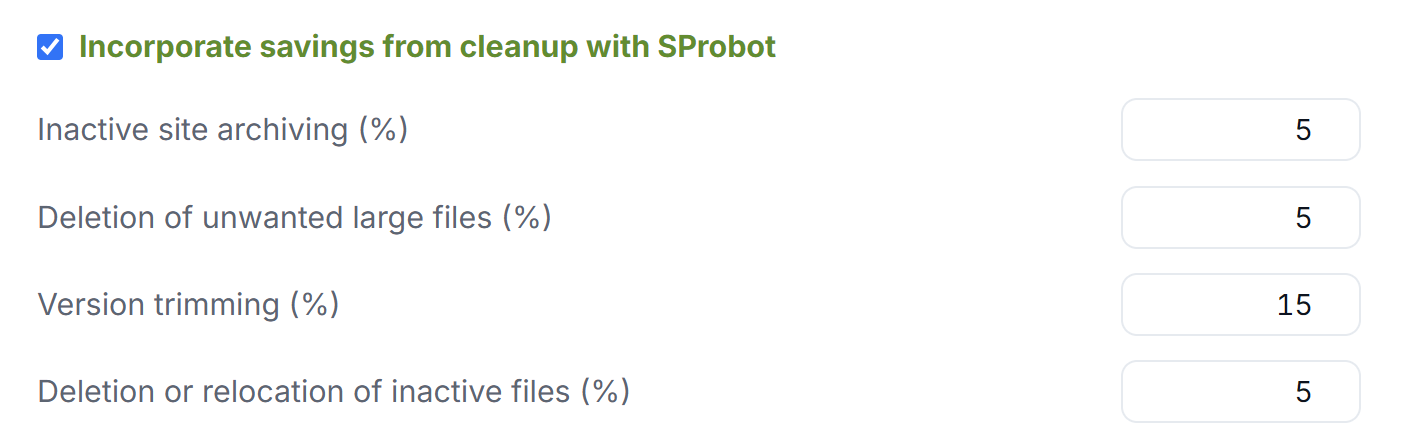
The optional cleanup scenario is intended to represent common opportunities found across most SharePoint environments. Every tenant is different and the achievable result may vary depending on governance maturity, content lifecycle practices, and retention requirements, but represents dozens of real-life customer tenants on which SProbot has identified and action cleanup candidates.
See also: How Microsoft 365 Archive helps reduce SharePoint storage cost
What should you do after running the calculator?
The calculator provides an estimate of future storage exposure, but the next step is determining whether projected growth is unavoidable. Many organisations discover meaningful optimisation opportunities long before additional storage becomes necessary. Reviewing cleanup options first often provides better visibility into future costs and operational risks.
A practical review process is:
- Identify and archive inactive sites
- Review large files
- Investigate and trim version-heavy files
- Review inactive files
- Reassess storage requirements
- Purchase additional storage only when justified
For additional guidance, see How do I free up space when SharePoint storage is nearly full?
How the calculator does its math
1) Tenant capacity and overage threshold
We use the quota you have retrieved from the SharePoint Admin Center as the baseline. This quota might be the original quota assigned by licensing (1TB pooled + 10GB per licensed user), or the current quota with storage you have already purchased, so we do not account for storage already purchased in the calculation. The forecast tracks your current usage plus growth. When projected usage exceeds the existing quota, the calculator estimates how many GB you’d need to purchase each month.
2) Growth modeling
We apply your average monthly growth (GB) linearly, with the default value of 250GB based on the default 15TB tenant size when the calculator loads. If you have real admin center data, start with the usage trend slope from the SharePoint storage report for the last 180 days and update the field to your tenant's actual growth.
3) Optimization levers
- Archiving inactive sites - Archived sites have a 75% cost saving over sites in live storage, so the calculator reflects an average 5% (conservative) total saving on most tenants.
- Deletion of unwanted large files - Most tenants contain more files which shouldn't actually be in SharePoint than admins realise. SProbot admins regularly discover extremely large PSTs, ISOs, ACCDBs and MDBs within team sites because users thought it a "safe" location to store them.
- Version trimming - We treat this as a one‑time reclaim (if you plan a cleanup sprint) and exclude ongoing reduction to monthly growth (because future versions are capped/expired if you implement automatic versions and this is not attributable to SProbot).
- Deletion or relocation of inactive files - Most tenants contain a very large number of inactive files spread across both active and inactive sites. Regulatory requirements usually prohibit simple deletion of these files, but the calculator does account for percentage which is truly removable due to not meeting any compliance requirements.
4) Purchasing logic
If projected usage stays under your included quota, additional storage cost remains zero. If you exceed, the calculator applies the per‑GB add‑on rate for that month’s required extra capacity. It's recommended that you validate actual pricing in your tenant before committing budgets as Microsoft may in some rare instances apply special pricing.
Conclusion
SharePoint storage planning becomes far easier when decisions are based on data rather than assumptions. This calculator helps estimate future storage requirements and understand the potential impact of tenant growth over time.
The estimate is only the first step. Before purchasing additional storage, it is worth understanding whether inactive sites, inactive files, large content repositories, or excessive version histories are contributing to the problem. Combining future growth estimates with real visibility into reclaimable storage provides a stronger foundation for budgeting, governance, and long-term storage management.
FAQ
How accurate is a SharePoint storage calculator?
A SharePoint storage calculator provides an estimate based on current usage and projected growth assumptions. Actual results will vary based on content growth, user behaviour, retention policies, version history usage, and cleanup activities.
Should I buy more SharePoint storage immediately if the estimate is high?
Not necessarily. Many organisations can reduce projected storage requirements through version management, archiving, inactive-file reviews, and broader cleanup initiatives before purchasing additional capacity.
What contributes most to SharePoint storage growth?
Version history, Microsoft Teams adoption, inactive sites, large files, duplicate content, and inactive files commonly contribute to storage growth across SharePoint environments.
Can archiving reduce SharePoint storage costs?
Archiving may reduce storage costs by moving inactive content out of primary production storage while still retaining access when required. The actual impact depends on the content being archived and the archiving approach used.
What should I do after running the calculator?
Review whether projected growth appears manageable, identify potential cleanup opportunities, assess inactive content, investigate archive candidates, and validate actual reclaimable storage before committing to additional storage purchases.