


File-level archiving in Microsoft 365 Archive lets you move specific SharePoint files into a cold storage tier without taking the whole site offline. This is useful when a site is still active, but part of the content is clearly “done” and rarely accessed.
This guide explains prerequisites, the exact steps to archive files and folders, how reactivation works, and the common mistakes that cause support tickets.
TLDR
- If you see an Archive action in a document library, your tenant and that site are enabled for file-level archiving.
- Archived files stay in place with metadata, permissions, and compliance controls, but they must be reactivated before they can be viewed.
- The hardest part is not the button click. It is choosing the right files, so you get real storage impact without disrupting teams
What file-level archiving does
File-level archiving is part of Microsoft 365 Archive. Instead of archiving an entire SharePoint site, you select individual files (and in many libraries, folders) and archive only that content while the rest of the site remains active.
This is a significant shift from earlier versions of Microsoft 365 Archive, which only supported site-level archiving. With file-level archiving, organizations can keep active collaboration sites online while removing dormant or reference-only files from active storage.
When a file is archived:
- It remains in its original location with metadata and permissions intact
- It cannot be opened until it is reactivated
- Retention labels and eDiscovery behavior continue to apply
If your scenario is “the whole site is inactive,” use site archiving instead. Start with this guide: Archive vs Delete: How to Clean Up Inactive SharePoint Sites (and Save Storage Fast)
When to archive files and folders
File-level archiving tends to work best in mixed-content sites, where current work continues but older content is kept “just in case.” Common examples include:
Archiving individual files is appropriate in scenarios such as:
- Completed project deliverables in a still-active department site
- Large reference files that are rarely opened but must be retained
- Historical folders that inflate storage usage with little day-to-day value
Do not archive content that is still operationally active. Anything referenced by workflows, regularly viewed, or used as a living template will create friction if it suddenly requires reactivation to open.
🔗 Compare archiving tools and approaches
Prerequisites to enable file archiving
There are two prerequisites: Microsoft 365 Archive must be enabled for the tenant, and file-level archiving must be allowed for the tenant and the relevant site. During preview, admins must explicitly enable file-level archiving via PowerShell.
Tenant and site controls
Use these controls to manage where users can archive files. These examples are from Microsoft’s current guidance.
Tenant-wide control
Set-SPOTenant -AllowFileArchive $trueSite control
Set-SPOSite -Identity <site_url> -AllowFileArchive $trueDefault for new sites
Set-SPOTenant -AllowFileArchiveOnNewSitesByDefault $trueIf you do not see the Archive button in the library UI, it usually means the feature is not enabled for that site, not that you lack permission.
How to archive SharePoint files and folders
Once file-level archiving is enabled, end users with edit permissions can archive content directly in SharePoint.
Step-by-step in a document library
- Open the document library that contains the content you want to archive.
- Select one or more files. You can also select a folder to archive its contents as a batch action.
- Choose Archive from the command bar or context menu.
- Confirm the action
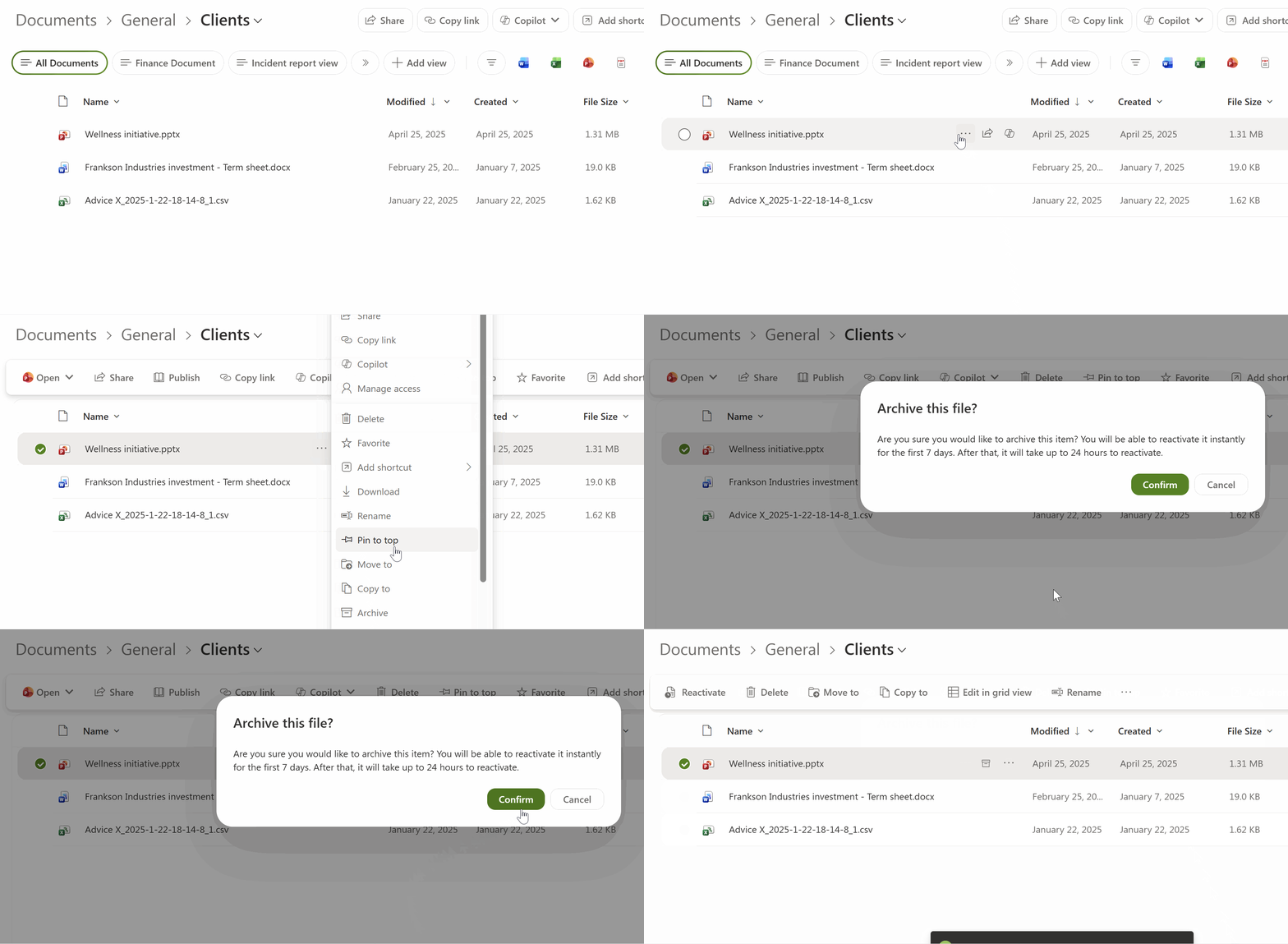
What changes after archiving
After the archive operation completes, the content remains visible where it was, but it cannot be opened until reactivated. You can however still:
- View the file's metadata properties
- Use the Move to or Copy to actions
- Rename it
- Delete it
The two operational changes that matter most are:
- Access friction: users must reactivate before before being able to view the file
- Support risk: if you archive content that is “quiet but important,” people will report it as broken
That is why selection criteria matter more than the mechanics.
Archived files are indicated by the archival flag:

How to reactivate archived files
Reactivation is how users regain access to view an archived file. Any user with read access can reactivate (in contrast to needing contribute access to archive), and there is no fee for reactivation. Reactivation is instant if done within 7 days of archiving, but can take anything from a few minutes to 24 hours after that.
Microsoft states that size has no effect on reactivation speed, they claim that any size conceivable will be reactivated within 24 hours.
Step-by-step reactivation
- Locate the archived file in the library.
- Choose Reactivate from the file menu.
- If the file was recently archived, reactivation can be immediate. Otherwise, expect a delay before the file can be opened again.
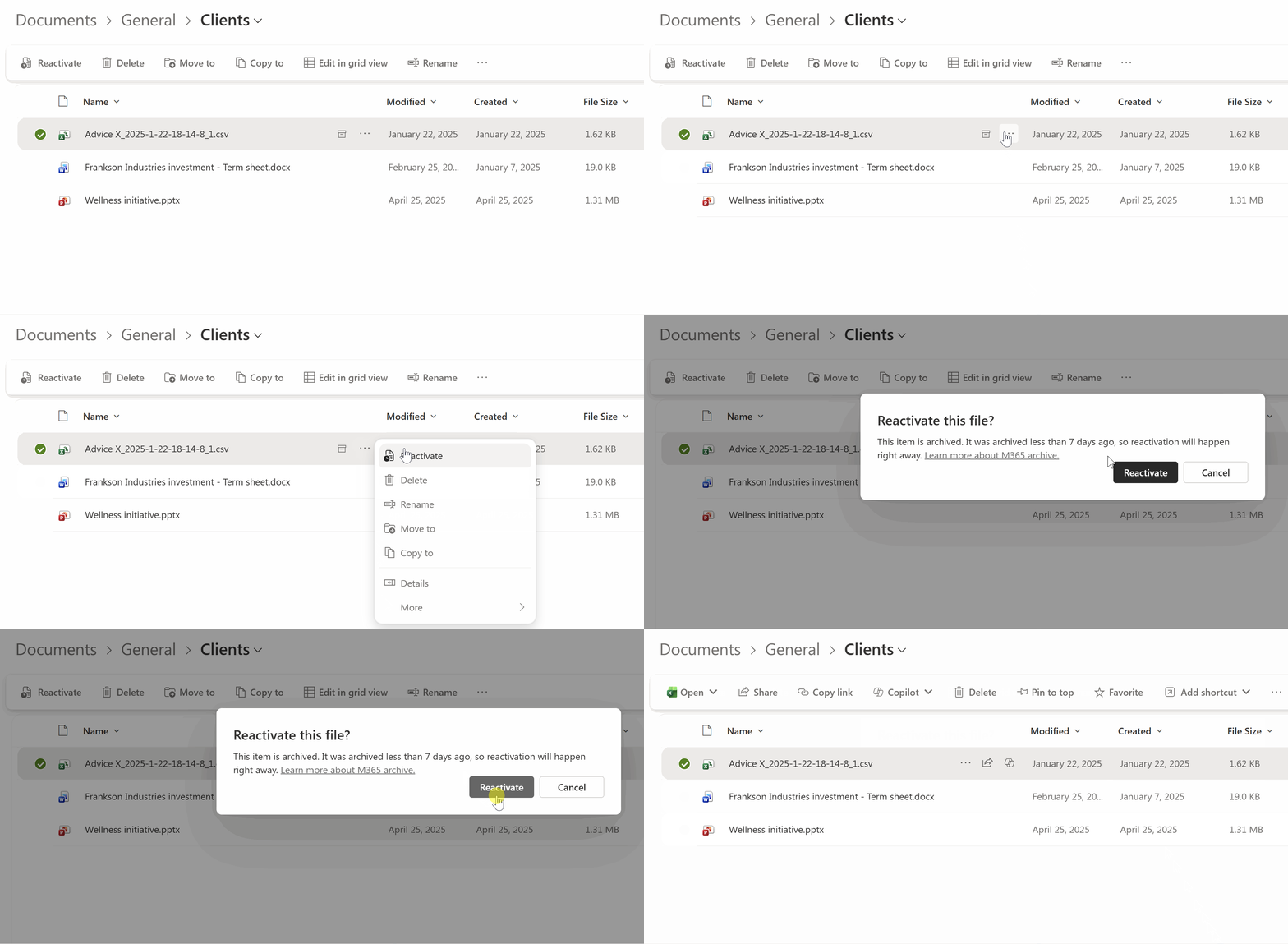
If you need a repeatable process, treat reactivation metrics as feedback. High reactivation rates usually mean your selection rules are too aggressive.
How archiving affects cost
File-level archiving changes how storage is billed, not how much data you keep. In general terms:
- Active SharePoint storage is billed at a higher rate than archived storage
- You typically only see direct cost savings when your tenant is over its included SharePoint storage quota, because that is when Microsoft begins billing for the overage
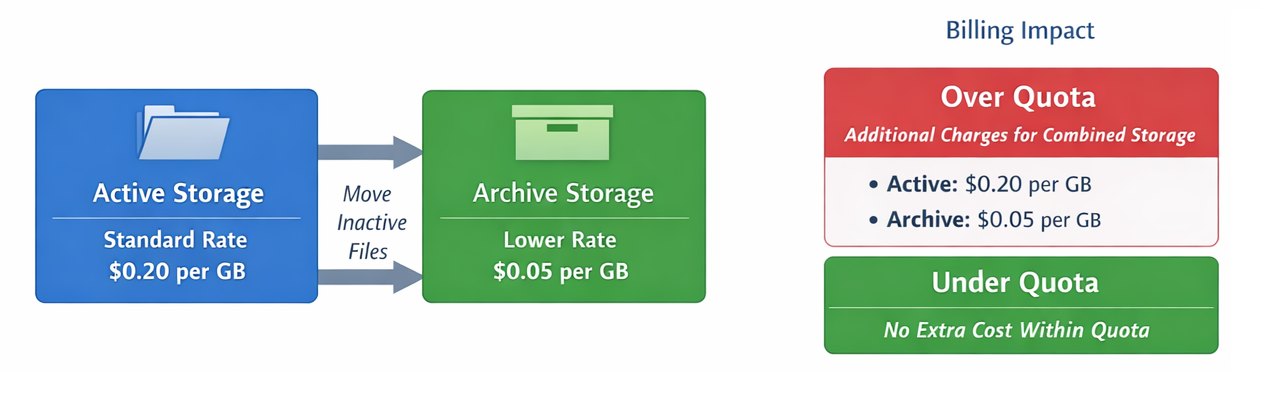
If your next question is “what will I actually save,” use this companion piece: File-level archiving in SharePoint: How much could I save?
How to decide what to archive
Most failed archiving projects share the same root cause: “old” was treated as “unused.”
A more defensible approach is to:
- Start with oversized sites, because that is where meaningful storage wins usually exist.
- Shortlist oversized files with clear inactivity signals.
- Validate with site owners before archiving, especially for stable reference content.
For the full framework, read: SharePoint file-level archiving: How to decide what to archive.
How SProbot helps you archive safely
Microsoft gives you the archive feature, but it does not give you a tenant-wide way to prioritize where archiving will have the biggest impact. SProbot fills that gap by helping you:
- Find oversized sites and oversized files quickly, so you start where the storage impact is real
- Review candidate content with owners using a clear shortlist rather than guesswork
- Measure storage and cost impact over time, so archiving becomes a repeatable process instead of a one-off event
Frequently asked questions
Can I archive a SharePoint folder?
If the Archive action is available in your library, you can archive files, and many libraries also allow you to select folders as a convenient way to archive multiple items in one action. If you do not see the Archive button, the feature is not enabled for the site.
How do I retrieve archived files from SharePoint?
You retrieve an archived file by reactivating it. Reactivation is available to any user with read access, and once reactivation completes the file can be opened normally again.
Does archiving remove retention requirements?
No. Archived content remains subject to compliance behavior such as retention labels and eDiscovery. Archiving is a storage lifecycle action, not a replacement for retention policies.
Do large files take longer to reactivate?
Microsoft documents that file reactivation can take up to 24 hours, but that all possible file sizes are catered for in this timeframe. For folder-level reactivation, large folders can take longer end-to-end because scheduling and completion can extend beyond 24 hours.