

Answer in brief
SharePoint version history cleanup should remove low-value older versions while preserving enough recent and important versions for recovery, collaboration and compliance. Start by measuring version storage, agree what must be retained, test the expected impact, and only then trim versions. Do not apply one arbitrary limit across every library.
- Keep versions that support realistic recovery, audit or business requirements.
- Prioritise files where old versions consume substantial storage.
- Treat heavily edited large files as early review candidates.
- Confirm retention requirements and owner expectations before cleanup.
- Run an impact assessment before any permanent bulk trim.
- Set future version limits after cleaning up existing history.
For the implementation process, use How to trim versions to increase available SharePoint storage. That guide covers the available trimming routes, while this article focuses on deciding what is safe and worthwhile to remove.
Why does SharePoint version history consume so much storage?
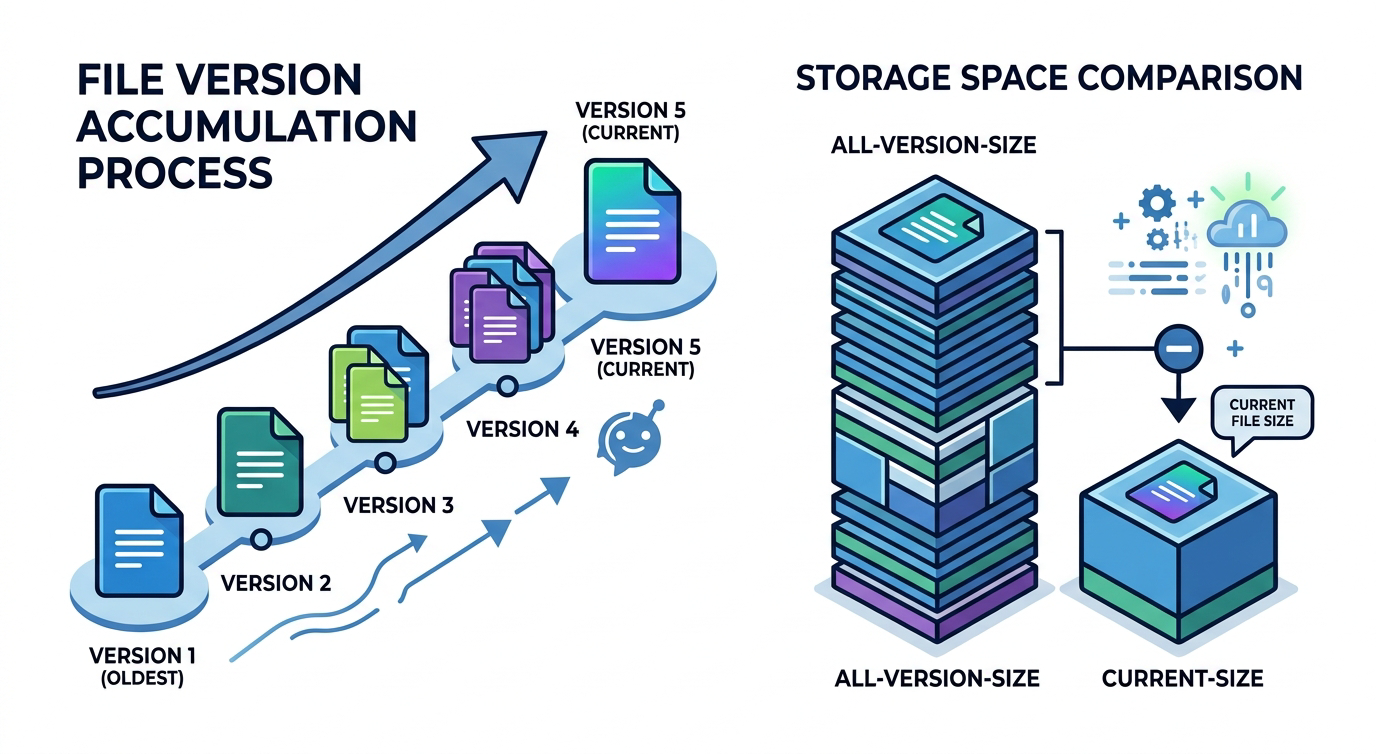
Version history is useful because it lets people restore earlier document states after mistakes, unwanted edits or content changes. The storage problem appears when frequently edited files build up far more historical copies than users are likely to restore, especially when the underlying file is already large.
A presentation, design file or media-heavy document may be edited repeatedly even when each change is small. Over time, its historical versions can consume considerably more space than its current version. This makes version-heavy files a more useful cleanup target than applying a blanket rule to every document library.
The first question should not be “How many versions can we delete?” It should be “Where is version storage concentrated, and how much recovery value do those versions still provide?”
Which SharePoint file versions should you normally keep?
A safe version-history policy starts with recovery needs, not with storage savings. You should retain enough history to recover from likely mistakes and support legitimate business processes, while recognising that the value of most versions usually declines as they get older.
Versions are stronger candidates to keep when they:
- Represent recent working history on actively edited documents.
- Mark an approved, published or otherwise meaningful state.
- May be required for operational recovery.
- Support a documented audit, investigation or business process.
- Are subject to retention settings or an eDiscovery hold.
- Belong to a library whose owner has a clear historical requirement.
- Cannot be reproduced easily from another authoritative source.
This does not mean every file needs an identical number of old versions. A controlled policy library may require different treatment from a working area full of frequently revised presentations.
Which file versions are usually the best cleanup candidates?
The best candidates are older versions that consume meaningful storage but provide little realistic recovery value. You should still evaluate them in context because age alone does not establish that a version is unnecessary.
Start your review with:
- Large files that have accumulated many historical versions.
- Frequently edited presentations and media-heavy Office files.
- Old working copies that pre-date several approved states.
- Versions created by repetitive or automated editing activity.
- Content that has a separate, verified authoritative record.
- Libraries retaining substantially more history than their owners use.
- Historical versions of files that are no longer actively maintained.
Avoid selecting files purely because they are old. A rarely edited contract, policy or technical record may need a longer history than a frequently edited working document.
How should you decide what to remove and what to keep?
A consistent decision process makes version cleanup safer and easier to explain. Apply the same questions to each library or content category, but allow the resulting limits to differ where business value, recovery expectations and retention requirements differ.
1. What is the file used for?
Identify whether the file is a temporary working document, a collaborative operational file, a published record or content with formal retention requirements. The business purpose determines how damaging the loss of older versions could be.
2. How likely is someone to restore an older version?
Consider actual recovery behaviour rather than theoretical possibilities. Recent versions of active documents usually have more recovery value than a long sequence of minor historical changes that nobody has used.
3. How much storage do the versions consume?
Give early attention to outliers. Cleaning thousands of tiny version histories may create more review work than addressing a smaller set of very large, heavily versioned files.
4. Is another authoritative copy available?
Confirm that the supposed alternative is complete, accessible and governed appropriately. Do not remove useful SharePoint history based on an assumption that somebody probably has another copy.
5. Is the content protected?
Check applicable retention settings, legal holds, investigation requirements and internal disposal rules. A technical ability to trim a version does not replace your organisation’s approval and governance process.
6. Has the owner approved the approach?
Library or business owners should understand the proposed recovery window and the effect of permanent trimming. Record the approved rule rather than relying on an informal conversation.
For a wider tenant cleanup sequence beyond version history, use SharePoint cleanup checklist for IT admins.
Can you bulk delete SharePoint version history safely?
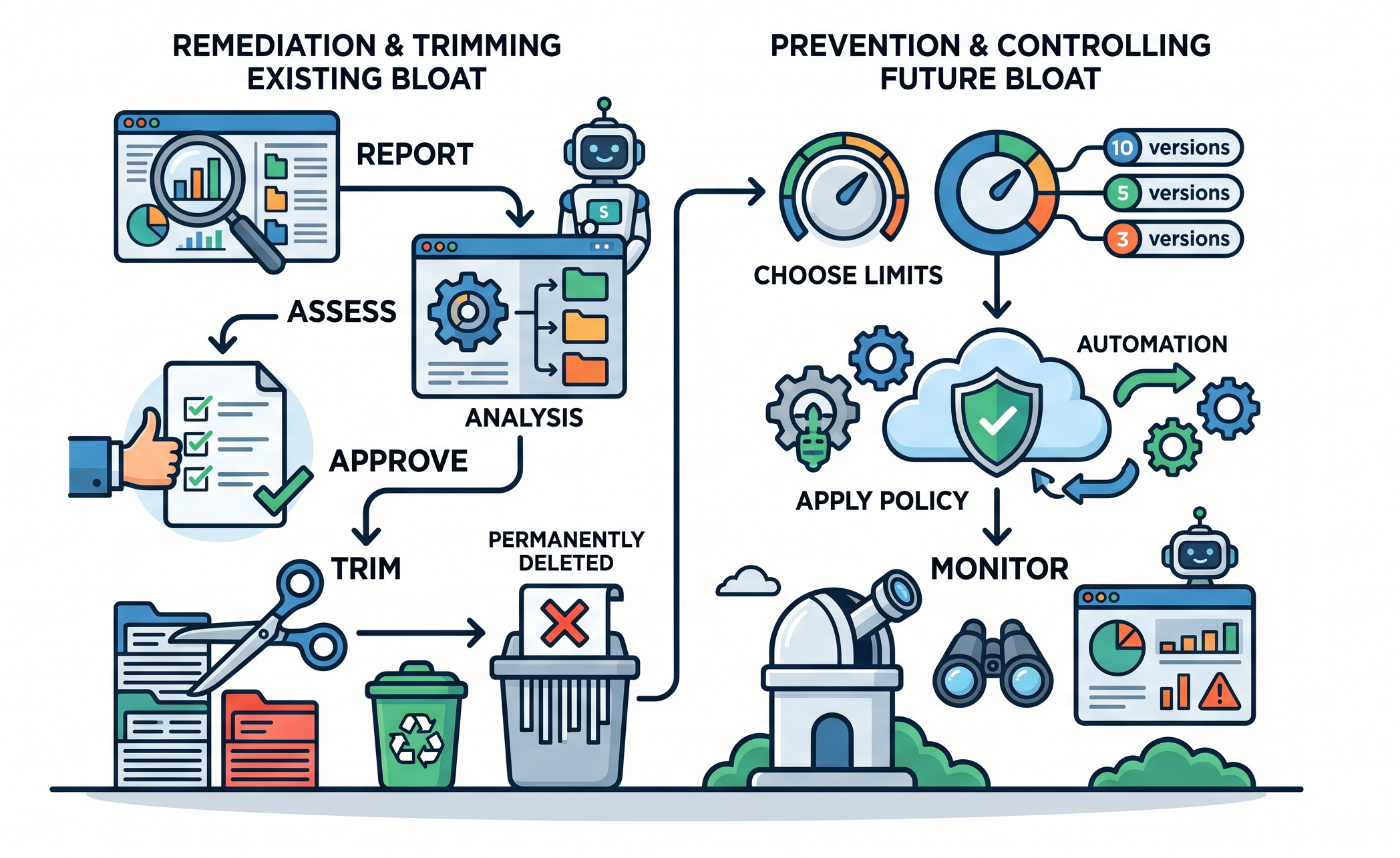
Bulk cleanup can be safe when it follows reporting, impact analysis, approval and controlled execution. It becomes risky when an administrator applies one age or count threshold tenant-wide without first understanding where important content, recovery requirements and retention controls differ.
Before committing to a bulk trim:
- Define the target site, library or file population.
- Generate a version-storage usage report where available.
- Run an impact or “What-if” analysis.
- Review expected deletion and storage outcomes.
- Test the policy on a low-risk, representative scope.
- Confirm retention and eDiscovery considerations.
- Obtain the necessary owner or governance approval.
- Record the rule, scope, date and decision owner.
- Monitor the trim job and validate the result.
Versions removed through Microsoft trimming jobs are permanently deleted and cannot be recovered through the recycle bin. This makes pre-trim analysis a required safeguard rather than an optional reporting exercise.
Should you remove versions by age or by count?
Neither method is universally correct. A count-based rule provides a predictable minimum depth of history, while an age-based rule aligns history with a recovery period. Automatic version limits offer another approach by retaining more recent history and progressively reducing older history.
When a count-based limit is useful
A count-based approach may suit libraries where users need a known number of restore points, regardless of how frequently documents are updated. However, the same count can create very different storage outcomes for a small document and a large, frequently edited presentation.
When an age-based limit is useful
An age-based approach may suit content where recovery value can be expressed as a defined period. It still requires care because an important but rarely updated document may lose all useful historical states outside that period.
When automatic limits are useful
Automatic limits can reduce the manual effort involved in deciding how history should thin over time. They should still be assessed against your recovery objectives and any retention requirements.
🔗 Use How to save SharePoint storage with automated version management for the configuration options and the distinction between tenant defaults and library-level settings.
Do new version limits clean up versions that already exist?
Changing the organisation-level default does not automatically rewrite the history of every existing library. New organisation-level settings apply to new libraries created after the change, while existing accumulated history requires its own review and cleanup process.
This means version-history management normally has two separate workstreams:
- Remediation: report on existing version storage and trim approved historical versions.
- Prevention: configure suitable future limits for new versions and libraries.
Completing only the prevention step may slow future growth without reclaiming the space already occupied by historical versions. Completing only the remediation step may free space temporarily while allowing the same pattern to build up again.
How do retention and compliance affect version cleanup?
Retention settings, eDiscovery holds and internal recordkeeping requirements must be considered before cleanup. Microsoft Purview retention settings take precedence when protected versions are encountered, but you should not treat that protection as a substitute for reviewing and approving the cleanup policy.
Before trimming, confirm:
- Which libraries contain records or regulated information.
- Whether retention settings apply to the documents or site.
- Whether an eDiscovery hold is active.
- Who is authorised to approve the cleanup.
- What recovery period users have been promised.
- How the decision and execution will be recorded.
This article provides operational guidance, not legal or compliance advice. Confirm the appropriate policy with your compliance, records-management or legal stakeholders where necessary.
When should you use SProbot for version-history cleanup?
Manual tools using scripting are workable when the scope is small and you already know which sites, libraries and files require attention. A reporting and cleanup tool becomes more useful when you need to identify version-heavy files across a larger tenant, compare current file size with accumulated version storage and prioritise the highest-impact work.
SProbot can support this workflow by helping you:
- Review storage consumed by large files and their versions.
- Find sites containing high version consumption.
- Inspect detailed large-file information before acting.
- Filter and export information for review.
- Select approved files for version trimming.
- Retain an activity history of cleanup actions.
🔗 Use SharePoint storage limit exceeded? 6 proven ways to reclaim space if version history is only one part of a wider storage-capacity problem.
How often should you review SharePoint version history?
Version cleanup should be a governed recurring review rather than a once-off emergency response. The right interval depends on storage growth, collaboration patterns and business controls, but the purpose remains consistent: detect version outliers before they become a significant capacity problem.
A practical review should check:
- Changes in overall version-storage consumption.
- Sites with the fastest version growth.
- Large files with unusually high total version sizes.
- Whether library limits match approved policy.
- Whether newly created libraries inherit the intended defaults.
- Whether previous trimming delivered the expected result.
- Whether business or retention requirements have changed.
Regular reporting also makes future cleanups easier because owners are reviewing smaller, more understandable sets of candidates.
Conclusion
Safe SharePoint version-history cleanup is a decision process before it is a deletion process. Measure where versions consume storage, retain history with realistic recovery or governance value, assess the effect of proposed rules, and obtain approval before trimming.
The most effective approach combines targeted cleanup of existing version-heavy files with sensible future limits. This reduces storage growth without removing useful recovery history indiscriminately.
For the detailed implementation steps, continue with How to trim versions to increase available SharePoint storage.
Frequently asked questions
Is it safe to delete old SharePoint file versions?
It can be safe after you confirm recovery needs, retention requirements and owner approval. Review the expected impact first because versions removed through trimming jobs are permanently deleted and cannot be recovered from the recycle bin.
How many SharePoint versions should I keep?
There is no single correct number for every library. Choose a limit based on document purpose, edit frequency, realistic recovery needs, file size and applicable governance requirements. Different content categories may need different rules.
Does changing the SharePoint version limit remove existing versions?
Organisation-level changes apply to new libraries created after the change. Existing version history may require a separate trimming process. Changes to library settings can also affect new and existing history differently depending on whether you use count or expiration controls.
Can retention policies prevent version deletion?
Retention settings and eDiscovery holds can affect what happens when a trim job encounters a protected version. Retention settings in Microsoft Purview take precedence over trimming. Confirm your organisation’s requirements before starting the cleanup.
Can I bulk trim SharePoint version history?
Yes. Microsoft provides trimming jobs for sites and libraries, and 3rd-party tools like SProbot can support reporting and bulk cleanup. Always assess the impact, test a representative scope and confirm approval before applying bulk deletion.
Should I use automatic or manual version limits?
Automatic limits are useful when you want history to thin over time, while manual limits provide explicit count or age controls. Select the option that best supports your recovery objectives, storage constraints and retention requirements.