If your SharePoint storage is climbing faster than expected, there’s a good chance the biggest wins are hiding in plain sight: inactive sites - old project spaces, retired Teams, legacy department sites, or “one‑time” initiatives that quietly kept growing for years.
The good news? Cleaning up inactive sites is one of the fastest ways to reclaim meaningful space—often without complicated governance revamps or disrupting active users. The key decision is always the same:
Should you archive the site… or delete it?
This guide gives you:
- A simple archive vs delete decision framework
- Step‑by‑step options using SharePoint Admin Center, PowerShell, and SharePoint Advanced Management (SAM)
- The fastest way to do it safely at scale using SProbot (including owner notifications and automated archiving)
Why inactive sites are usually your easiest storage win
Inactive sites are often large because they typically belong to long‑running projects or teams that ended suddenly, leaving behind: years of files, heavy PDFs/media, backups, zip archives, and version history.
They’re also easy to miss because:
- There isn’t a single “best” built‑in report that combines inactivity + storage usage + ownership clarity,
- Teams sprawl makes ownership unclear,
- Checking activity site‑by‑site doesn’t scale
Beyond storage, inactive sites also increase:
- Security risk (stale permissions, old sharing links, unmonitored sensitive files)
- Search noise (outdated content surfaced alongside current work)
- Copilot readiness risk if large volumes of ROT content remain in active workspaces
Archive vs Delete: the decision framework
Delete when…
Delete is best when the site’s content has no remaining business, legal, or audit value, and you’re confident you won’t need it again.
Typical “delete” candidates:
- Duplicate or test sites created during migrations
- Abandoned workspaces with no owners and no need to retain for compliance
- Short‑lived projects where retention obligations have passed
✅ Pros: Immediate storage recovery; simplest end state.
❌ Cons: Risky if something important is removed (even “inactive” sites can contain required records).
Archive when…
Archive is best when the work is inactive but the content must be kept for compliance, audit, or future reference, and you want to stop paying “active” storage rates for it.
Typical “archive” candidates:
- Completed projects with historical value
- Departments that restructured but need to retain records
- Long‑term reference libraries that are rarely accessed
✅ Pros: You keep the data, reduce risk, reduce active storage pressure.
❌ Cons: Requires a defined archive approach and, in Microsoft’s native archive model, reactivation may be needed before access.
🔗 Compare SharePoint archiving solutions
If you’re unsure…
When ownership is unclear or usage is ambiguous (read‑only sites can look “inactive”), default to:
- Confirm with owners,
- if no response: archive first,
- then delete later after retention windows and stakeholder sign‑off.
Before you start: what you need
At minimum, you need SharePoint Admin permissions to review and action sites.
Depending on method:
- SharePoint Admin Center (manual review/export): no scripting required
- PowerShell / PnP PowerShell (more control + bulk delete/reporting)
- SharePoint Advanced Management (SAM) “inactive sites policy” method: requires SAM capabilities/licensing
- SProbot: no code; owner‑driven review + automation for cleanup
Option 1: Find inactive sites in SharePoint Admin Center
If your tenant is smaller, or you’re doing a one‑off cleanup, the Admin Center workflow is “good enough.” This is the fastest manual option.
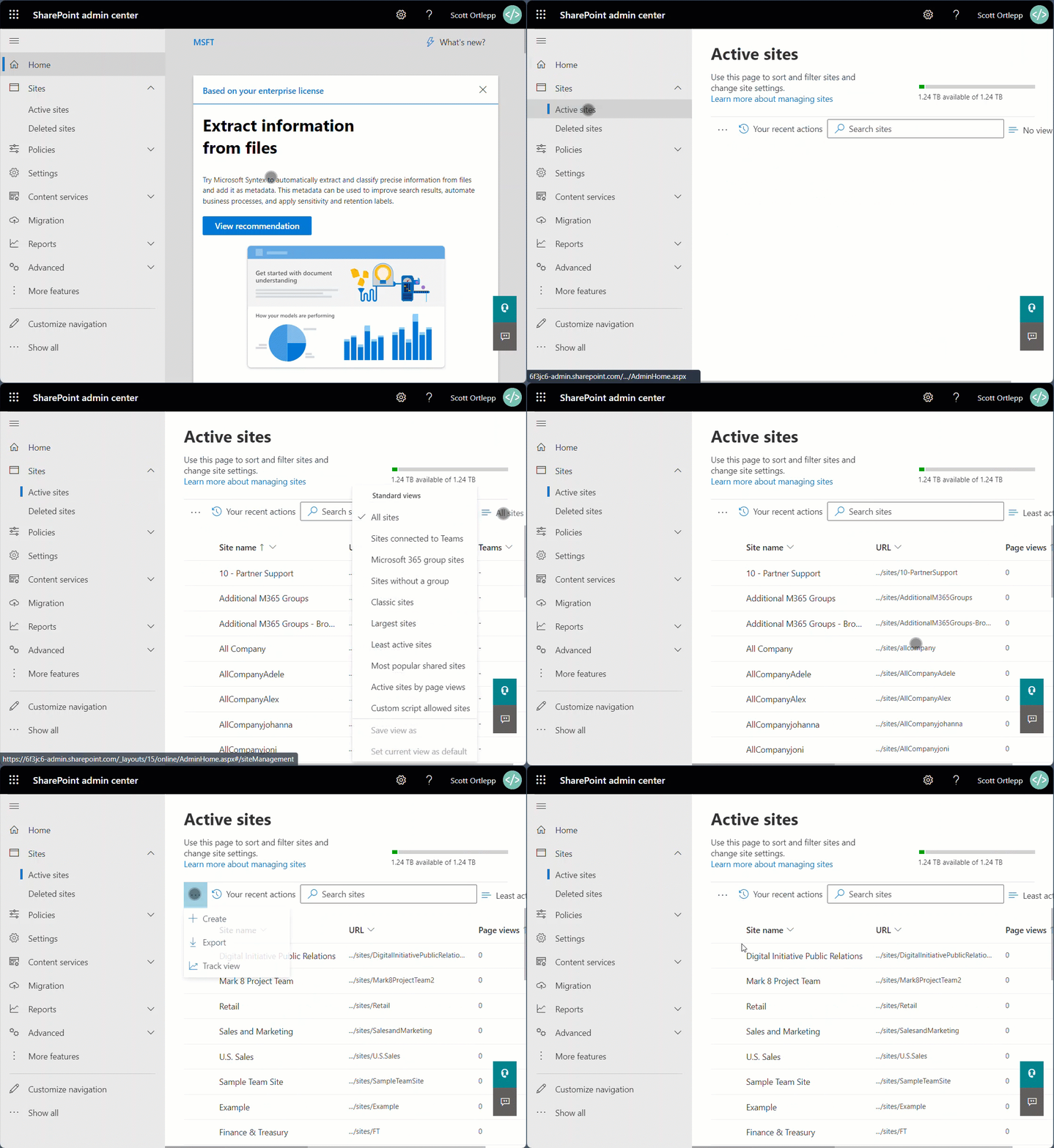
Step 1 - Open Active sites and use the "Least active sites" view
Go to the SharePoint Admin Center → Sites → Active sites, select the Least active sites view, and view or Export the results.
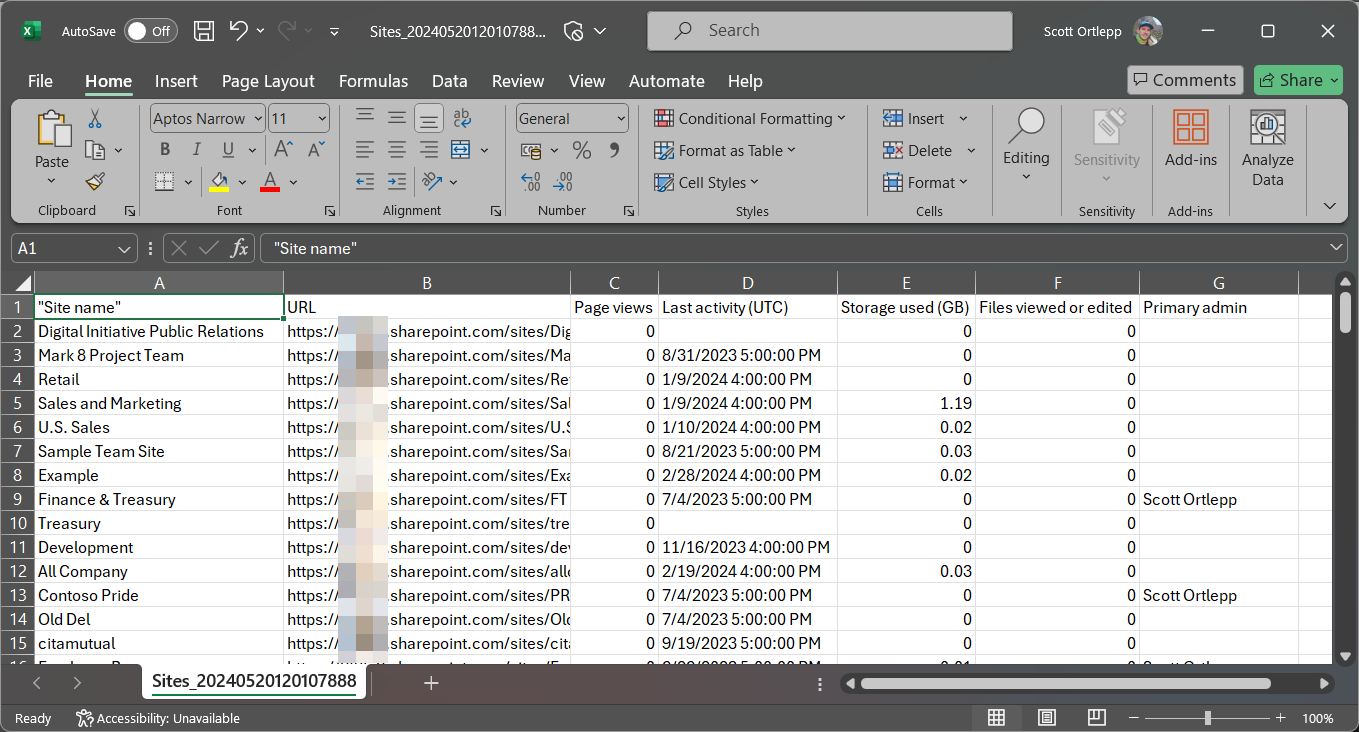
You will receive a report like the example below:
Step 2 - Review results
Review Storage used (GB) to find large inactive sites first, for the highest ROI. The exported report will enable you to quickly filter and sort by:
- last activity date
- storage used
- owners / contacts
- usage indicators (where available)
Step 3 - Archive or delete unused sites
Once you have identified the sites you would like to clean up and have confirmed with owners that they are not needed anymore, use the standard UI to simply delete the sites (or archive them if you have Microsoft 365 Archive configured on your tenant).
Where this approach breaks down: it’s manual, can generate false positives (read‑only reference sites), and doesn’t scale well without bulk actions and owner workflows
Option 2: PowerShell reporting + bulk deletion
If you want deeper reporting and bulk processing, PowerShell can help. The high‑level flow for this is:
- Generate an “inactive sites” report using PnP tooling,
- Review/confirm owners,
- Run bulk deletion actions carefully.
Important: PowerShell gives power, not safety. You still need an owner validation process unless you’re dealing with obviously disposable sites (tests/duplicates).
Step 1 - Generate the report
To generate a report of inactive sites, you will need to connect to PnP Online via PowerShell. Ensure that you have the correct admin roles as described in the Requirements section, and the App Registration details to allow you to authenticate to your SharePoint instance.
Below is an example that will fetch inactive sites on ‘X’ date:
#Get all non-OneDrive sites
$SiteCollections = Get-PnPTenantSite -Filter "Url -like <Tenant URL> -and Url -notlike '-my.sharepoint.com/'"

#Get all 'Inactive' site collections
$SiteCollections | Where {$_.LastContentModifiedDate -le <Date>} | Select Title, Url, LastContentModifiedDate, -LockState, Owner, IsHubSite,StorageMaximumLevel
To export a report, you can run the Export unused SharePoint sites.ps1 script once you have updated the required variables:
- TenantAdminURL – The SharePoint Admin center URL for your tenant that is used when connecting to your SharePoint instance.
- TenantURL – The root URL of you SharePoint site. This is used when fetching the inactive sites.
- ClientID – The app registration ID used with connecting to your SharePoint instance.
- DaysInactive – How many days since the last activity do you consider a site to be inactive. By default, this is set to 90 days.
- CSVPath – Where you would like the inactive site csv report to be saved to.
Step 2 - Delete unused sites
To clean up (delete) an unused site, you can use the following command:
Remove-PnPTenantSite -Url <siteURL>This will place the site into the SharePoint admin center recycle bin for 90 days before permanent deletion.
To perform deletion in bulk, you can use the Delete Unused SharePoint Sites.ps1 script to action the items in the csv report.
Option 3: SharePoint Advanced Management - Inactive sites policy
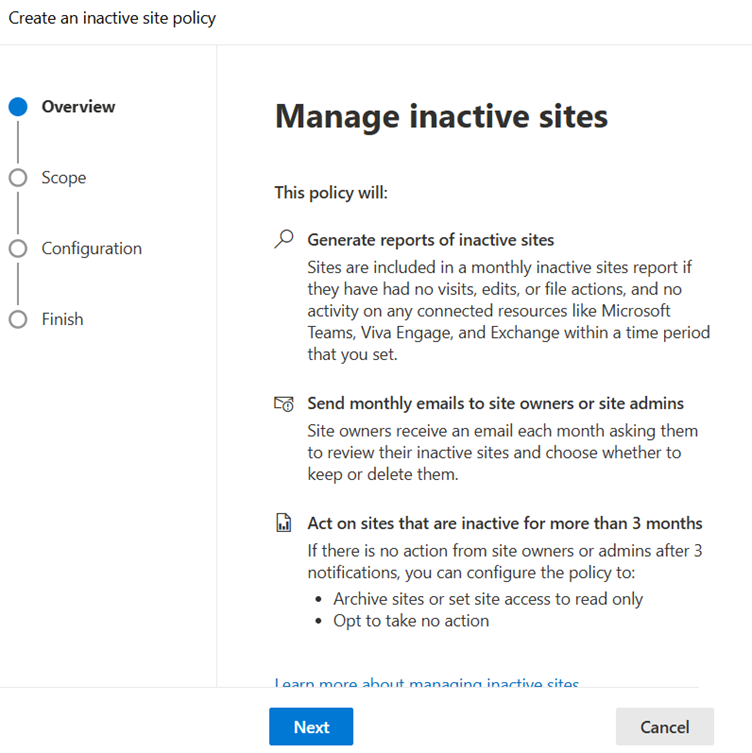
If you have SharePoint Advanced Management (SAM) capabilities, you can configure an inactive sites policy to detect unused sites and drive lifecycle actions.
Why admins like this:
- Faster setup than building custom scripts
- Shifts review responsibility closer to owners
- Can enable automatic actions if owners don’t respond
Trade‑off:
- Requires additional licensing/capability
For more information on how to do this, follow the Microsoft documentation on how to Create an inactive site policy.
Option 4: SProbot review and actioning
If you want to reduce storage without turning site cleanup into a quarterly fire drill, the missing piece is almost always workflow:
- Who owns the decision?
- Who gets notified?
- What happens if nobody responds?
- How do you action items in bulk without risky scripting?
SProbot’s approach is built around that reality.
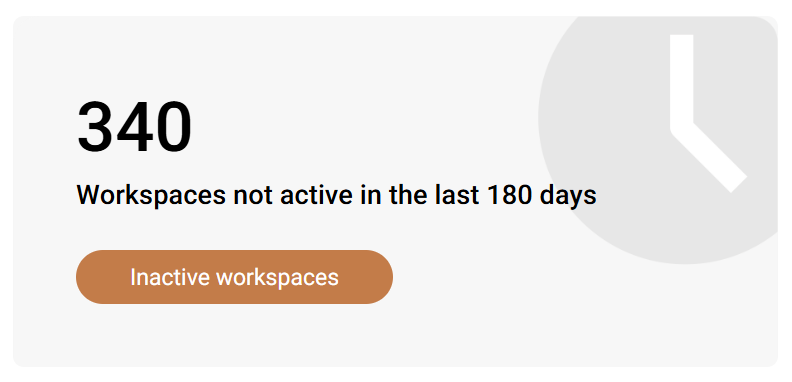
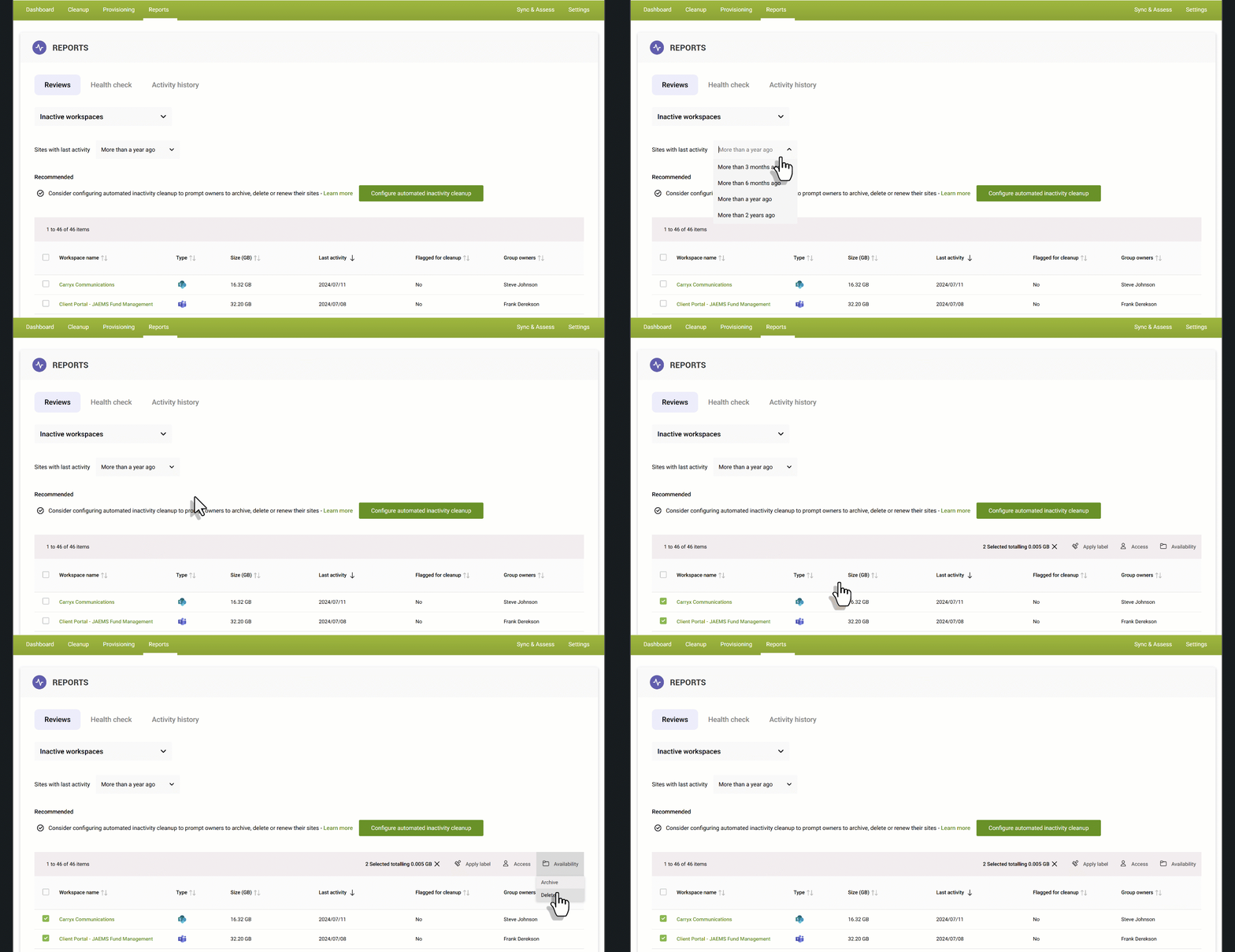
1) Find inactive workspaces in one view
Use the Inactive workspaces review to filter by an inactivity threshold and immediately see candidates for action. If necessary, you can delve into more detail by looking at the content composition of the site before taking action.
2) Confirm, then archive or delete (individually or in bulk)
When a site is clearly inactive and approved for cleanup, use the actions toolbar to archive or delete.
What about active sites with mostly inactive files?
Sometimes a site shows recent activity (so it looks “active”) but contains a high percentage of stale files. In those cases, site‑level lifecycle might not be the right action—file cleanup might deliver a better result.
🔗 How to find and remove inactive files
FAQ
What happens when you archive a SharePoint site?
Archiving generally preserves the site and content but removes it from active day‑to‑day use; access may require reactivation depending on the archive approach you use.
Is it better to archive or delete?
If you may need the content later (compliance/audit/reference), archive first. If you’re confident it has no value and retention obligations are met, delete. When uncertain, archive before delete.
How long should a site be inactive before you act?
Many organizations use 6–12 months for review, and 1–3 years for stronger lifecycle actions, but the right threshold depends on your industry and retention requirements.
If you want to identify your biggest inactive site wins quickly - and avoid false positives - you can assess your tenant with SProbot's reporting and cleanup tools for free with a 14-day trial.