


TLDR
To decide what to archive in SharePoint, start with storage impact and inactivity, then validate business value and risk before any action. File-level archiving in Microsoft 365 Archive lets you move individual files into a cold storage tier while keeping the rest of the site active. A sensible approach is:
- Target oversized sites first, because that is where meaningful storage wins usually exist.
- Within those sites, shortlist oversized files with clear signs of inactivity.
- Validate with site owners and account for retention, eDiscovery, and operational dependencies.
- Archive in batches, monitor reactivation, and repeat on a cadence.
Why file-level archiving changes SharePoint storage cleanup
Microsoft 365 Archive initially only supported site-level archiving, which is effective when a whole site is inactive.
File-level archiving changes the decision model because you can archive specific files inside an active SharePoint site, instead of choosing between “archive everything” or “keep everything active.”
Read more about the details here: How to archive SharePoint files and folders.
Two practical implications matter for administrators:
- Archiving is now a selection problem, not a tooling problem. You need repeatable criteria to decide which files qualify.
- Billing is nuanced. Microsoft charges for archive storage only when (active + archived) SharePoint storage exceeds the tenant’s included/allocated SharePoint storage capacity.

The risks of archiving without clear criteria
💔 Breaking active collaboration
A common mistake is treating “old” as “unused.” Last modified date is not the same as “no longer needed.” Teams often keep stable reference documents unchanged for long periods while still relying on them. Microsoft’s own admin reporting focuses on file activity as a signal of usage because interactions like view/edit/download matter.
Also, with Microsoft 365 Archive, an archived file requires reactivation before it can be read, which means incorrect archiving introduces friction.
✅ Compliance and audit blind spots
Archiving should not be used as a substitute for retention or governance. When a site is archived, compliance features such as eDiscovery and retention labels continue to apply, and archived content remains discoverable through relevant search experiences, but some operations (like export) can take longer.
That is good news, but it also means you must still decide what is appropriate to archive based on business and regulatory needs, not just storage pressure.
💰 Underestimating savings
If you archive many small, low-impact files, you might do a lot of work for little gain. The high-leverage path is to prioritise high-storage-impact files and the sites that drive most consumption, then apply inactivity and risk checks. This aligns with Microsoft’s pricing model, where storage economics matter most when you are near or over quota.
Key signals to use when deciding what to archive
Think of this as a scoring model. No single signal should decide on its own.
Signal 1: Inactivity and access patterns
Use activity, not just age. Options include:
- User-level SharePoint activity reports (views/edits/shares) give an organisational trendline and help you understand where collaboration is happening.
- At a file level, SharePoint surfaces recent file activity in the library details pane, typically covering recent history and changes.
- For deeper “who accessed what and when” questions, the Microsoft Purview audit log records many SharePoint file operations and is designed for searching and exporting activity records.
Practical rule: shortlist candidates where there is no meaningful activity for a defined window (for example 12–24 months), then verify with the owner group.
Signal 2: Oversized files and storage impact
File-level archiving is most effective when it targets files that materially affect storage consumption. Archiving is a way to manage inactive data cost-effectively, moving it to a cold tier while preserving security/compliance characteristics. So, prioritise files that are:
- Large (oversized files)
- Inactive or rarely accessed
- Low operational risk if temporarily reactivated later
This also reduces the chance you create lots of small “reactivation nuisances” with minimal benefit.
Signal 3: Business context and operational risk
File signals are necessary but insufficient. Add business context:
- Site purpose: Is this a long-running operational site or a closed project?
- File role: Is it a template, policy, contract, technical baseline, or “record”?
- Dependency risk: Are there downstream processes that assume the file is instantly readable?
Microsoft recommends notifying site owners and end users before archiving sites because access patterns change. The same principle applies at file level: communicate and validate.
A practical framework to decide what to archive
Use the following workflow as an operational runbook. It is designed for repeatability.
Step 1: Establish the baseline for SharePoint storage cleanup
Define what “success” means:
- Reduce active storage footprint in high-growth areas.
- Lower the number of oversized sites.
- Improve content relevance by separating inactive content from active collaboration content.
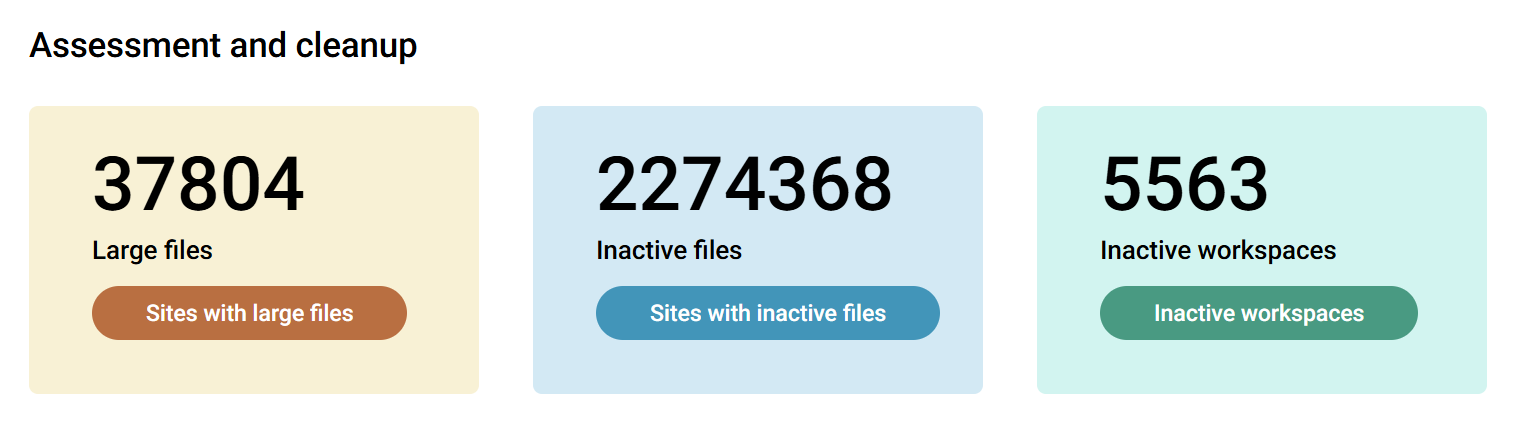
🔗 Use the health check in SProbot to get a tenant-wide view of the state of your content
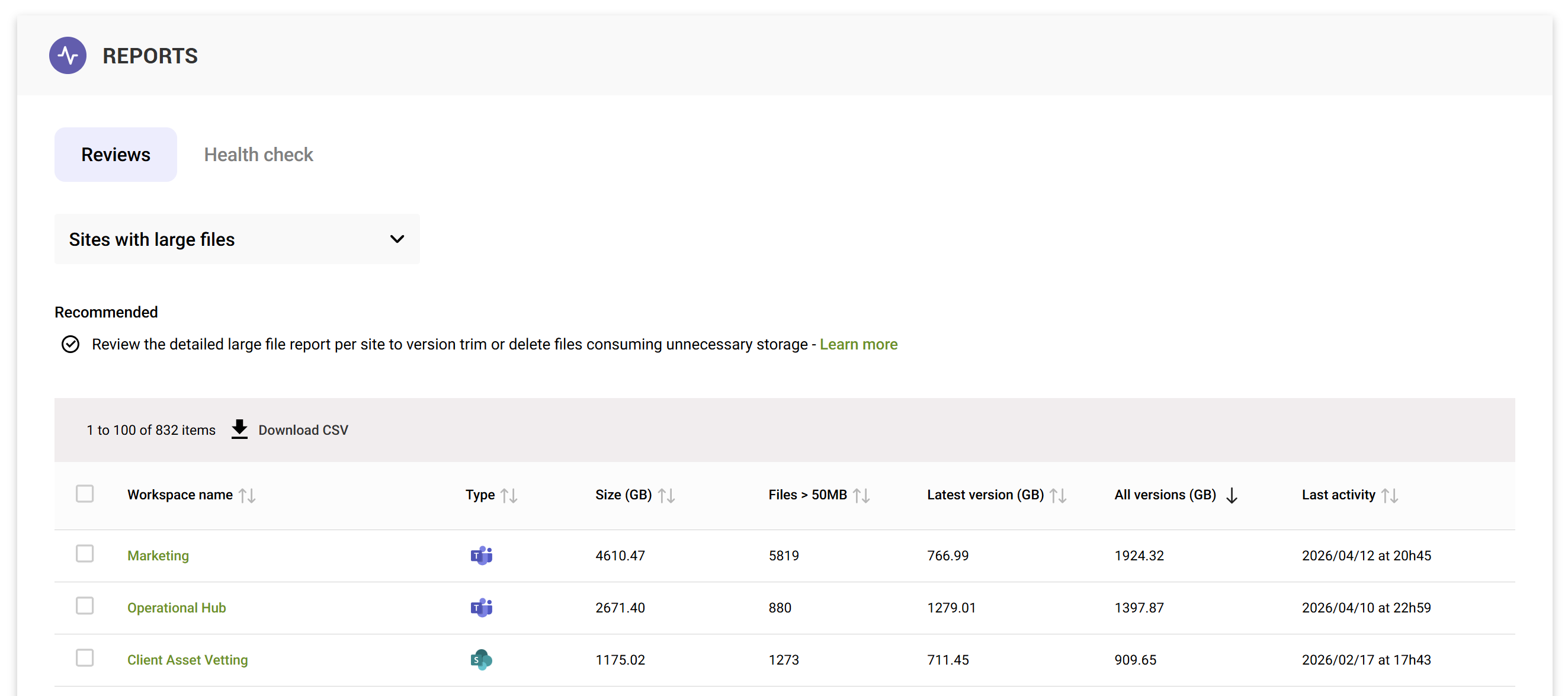
Step 2: Pick the right scope first (start with oversized sites)
Start where the storage is. If you try to hunt file candidates across the entire tenant without scoping, you will spend time on low-impact areas.
This is where reporting tools are valuable. SProbot’s role is to help you identify and report on the sites and files that represent the biggest opportunities, so you can focus validation and archiving effort where it matters most.
Step 3: Shortlist files using a “size + inactivity” filter
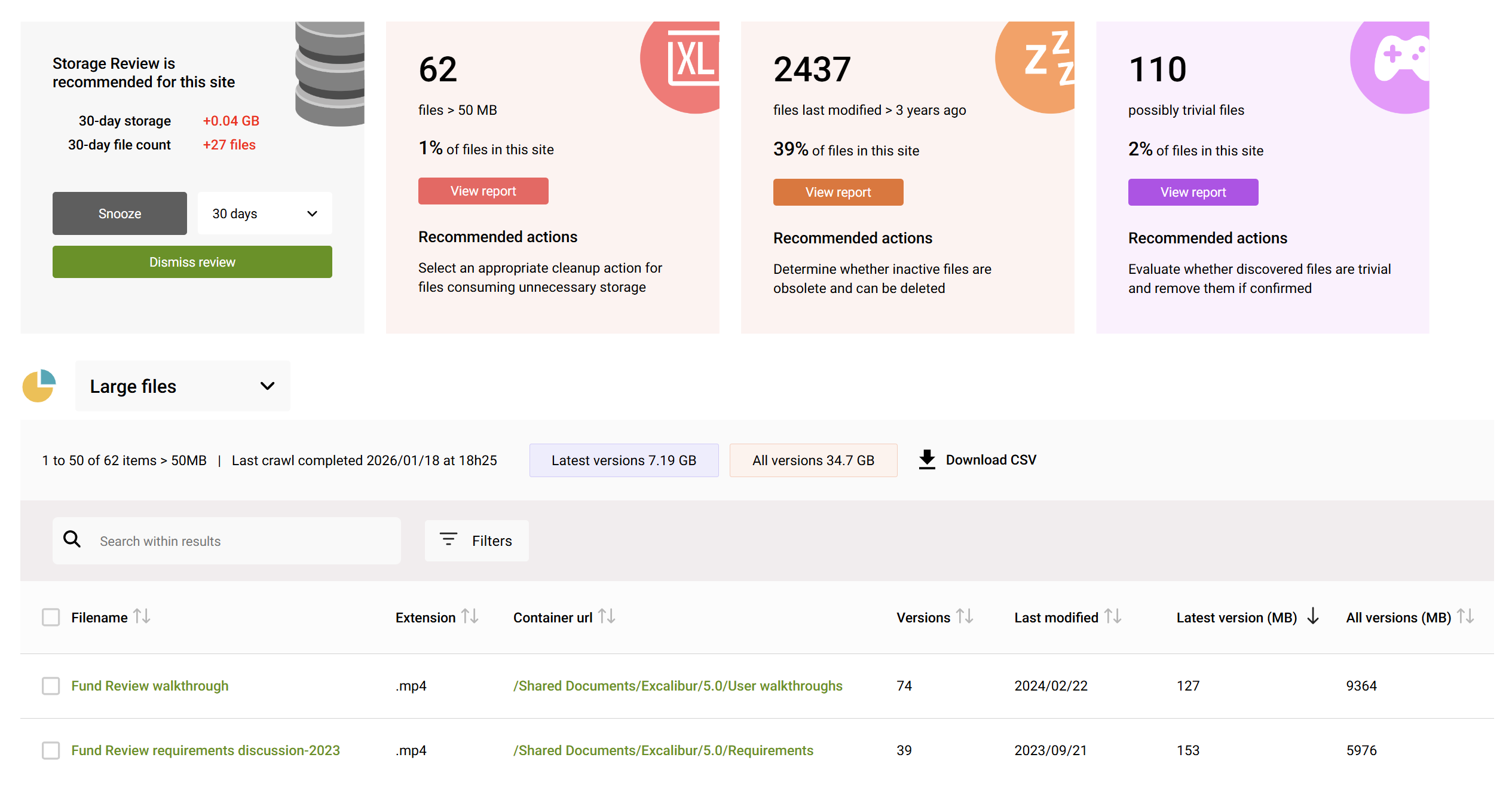
Within the selected sites:
- Sort by file size (largest first)
- Apply an inactivity window (based on the best activity signal you can access)
- Flag likely candidates
At this stage, you are building a candidate list, not taking action.
Step 4: Validate with owners and compliance stakeholders
Before archiving:
- Confirm that the files are not part of active collaboration workflows
- Confirm retention or regulatory constraints are satisfied
- Confirm who will handle reactivation requests and what the expected turnaround is
Archived content retains security/compliance protections and remains searchable in the right experiences, which supports archival as a governance-friendly storage tier. Validation ensures you use that capability responsibly.
When not to archive at file level
Avoid archiving when:
- The file is stable but operationally critical (policies, templates, technical baselines)
- Access is cyclical (annual audits, seasonal processes)
- Stakeholders cannot tolerate reactivation delays
- You cannot confidently assess activity or ownership
If you are unsure, treat the file as “review later” and prioritise clearer candidates. The goal is sustainable SharePoint storage cleanup, not disruptive change.
FAQ
Is file-level archiving better than site-level archiving?
It is not “better” in all cases. File-level archiving is ideal when a site is active but contains inactive files, while site-level archiving is best when the entire site is inactive.
Will archiving automatically reduce my costs?
Not always. Microsoft only charges for archive storage when your total storage (active + archived) exceeds your tenant’s included/allocated SharePoint storage quota.
Are archived files still protected by compliance features?
Microsoft states that compliance features like retention and eDiscovery continue to apply for archived sites, and Microsoft 365 Archive works with Microsoft Purview for long-term data management.