


TLDR
Site-level archiving is designed for environments where entire sites become inactive. That sounds reasonable in theory, but in practice most SharePoint sites don't reach that state.
File-level archiving takes a different approach. Instead of forcing a binary decision, it allows you to selectively archive inactive files while keeping the rest of the site active.
At a high level:
- Site-level archiving is all-or-nothing
- File-level archiving is granular and selective
- Real-world SharePoint environments are mixed-content by default
For most SharePoint storage cleanup scenarios, that difference becomes critical.
Why SharePoint storage cleanup is harder than it looks
The reality of mixed-content sites
If you review a typical SharePoint tenant, one pattern shows up repeatedly. Sites accumulate layers of content over time, but they rarely become fully inactive.
A project site might be “completed,” but still contains documents used for audits or reference. A department site might be heavily used, but includes years of outdated material that nobody has opened recently. This creates a fundamental mismatch:
- Storage grows at the file level
- Archiving decisions are often made at the site level
That gap is where most storage optimization challenges originate.
Real-world admin challenges
In practice, this mismatch leads to several recurring issues for administrators. Some of the most common challenges include:
- Uncertainty about what is truly inactive
Files may be old but still important for compliance or occasional use - Delayed feedback on storage changes
Storage metrics are not always immediate, which makes it harder to validate cleanup efforts. - Risk of disrupting users
Removing access to content can create confusion or support overhead
As a result, many admins adopt a cautious approach. Instead of optimizing continuously, they wait until storage pressure forces a decision, which usually makes the situation worse.
What site-level archiving actually does
How it works
Site-level archiving is a straightforward administrative action. From the SharePoint admin center, an administrator can archive an entire site and move it into a lower-cost storage tier.
When this happens:
- The site stops consuming active storage quota
- All content is moved into Microsoft 365 Archive storage
- Metadata, permissions, and compliance features are retained
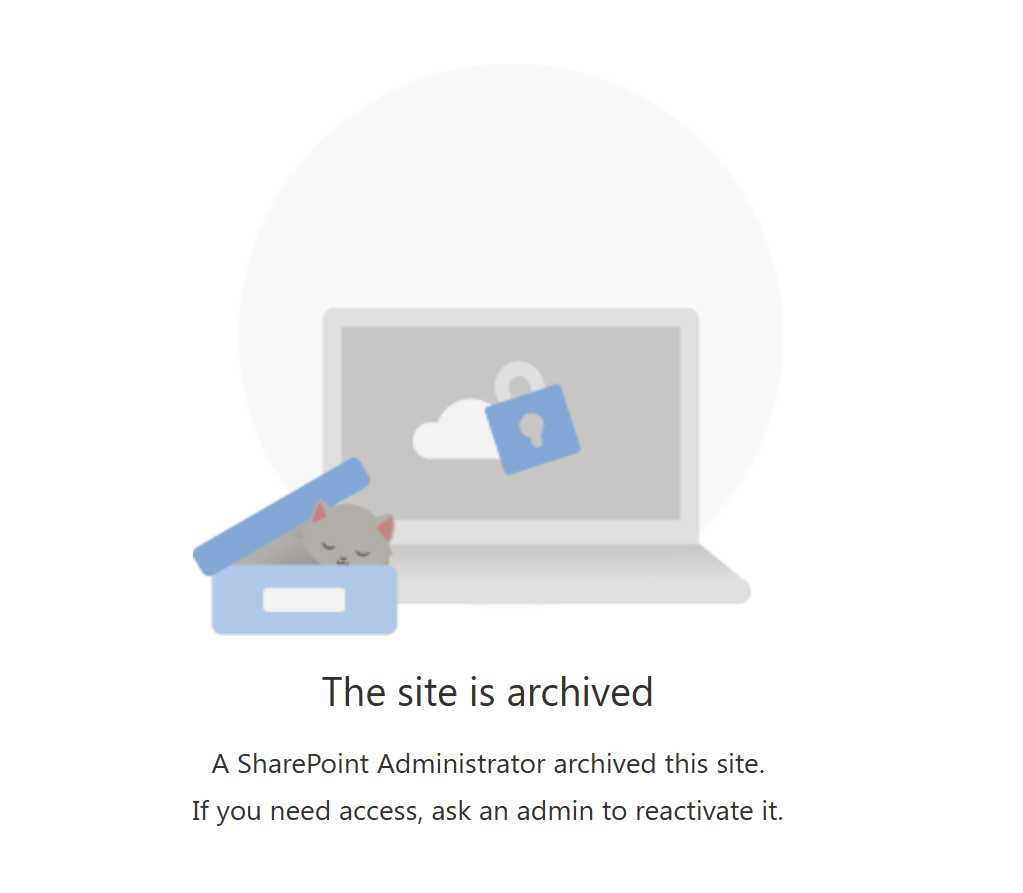
However, there is an important operational impact. Archived sites are no longer accessible in the same way as active sites, and users cannot interact with any part of their contents without reactivation.
Where it becomes problematic
The limitation of site-level archiving is not in how it works, but in how it assumes content behaves. It forces a decision that looks like this:
- Keep everything active
- Archive everything
There is no middle ground, and this leads to several practical issues:
- Sites are not archived because they are “partially active”
- When sites are archived, users lose access to more content than expected
- Archived sites become harder to discover in everyday workflows
Microsoft even recommends notifying users before archiving a site, which highlights how disruptive this can be in practice.
What file-level archiving changes
A shift to content-level decisions
File-level archiving introduces a more precise way of managing storage. Instead of making decisions about entire sites, administrators can target individual files based on their actual usage. This aligns much better with how SharePoint environments evolve over time. With file-level archiving:
- Individual files can be moved to a lower-cost storage tier
- The rest of the site remains fully active
- Decisions can be made incrementally rather than all at once
How this improves the user experience
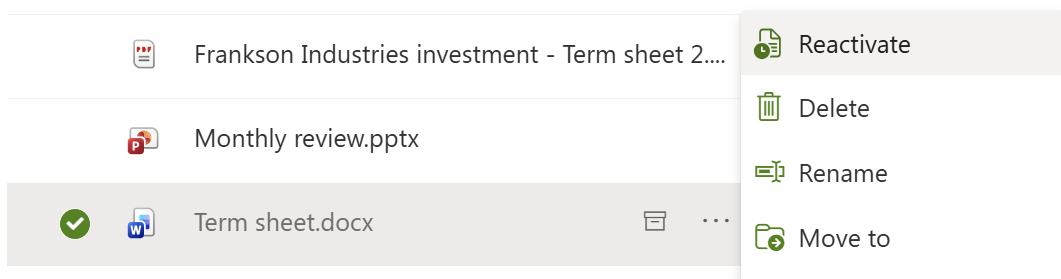
One of the biggest improvements is visibility. Instead of removing an entire site from user access, file-level archiving allows content to remain within its original context. Even if a file is archived, it is still conceptually (and visibly in the UI) part of the site. Archived items are very clearly displayed with the archive icon, and have a different and more limited context menu, primarily focused on reactivation.
This leads to a more intuitive experience:
- Users are less likely to assume content is missing or deleted
- Important context is preserved
- Reactivation becomes a targeted, low-risk action
Why this matters for storage cleanup
From a storage optimization perspective, this granular approach changes how cleanup can be done. Instead of waiting for a site to become fully inactive, administrators can:
- Identify high-impact files early
- Archive inactive content without affecting active work
- Reduce storage gradually over time
This supports a more continuous and controlled optimization strategy, rather than large, disruptive cleanup efforts.
Site vs file-level archiving comparison
The crux is that site-level archiving assumes content is neatly separated. File-level archiving acknowledges that it is not.
Why site-level archiving is rarely enough on its own
Even though site-level archiving has clear benefits, it falls short when used as the primary storage optimization strategy. There are three main reasons for this:
- Sites rarely become fully inactive
Business processes often require ongoing access to older content - Content becomes harder to find
Archived sites are removed from normal navigation and workflows - Decisions get delayed
Admins avoid archiving because the impact is too broad
The result is predictable. Storage continues to grow while optimization is postponed.
A more practical approach to SharePoint storage optimization
Think in terms of files, not sites
The most effective way to approach SharePoint storage cleanup is to shift focus from structure to usage. Instead of asking whether a site should be archived, it is more useful to ask:
- Which files are no longer actively used?
- Which files consume the most storage?
- Where are the highest-impact opportunities?
This is where a data-driven approach becomes essential.
Combine visibility with action
To make informed decisions, administrators need visibility across their environment. Specifically, they need to understand:
- Where inactive content exists
- Which files contribute most to storage usage
- Which sites contain the highest concentration of dormant data
SProbot fits into this process by identifying these patterns across sites and highlighting candidates for cleanup. It surfaces the insights needed to make precise, low-risk decisions.
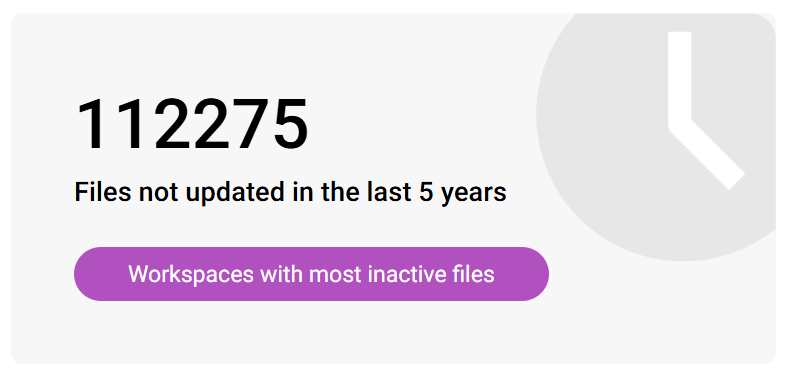
The health check functionality for example provides a count of the number of inactive files across the entire tenant.
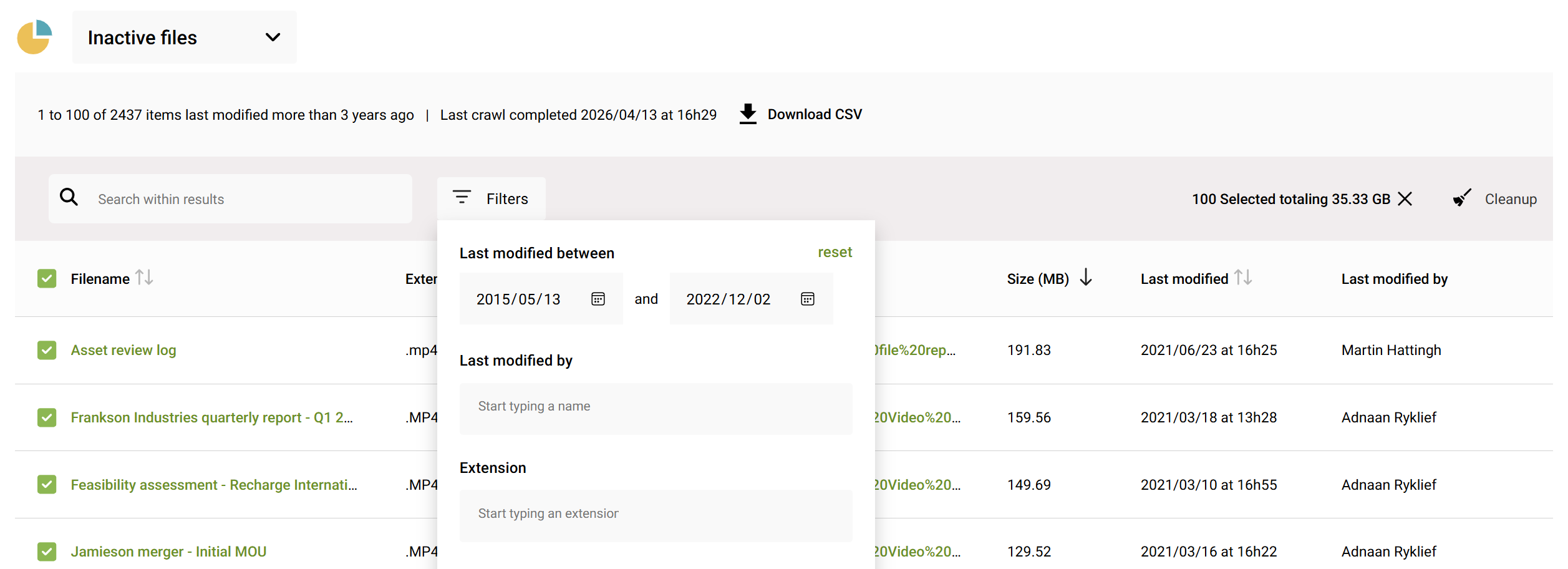
While the detailed inactive file report in sites listed in the above count provide granular detail about inactive files, including the ability to narrow down the period of inactivity, ownership and file extension.
When should you use each approach
Both approaches have valid use cases, but they apply in different scenarios.
Use site-level archiving when:
- A site is clearly inactive
- No future collaboration is expected
- Content is retained primarily for compliance
Use file-level archiving when:
- Sites contain a mix of active and inactive files
- Users still need visibility into older content
- Storage optimization needs to happen gradually
For most organizations, the second scenario is far more common.
FAQ
What happens when you archive a SharePoint site?
All content in the site is moved to archive storage. It remains preserved with metadata and compliance controls, but is no longer directly accessible until reactivated.
Can you archive individual files in SharePoint?
Yes. File-level archiving allows individual files to be archived within an active site, enabling more granular storage management.
Does archiving reduce SharePoint storage usage?
Archiving reduces active storage usage, but the data still counts toward total tenant storage as archived storage.
Why is file-level archiving better for storage cleanup?
Because it matches how SharePoint environments actually behave. Most sites contain a mix of active and inactive content, and file-level archiving allows you to manage that imbalance without disrupting users.