


If you need to archive a SharePoint site without losing data, Microsoft 365 Archive is Microsoft’s native option for moving inactive SharePoint sites into a colder storage tier while retaining permissions, metadata, and compliance controls. Use it when collaboration is finished but the content still has value for audit, legal, or reference purposes.
This guide covers setup, archiving, reactivation, pricing, limitations, and a practical workflow you can repeat across a tenant.
TLDR
To archive a SharePoint site using Microsoft 365 Archive, you first enable pay-as-you-go billing with an Azure subscription and resource group, then turn on Microsoft 365 Archive in the Microsoft 365 admin center. After that, you can archive sites from the SharePoint admin center using the normal Active sites view. Archived sites can be reactivated later and return to their pre-archive permissions and structure, with normal exceptions such as recycle bin expiry and retention actions continuing.
On costs, Microsoft charges for archive storage only when your tenant’s combined active plus archived SharePoint storage exceeds your included or licensed SharePoint storage quota. Reactivation fees for SharePoint archived content were eliminated on March 31, 2025, and Microsoft applies a restriction on re-archiving newly reactivated content for four months.
What Microsoft 365 Archive does
Microsoft 365 Archive is intended for long-term retention of inactive SharePoint content with a lower-touch access model. When a SharePoint site is archived, it moves into a colder tier and no longer consumes active SharePoint storage quota. The content is no longer directly accessible as a normal active site, but compliance capabilities such as retention and eDiscovery continue to apply.
The key operational implication is that archiving is a lifecycle decision, not a folder move. You are not “tidying up” a library inside SharePoint. You are making the site unavailable for normal day-to-day use until it is reactivated.
Because of this significant change in availability, it's recommended that you notify site owners and end users before archiving so they understand the accessibility change.
If you are still deciding between archiving and deletion, use the decision framework in Archive vs delete: how to clean up inactive SharePoint sites.
When archiving is the right choice
Archiving is usually the right choice when the site is inactive but the content still has business value or must be retained. Common examples include completed project sites, legacy departmental sites kept for reference, and records that must be preserved for audits.
Deletion is usually better for redundant, obsolete, or trivial content where there is no retention requirement. ROT content consumes storage without providing ongoing value and is often better removed than “kept forever in cold storage.”
If you are under storage pressure, it is also worth separating site-level decisions from file-level decisions. Some sites are active but contain large volumes of historical files. In that scenario, file-level cleanup or file-level archiving can be a better fit than archiving the entire site.
Compare the top SharePoint archiving solutions
How to set up Archiving
Setting up Microsoft 365 Archive involves minimal technical configuration and can be easily completed if you have the required permissions.
Prerequisites
To enable Microsoft 365 Archive, Microsoft requires:
- Role: SharePoint Administrator or Global Administrator for setup actions.
- Azure: an Azure subscription in the same tenant as Microsoft 365, plus an Azure resource group; you need Owner/Contributor rights to configure billing.
- Licensing: at least one SharePoint license (or a suite that includes SharePoint).
Microsoft recommends using the least privileged admin roles possible, reserving Global Admin for emergencies.
Step 1 - Enable pay-as-you-go billing
Microsoft 365 Archive is a pay-as-you-go service. The initial setup is done in the Microsoft 365 admin center and requires you to connect an Azure subscription and resource group for billing.
You can use Microsoft's official guidance, with the steps in summary:
- In the Microsoft 365 admin center, open Setup and activate pay-as-you-go services.
- Choose your Azure subscription, resource group, and region, and accept the pay-as-you-go terms.
- After setup, monitor usage in Azure Cost Management
If you later disconnect billing or billing becomes unhealthy, archived content can remain archived and can still be reactivated, but new archive actions may be blocked and archived storage can temporarily count toward standard storage consumption until billing is healthy again.
Step 2 - Turn on Microsoft 365 Archive
After pay-as-you-go billing is enabled, Microsoft 365 Archive must be turned on for SharePoint sites.
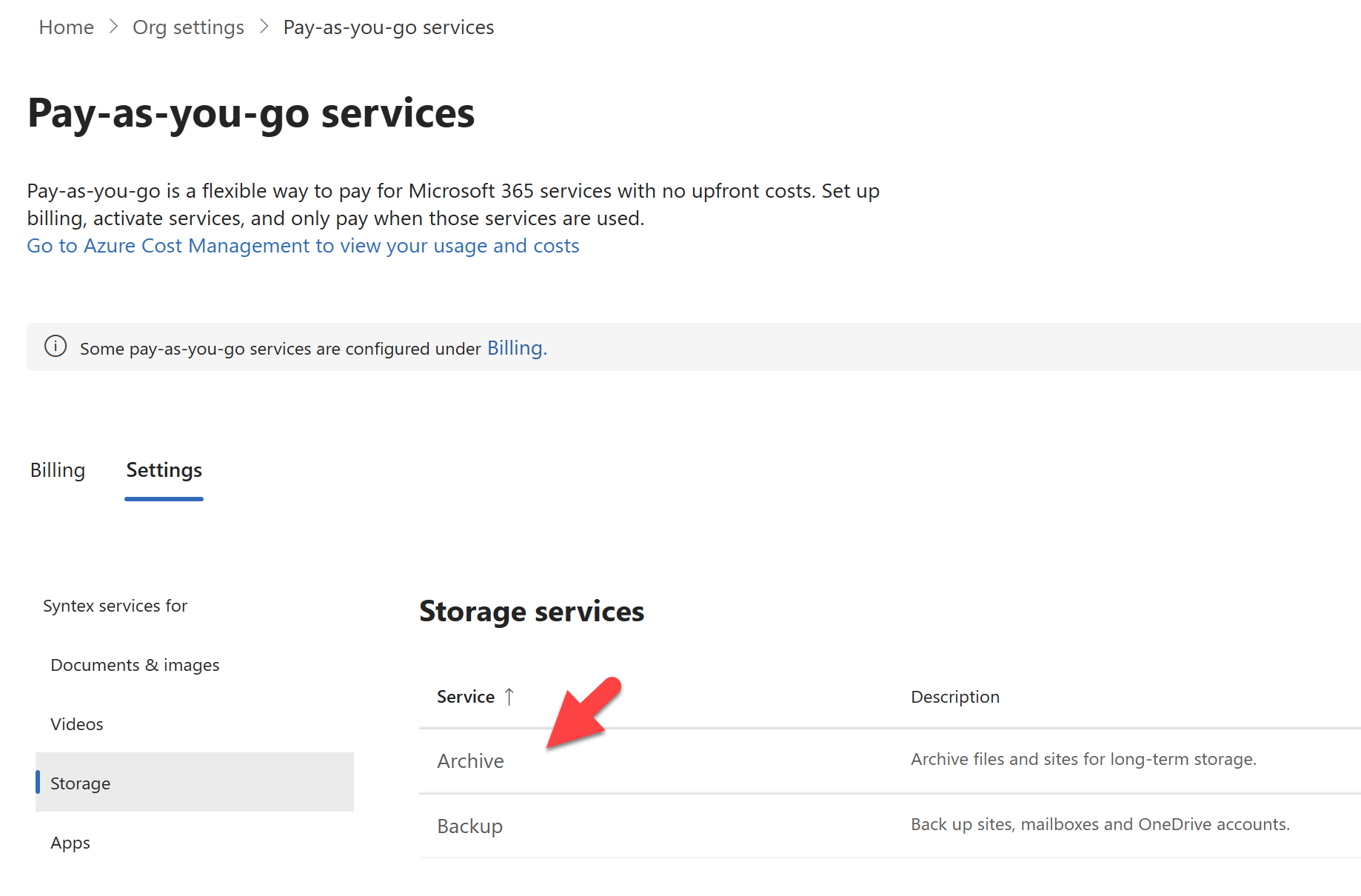
Go to Settings → Org settings → Pay‑as‑you‑go services → Settings → Storage
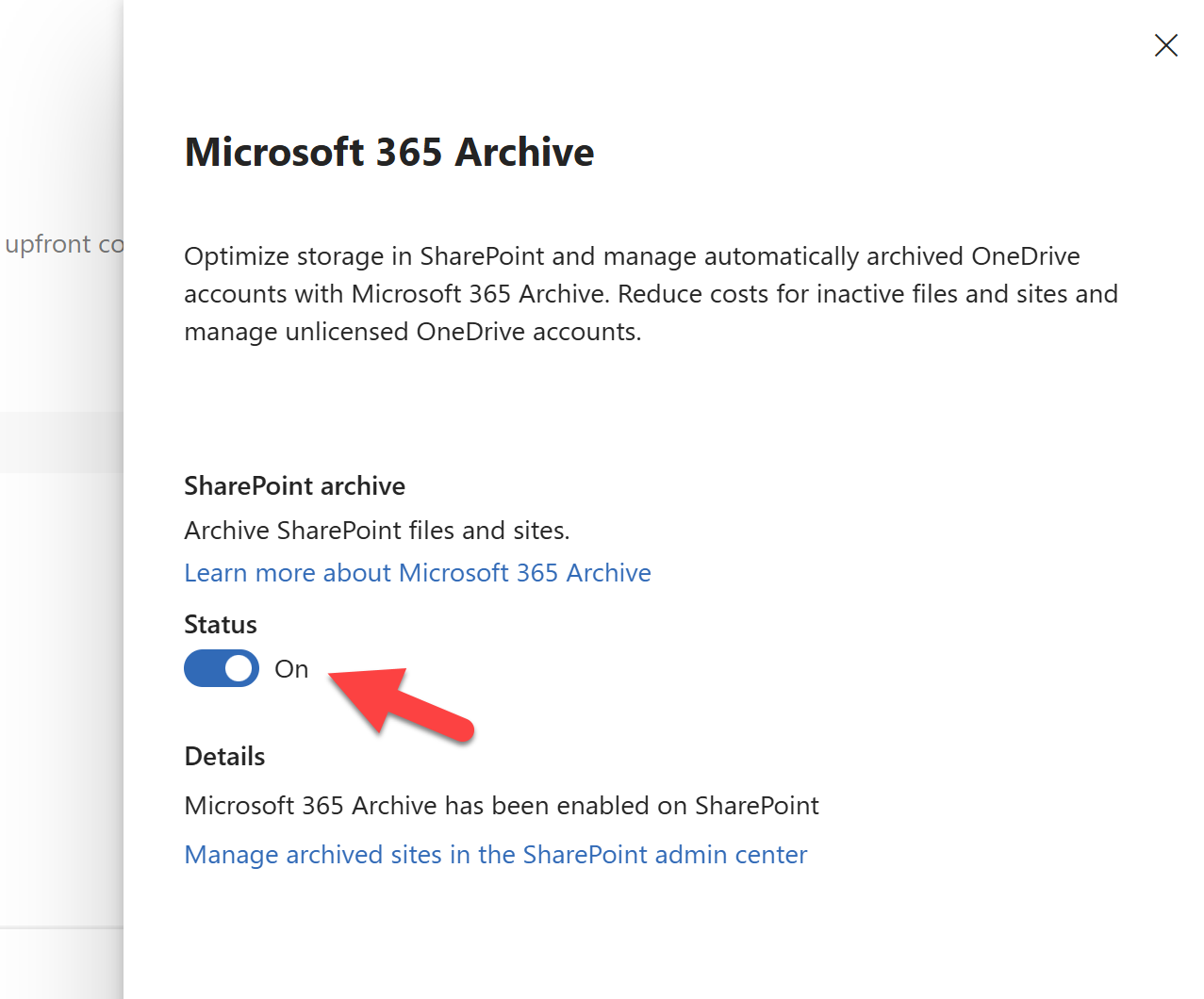
Toggle the SharePoint archive status to On.
Archiving and reactivation in action
Step 1 — Archive a SharePoint site
Once billing is enabled, go to SharePoint admin center → Sites → Active sites.
Select one or more sites, and use the Archive action.
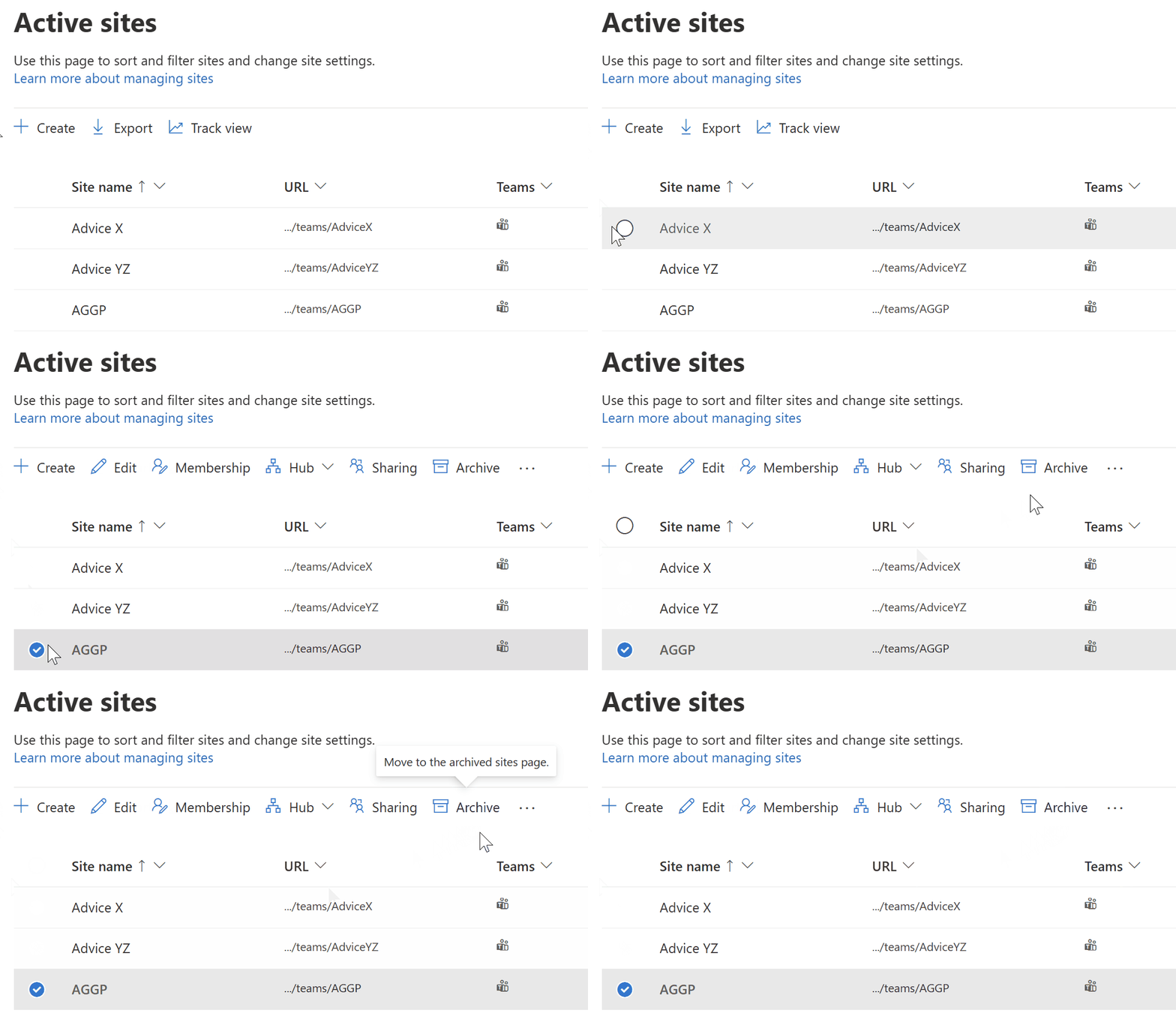
You can view already archived sites under the Archived sites page.
What happens immediately after archiving?
- The site stops consuming active storage quota and begins consuming Microsoft 365 Archive storage (changes in storage may take time to reflect).
- The content becomes inaccessible to normal users, with a fullscreen "This site is archived" banner displayed.
- Compliance capabilities (eDiscovery, retention labels) continue to apply.
Notify site owners before archiving so they understand that the site will no longer be available in the same way
Step 2 — Reactivate an archived SharePoint site
If users need access again: In the Archived sites list in the SharePoint admin center, select the site and choose Reactivate.
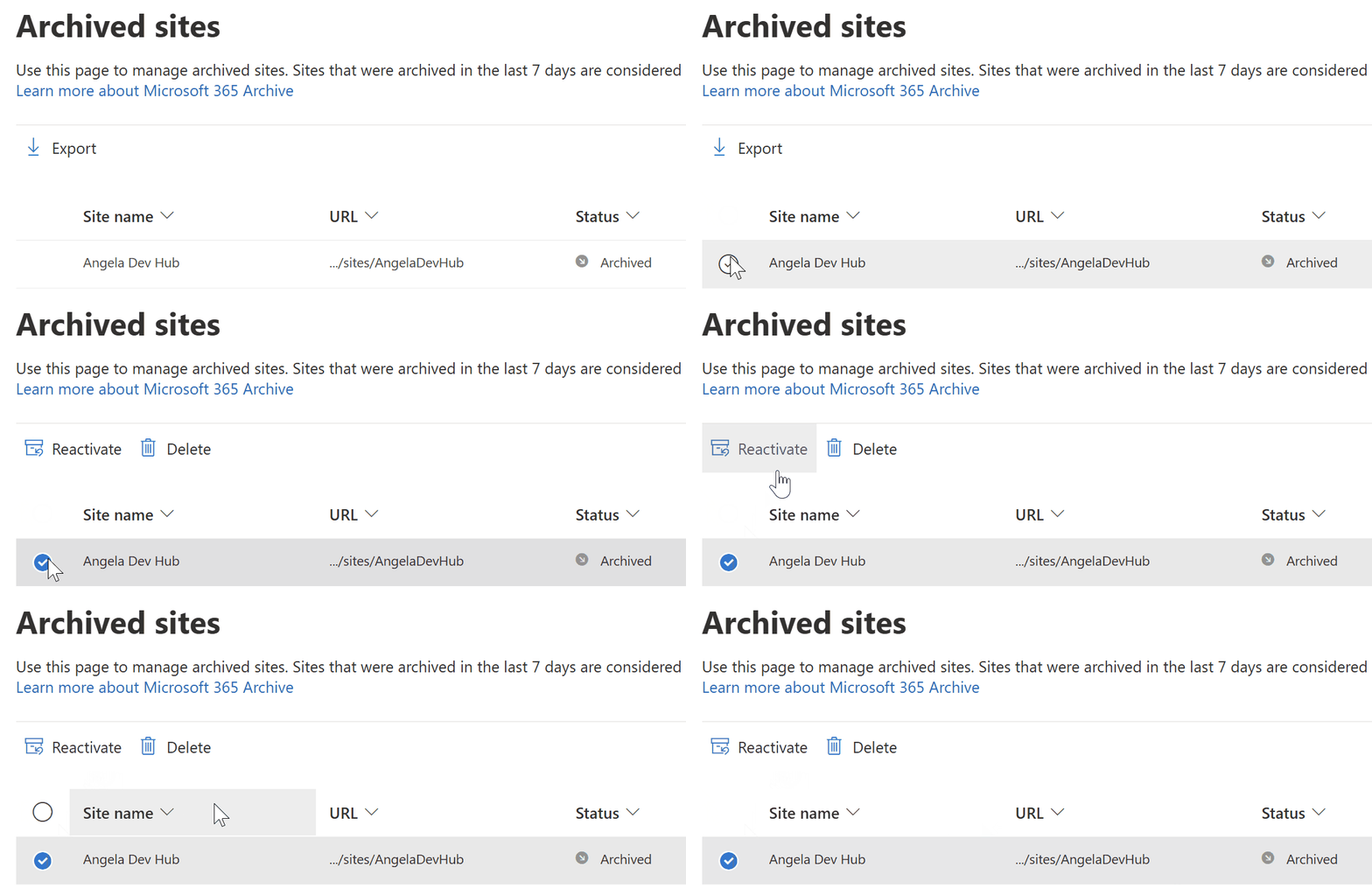
The site enters a Reactivating state, then returns to Active sites once complete.
After reactivation, users regain the same access rights as before archiving.
Data integrity note: The site returns to its pre‑archive state (permissions, pages, files, structure, policies), with two important exceptions:
- Recycle bin expiry continues, and
- Retention policies can still delete content while archived.
Re-archiving restrictions
After reactivation, re‑archiving newly reactivated SharePoint content is restricted for a period of ~120 days / 4 months to prevent “hot swapping” to avoid costs.
Pricing and billing basics
🔑 Key rule: you pay only when you exceed your storage quota
The key rule from Microsoft is that the archive meter is charged only when your tenant’s archived storage plus active SharePoint storage exceeds your included or licensed SharePoint storage capacity. If your tenant remains under quota, there is no additional archive storage cost.
A practical way to think about it is:
- If you are already over quota and paying for extra storage, archiving shifts some of the overage into a cheaper tier.
- If you have headroom under quota, you may archive content without additional archive charges, but archiving can still help with decluttering and lifecycle management.
Use the calculator below to see the potential effects of archiving on your tenant's storage overage costs.
For a cost-focused explainer, see How Microsoft 365 Archive helps reduce SharePoint storage cost.
Common limitations
If the Archive button is disabled for a site, it's likely because of one of the reasons below. Microsoft limits the action in some scenarios to prevent unintended breaking of linked functionality.
Hub sites
To archive a hub site, you must unregister it as a hub site first. This is to prevent sites relying on the hub from losing navigation and other hub-derived settings.
Teams private and shared channels
Because special channels have their own separate site collections, archiving is limited when they're present to prevent unintentionally archiving multiple sites which may be in use.
- Only teams sites with standard channels are supported.
- If a Team includes private or shared channels, SharePoint admin center archiving is blocked for that group-connected site (you'll see the Archive button disabled completely).
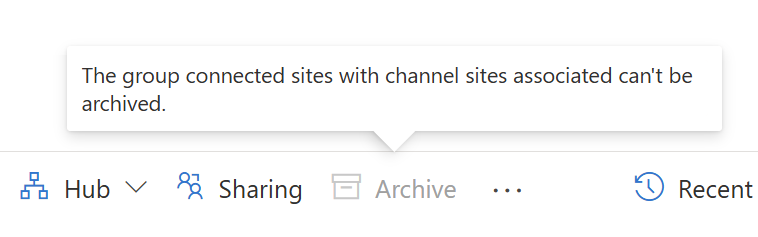
- PowerShell/Graph can archive the main/parent Team site and standard channels, but the private/shared channel sites remain active and can’t be archived directly due to unsupported templates.
Unsupported site types
Publishing sites, channel sites (see previous point) and some legacy template types aren’t available to archive with Microsoft 365 Archive. These include:
- Enterprise Wiki
- Classic Blog
- Records Center
- Document Center
- App Catalog (to prevent functionality used in other locations)
OneDrive behavior
OneDrive accounts (template 21) can’t be archived either. Some unlicensed OneDrive accounts are archived automatically by the OneDrive service and can be reactivated via PowerShell.
What about file-level archiving?
File-level archiving is a capability released mid 2026 which enables both admins and end-users to select individual files and folders within sites to archive.
- Users can archive files where enabled; archived files require reactivation to be viewed or edited.
- Archiving can be enabled/disabled at both tenant and site level.
- Files that are reactivated can’t be archived again for 30 days.
A practical rule is:
- Use site archive when the entire workspace is inactive.
- Consider file-level archive when the site is active but contains older large files that do not need to remain readily accessible.
For file-level archiving guidance, see How to archive SharePoint files and folders.
What to archive
Archiving is only effective if you target the right content. Here are common signs that a site or file is an ideal candidate for archiving.
Inactive or unused sites
Often the biggest wins come from entire SharePoint sites that haven’t been touched in months. If a site shows no file edits, page views, or other user activity in, say, 6–12 months, it’s likely not needed in active circulation. Typical examples include:
- Completed project sites (e.g. a project concluded last year, and the site hasn’t been updated since).
- Legacy team or department sites that were replaced by newer sites (and the old one now sits idle).
- SharePoint sites for now-disbanded groups or past initiatives.
If no one has interacted with a site in over a year, it’s a strong archive candidate. Before archiving such a site, it’s good practice to notify the site owner (if there is one) or department, just in case the site is still needed in read-only form. But generally, truly inactive sites can be archived with minimal impact on users.
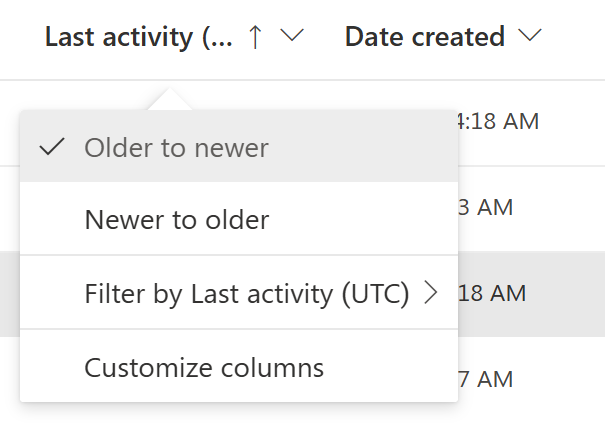
If you want a practical approach for identifying inactive sites, see Increase available SharePoint storage: clean up inactive sites.
For sites which are technically active but filled with stale content, file-level cleanup may be better than archiving the entire site: Free up SharePoint storage by finding and removing inactive files.
Large files with no recent use
Individual files can consume disproportionate storage, especially items like videos, high-resolution graphics, large data exports, or lengthy PowerPoint decks. Look for very large files that haven’t been opened or modified in a long time.
For example, a 700 MB training video from 2019 that hasn’t been viewed since 2020 is just sitting there wasting space. Such files are prime targets to archive (or possibly delete if truly unnecessary). Examples of large, stale files:
- Old video recordings, webinars, or training videos that are no longer in active use.
- Heavy design files (e.g. CAD drawings, large Photoshop files) from completed projects, not touched in years.
- Database exports, ZIP archives, or log files that were uploaded for one-time use and never accessed again.
To find these, you can use SProbot's Sites with large files review, which lists sites which contain large files and their version consumption.
Redundant, Obsolete, or Trivial (ROT) content
Not all old content is worth archiving; some of it shouldn’t be kept at all. ROT refers to data that is Redundant (duplicate or unnecessary copies), Obsolete (outdated information that’s no longer useful), or Trivial (no business value). Examples include:
- Duplicate files or multiple near-identical versions of a document scattered in different libraries.
- Outdated drafts or interim work documents that were never deleted after the final version was published.
- Irrelevant items that shouldn’t have been stored on SharePoint in the first place (e.g. personal photos, random test files, or old installers).
These ROT items clutter your environment and consume storage for no gain. They’re usually better to delete than to archive. Deleting ROT content (after verifying it’s truly not needed) gives you immediate space savings and a cleaner environment.
💡 SProbot’s analytics include trivial content detection powered by AI. This can automatically flag files that appear to be personal, redundant, or otherwise low-value (for example, multiple copies of a file, or .exe installer files in document libraries). Using these insights, you can quickly pinpoint ROT content and decide to remove it.
Compliance and record-keeping data
Some content is kept “just in case” due to legal, regulatory, or policy requirements. This might include things like:
- Past financial records and audit documents that need to be retained for X years.
- Executed contracts or legal agreements that are no longer active but must be stored for compliance.
- Employee records or historical policy documents that aren’t referenced day-to-day but are kept for governance.
These types of data are often not used actively, yet you’re not allowed to delete them until a certain retention period passes. Archiving is ideal here.
By archiving compliance data, you satisfy the retention requirement (the data stays in your environment and is still discoverable for legal purposes) while freeing up your active SharePoint storage.
Orphaned or ownerless content
Content becomes orphaned when its owner or primary users have left the organization or moved on to other projects, and no one else has taken ownership. Examples:
- A SharePoint site created by an employee who has since left, where no one else is actively maintaining the content.
- A project site for a completed project, where the project lead (site owner) is no longer involved and the team has disbanded.
- Personal or ad-hoc libraries that were created for convenience, then abandoned.
Orphaned sites tend to stagnate — no updates, no permissions maintenance — which usually makes them inactive over time. These should be reviewed promptly. In many cases, if the content isn’t of obvious value, it can be deleted after some retention interval. If the content is worth saving (maybe it contains useful knowledge or records), archiving the site is a good solution. This way the data is preserved in case someone needs it, but it’s not using up primary storage or showing up in searches.
Tip: It’s a good practice to have a process for orphaned sites. You can use Site Access Reviews (part of Data Access Governance in SharePoint Advanced Management) to achieve this, or if you need to quickly clean up, use SProbot's orphan reporting (How to clean up orphaned SharePoint sites and teams).
Alternatives to Microsoft 365 Archive
Microsoft 365 Archive is not the only way teams try to “archive” SharePoint content, but alternatives have different outcomes.
Manual archive libraries
Creating an “Archive” library and moving old files into it can declutter navigation for users, but it does not reduce tenant storage costs because the data remains in active SharePoint storage. Use this when the goal is user experience, not storage reduction.
Move content to external storage
Exporting content to external storage such as Azure Blob and then deleting it from SharePoint can reduce active SharePoint storage usage, but it adds operational overhead and changes how users access information. This approach is best reserved for very cold content and scenarios where Microsoft 365 Archive is not an option.
Retention policies
Retention and records management tools govern how long content must be kept and when it can be disposed of, but they are not a storage optimization mechanism on their own. Retention can complement archiving by ensuring eventual disposal after required time periods.
A repeatable workflow
Archiving works best as an operational rhythm rather than an emergency response. A practical workflow looks like this:
- Define criteria for inactivity and archiving. Include compliance requirements and who approves decisions.
- Identify candidates using admin center reporting and targeted analysis of large sites and inactive content.
- Validate with owners where needed, to avoid accidental unavailability of reference sites that people may depend on.
- Archive and delete appropriately. Archive inactive sites with value, delete ROT content, and document actions taken.
- Monitor reactivation requests and refine criteria over time.
- Repeat on a practical cadence.
How SProbot helps
What you can do without SProbot
You can do a meaningful amount with Microsoft tools alone, especially in smaller tenants:
- Use SharePoint admin center views to sort by last activity and storage used, export results, and review candidates with owners.
- Use the archive and reactivation actions directly in the SharePoint admin center once Archive is enabled.
Where this breaks down is scale and confidence. Last activity alone can produce false positives, and manual review does not scale to thousands of sites or tens of terabytes without a repeatable process.
How SProbot helps at scale
SProbot is built for tenant-wide discovery and lifecycle actions that do not rely on guesswork. It helps you identify inactive workspaces, large files, and storage drivers, and then apply cleanup actions such as archiving and ownership assignment in a controlled way.
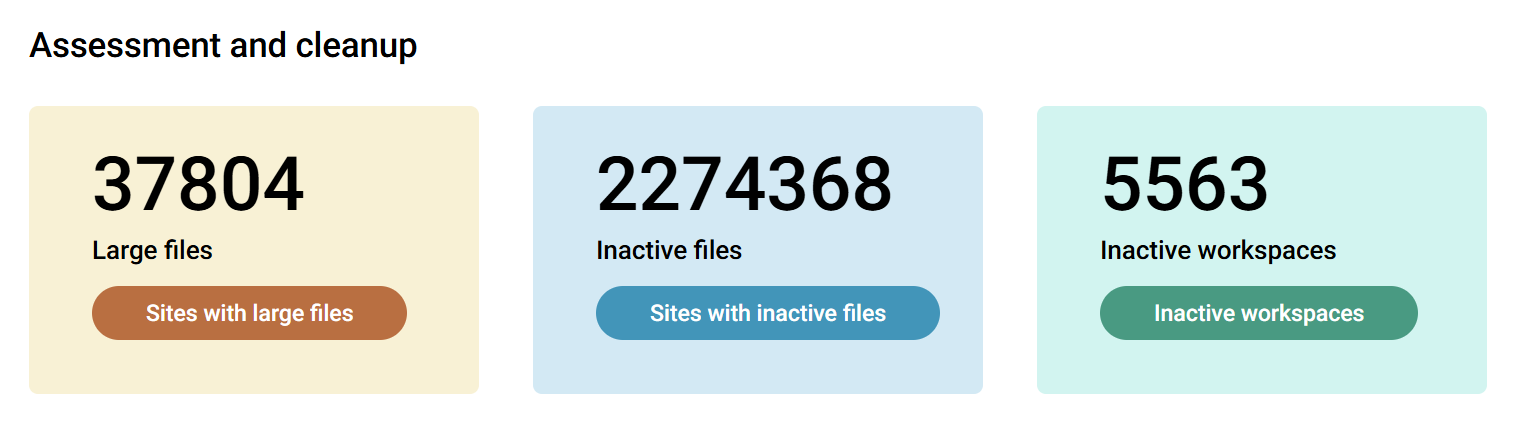
A full tenant view requires crawling and analysis, which SProbot can provide within days on most tenants.
Interested in what the practical sequence for storage cleanup after crawling and assessment looks like? See How to use SProbot to free up storage.
FAQ
Why don’t I see the Archive button?
Most commonly, Microsoft 365 Archive has not been enabled in the Microsoft 365 admin center, or pay-as-you-go billing has not been configured with an Azure subscription and resource group.
What happens when I archive a SharePoint site?
The site moves into a colder tier and is no longer directly accessible as an active site. It no longer consumes active SharePoint storage quota and contributes to Microsoft 365 Archive storage consumption, while compliance features such as retention and eDiscovery continue to apply.
Can I reactivate an archived SharePoint site later?
Yes. Admins can reactivate archived sites from the SharePoint admin center. The site returns to active use with the same access rights as before archiving, with practical exceptions like recycle bin expiry and retention deletions continuing.
Do I pay for Microsoft 365 Archive immediately?
Not necessarily, because archiving charges apply only when the combined active + archived storage consumption exceeds your tenant's licensed quota, a point you might only reach in future.
Why can’t I archive a Teams-connected site?
If the Team includes private or shared channels, SharePoint admin center archiving can be blocked for that group-connected site. PowerShell and Graph can archive the main Team site and standard channels, but private and shared channel sites remain active due to template limitations.