


Answer in brief
Microsoft 365 Archive file-level archiving is now generally available for SharePoint Online, giving organisations the ability to archive individual files into Microsoft's archive storage tier without archiving an entire site. Unlike site-level archiving, it provides a more granular option for inactive content that still needs to be retained, discoverable, and recoverable.
Key points:
- Archive individual SharePoint files without archiving the entire site.
- Archived files remain governed by existing compliance controls.
- Users can reactivate archived files when required.
- File-level archive complements, rather than replaces, site-level archive.
- It is most useful for inactive content stored within otherwise active SharePoint sites.
If you are unfamiliar with Microsoft 365 Archive itself, start with How to archive SharePoint sites with Microsoft 365 Archive: Setup, Steps, Costs & Gotchas before exploring the newer file-level capability.
What is Microsoft 365 Archive file-level archiving?
Microsoft originally introduced Microsoft 365 Archive as a site-level archiving solution, allowing organisations to move entire SharePoint sites into a lower-cost archive storage tier. The new file-level capability extends this model by allowing individual SharePoint files to be archived independently. This enables administrators and content owners to manage inactive documents without affecting the remainder of an active site, library, or collaboration workspace.
File-level archiving is particularly useful when:
- A project is complete but the wider site is still active.
- Historical records must be retained but are rarely accessed.
- Large inactive files are consuming storage that would be better classified as archive data.
- The business wants to maintain discoverability without keeping documents in active use.
What changed with General Availability?
The biggest change is that file-level archiving is no longer a roadmap item or preview feature. Microsoft has now released it broadly across Microsoft 365 Archive environments, making it available to organisations that have Microsoft 365 Archive enabled and configured with pay-as-you-go billing.
This means file-level archiving:
- Is enabled by default in tenants where Microsoft 365 Archive is enabled.
- Allows users with edit permissions to archive eligible files.
- Supports reactivation of archived files.
- Works alongside existing site-level archive functionality.
- Preserves compliance and governance controls.
How does file-level archiving work?
File-level archive is designed to be simple from an end-user perspective. On sites where it is enabled, users with edit permissions can select one or more files and use the Archive action. Once archived, files move into Microsoft's archive storage tier and must be reactivated before they can be opened again.
Technical Architecture & Storage Tier
Microsoft 365 Archive works by moving SharePoint content into a cold storage tier that is fully integrated within the SharePoint platform. In practice, this means archived data remains in-place in Microsoft 365 (within the SharePoint/OneDrive infrastructure) but is shifted to a low-cost Azure storage tier behind the scenes.
Unlike manual offloading of files to external storage (e.g. copying to Azure Blob storage), Microsoft 365 Archive keeps the content within the Microsoft 365 environment, retaining all security, compliance, and search integration benefits. This design provides several technical advantages.
Governance remains in place
Because archived files remain within SharePoint/OneDrive (just in a distinct storage tier), you don’t need to manage a separate external archive system. All security, compliance, and search functionalities remain intact in the background. This means metadata, version history, and structure are preserved during archive and restored upon reactivation
Retention Policies & Legal Holds
If a SharePoint file is under a retention policy or eDiscovery hold, those controls remain in effect even after the file is archived. In other words, archiving does not circumvent retention requirements – the content is still preserved for the required duration, just in a different storage tier
eDiscovery & Content Search
Archived content is fully discoverable by admins. SharePoint administrators or compliance officers will be able to search archived files through the SharePoint admin center or Microsoft Purview eDiscovery just as they would search active content. This means that even though end users cannot directly see or open an archived file, an admin can locate it if needed for legal/compliance reasons and choose to reactivate or export it.
Security and permissions remain intact on archived files
When content is reactivated, the same users and groups will have access as before. Archive does not strip away classification labels, metadata or audit logs. During the archived period, the content is effectively read-only because it’s not accessible to end-users, but it is kept in a secure state and can still be audited via admin tools.
Copilot discoverability
Copilot will not retrieve or surface archived content in its responses.
This “out-of-sight, out-of-mind” behavior ensures that AI and focuses on active, up-to-date content, thereby improving the relevance of results and avoiding exposure of stale or sensitive information that has been archived.
Speed and efficiency
Archiving via Microsoft 365 Archive is extremely fast – typically completed within minutes, regardless of site or file size. Since the operation is effectively a tier change (not a copy-out), even large SharePoint sites or files can be archived almost instantly.
Notably, Microsoft provides a 7-day “instant restore” window after archiving, during which content can be reactivated immediately (implying the data hasn’t yet been fully moved to the slowest storage tier). After that period, if a file remains archived, reactivation involves a rehydration process taking up to 24 hours to make the file available again, regardless of file size.
Admin controls
File level archiving is initially available simply as UI actions which can be taken by users as we've already shown, with admin controls limited to enabling or disabling this functionality at either tenant or site level.
What is the user experience?
1) Select one or more eligible files
The new capability allows users or admins to archive individual files and folders in SharePoint Online document libraries (including OneDrive) without impacting the rest of the site.
The process is straightforward: select one or multiple files, click “Archive” in the toolbar or context menu. The action is available if you have at least the necessary permission to update the item(s).
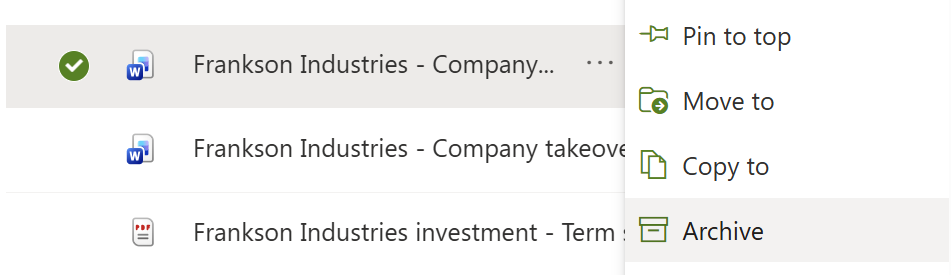
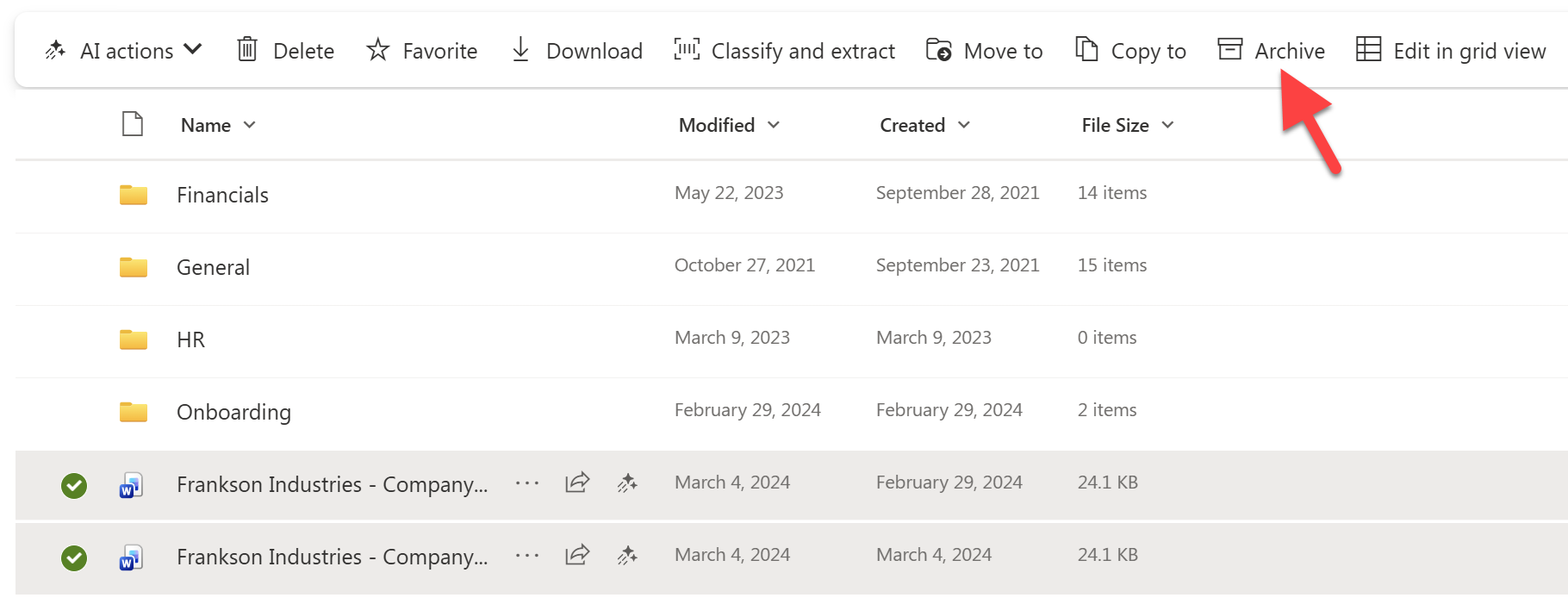
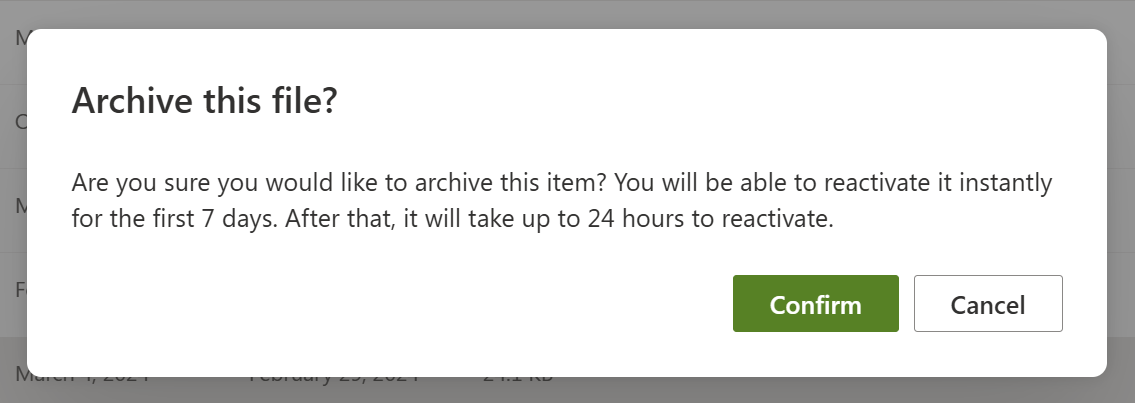
2) Selected file enter archive storage
Files which have been archived are clearly identified by the archive icon.
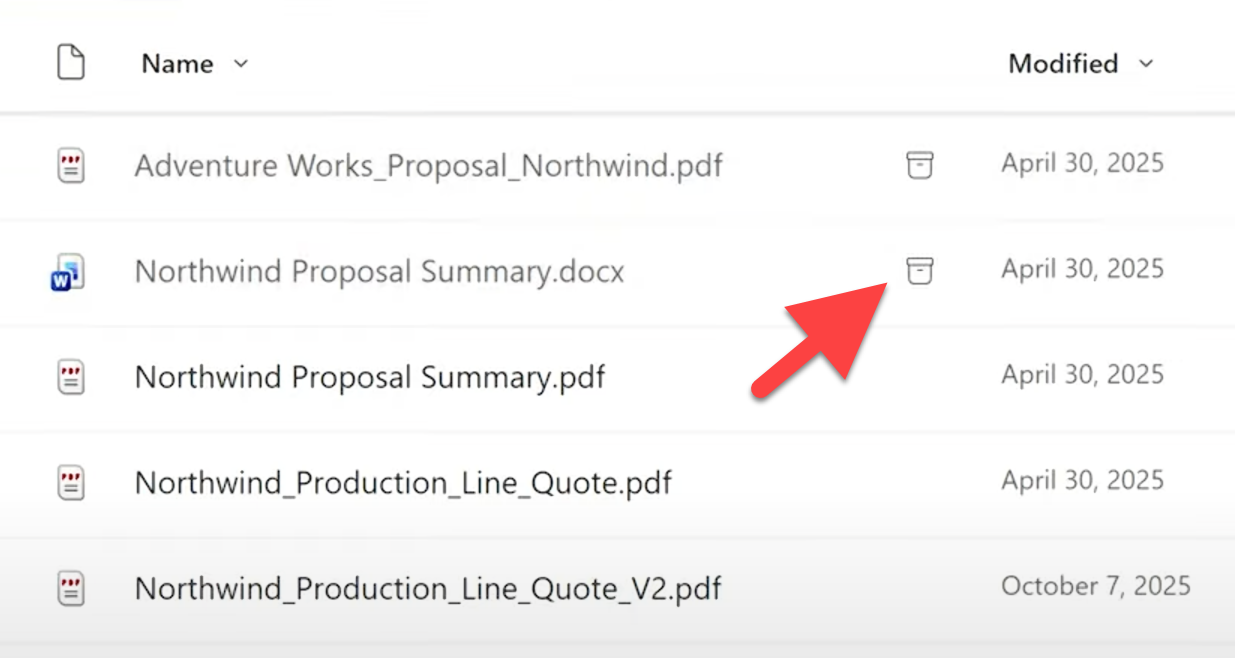
3) Files remain discoverable by users
While archived, the following core functionality remains available on an item:
- Delete
- Rename
- Move to
- Copy to
- Property view
Because the property view (in limited state) is available, it's also possible to change the values of metadata columns, including the content type and sensitivity label.

5) Files can later be reactivated when required
To restore a file from archive is as simple as using the Reactivate button in the item's context menu.
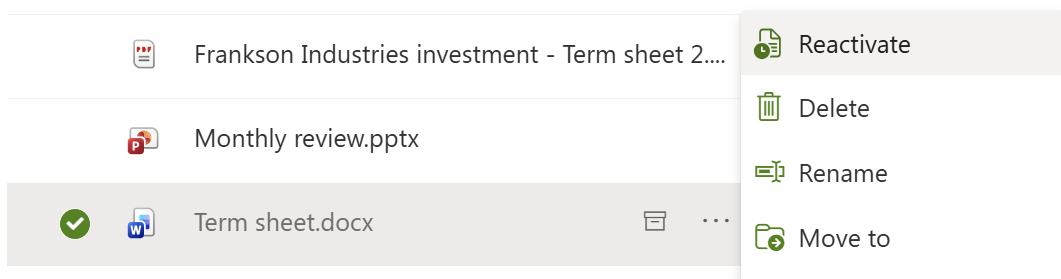
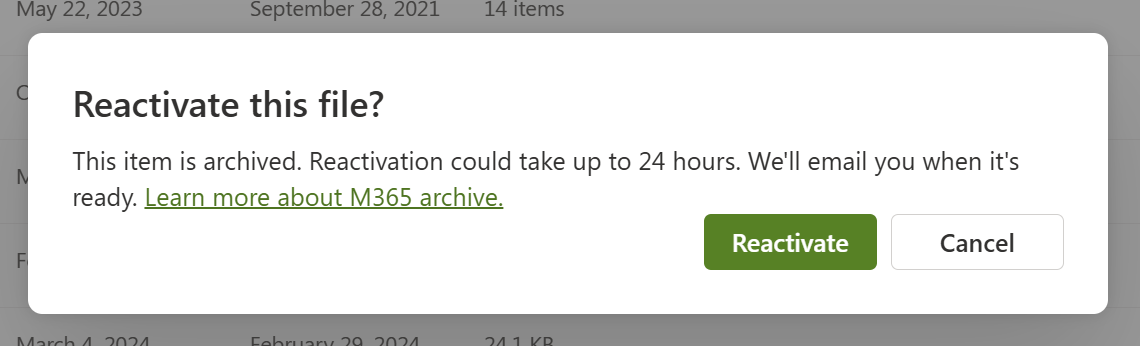
Note: Once an archived file has been reactivated, it cannot be archived again for 30 days. This is to prevent "hot-swapping" as a way to circumvent active storage.

🔗 If you're evaluating practical implementation: How to archive SharePoint files and folders contains the operational process, permissions considerations and usage guidance.
How is file-level archive different to site-level archive?
Site-level archiving is an all-or-nothing action. When a site is archived it is made unavailable in its entirety, with it not being possible to view any of its contents at all. This is problematic because the vast majority of sites contain a mix of active and inactive content.
File-level archiving unlocks granularity, enabling admins and users to more accurately target stale content.
🔗 For a detailed comparison, see Differences between site and file-level archiving in SharePoint.
Does file-level archiving reduce SharePoint storage usage?
This is one of the most misunderstood aspects of the new capability. File-level archive does not change site storage usage or quota on the surface. Archived files continue to be accounted for within the overall site storage figure, meaning the feature should not be viewed as a direct replacement for storage cleanup or quota management activities.
However, archived content is treated differently at the tenant level in cost terms. The space consumed by archived files is billed against the tenant's pay-as-you-go Microsoft 365 Archive subscription, instead of against full-price active storage.
Simply put: Archived files cost less to store than active files. By how much?
- Active SharePoint storage costs $0.20/GB/month
- Archive storage costs $0.05/GB/month
Content moved into Archive storage consumes 75% less of your budget than it would have in active storage.
For a deep dive into savings effects, see File-level archiving in SharePoint: How much could I save?
Need to reduce overall storage usage? See SharePoint storage limit exceeded? 6 Proven ways to reclaim space.
What are the main limitations and considerations?
File-level archive is not intended to archive every file type and workload automatically. A common mistake is assuming archive should replace content review. In practice, you still need a process for determining whether content should remain active, be archived, or be removed according to business and compliance requirements. Generally speaking, archiving files is a low-risk cleanup action because of how easy reactivation is.
In addition, although some basic functionality remains accessible, there are many actions which are not possible on archived files, including:
- Open
- Preview
- View version history
- Share or copy link
- Add shortcut
- All AI actions
- All Power Automate actions
- Manage access
- Download
- Translate
Frequently Asked Questions
Is Microsoft 365 Archive file-level archiving generally available?
Yes. Microsoft has announced the general availability rollout of file-level archiving for SharePoint files within Microsoft 365 Archive.
Who can archive SharePoint files?
Users must have edit permissions to archive eligible files on sites where file-level archive is enabled.
Can archived files be restored?
Yes. Archived files can be reactivated. Files archived in the last 7 days can be reactivated immediately, after that reactivation can take up to 24 hours, regardless of the file size.
Does file-level archive replace site-level archive?
No. File-level archive is a complementary capability that works alongside existing site-level archive functionality.
How can I identify which files could be archived?
The most obvious candidates for archiving are inactive files. According to Microsoft, on average, files which haven't been accessed in more than 2 years have a >95% probably of never being accessed again.
🔗 See also: How to decide what to archive
Can I edit move, copy or rename files while they're archived?
Yes, metadata and basic file actions like move to, copy to, rename and delete remain available while files are archived.
Can I archive a folder?
Yes, when you select a folder you have the option to "Archive all files" or "Reactivate all files" contained in it.
Is M365 archive a substitute for backups?
Microsoft 365 Archive is not a backup solution. Archived files are still only stored within Microsoft’s datacenters (with the same redundancy and backups as any SharePoint data, but not an independent copy you control). Archive is meant for reducing costs and clutter for seldom-used data while keeping it available for compliance. For true backup requirements (protection against accidental deletion or corruption), you should rely on Purview retention, version history, or third-party backup services. Archiving a file will not create a second copy; it simply moves the primary copy to a different tier. Likewise, deleting an archived file (or an archived site) is irreversible (unless you had a backup elsewhere).
Do compliance controls still apply to archived files?
Yes. Retention labels, eDiscovery, permissions and other governance controls continue to apply after content has been archived.
Does the Pay-As-You-Go SharePoint storage model affect my archiving approach?
Yes, PAYG incurs immediate storage costs for unnecessary content. When switching your tenant to pay-as-you-go, it's recommended to be much more proactive with archiving stale content, whether that is at site or file level. Read more about PAYG here.