


Answer in brief: When your SharePoint Online storage is nearly full, the quickest ways to reclaim space are: removing inactive files, cleaning up large document libraries, trimming excessive version history, emptying recycle bins, archiving unused sites, and deleting outdated content. Microsoft 365 provides basic tools to do this manually, but purpose‑built reporting and cleanup automation can make the job significantly faster—especially for large tenants.
Why SharePoint storage fills up faster than most teams expect
SharePoint Online’s storage allocation seems generous at first, but real‑world usage patterns change that quickly. A single tenant receives:
- 1 TB baseline for the organisation
- +10 GB per licensed user
For a 500‑user organisation, that’s 6 TB - plenty at first glance. But storage is consumed by unexpected factors:
- Version history across all document libraries
- Inactive files which haven't been used in years
- Large CAD, ISO, PST and other files which don't benefit from SharePoint's functionality
- Files pasted into team channel conversations
- Recycle bins (first‑stage + second‑stage)
Even a well‑governed environment can quietly accumulate terabytes of unnecessary content within a year. When storage hits the warning threshold, uploads stop, automations fail, and business processes begin to break.
This guide covers practical steps SharePoint administrators can take to recover space quickly and safely - and when it might be time to automate the process.
1. Check where your storage is being used
Before deleting or archiving anything, you need clarity. Microsoft 365’s built‑in storage tools give you a high‑level view.
What to check
- Overall tenant storage usage (Microsoft 365 admin center → Settings → Org settings → Storage)
- Per‑site storage usage (SharePoint admin center → Sites → Active sites → Storage)
- Identify very large sites that stand out
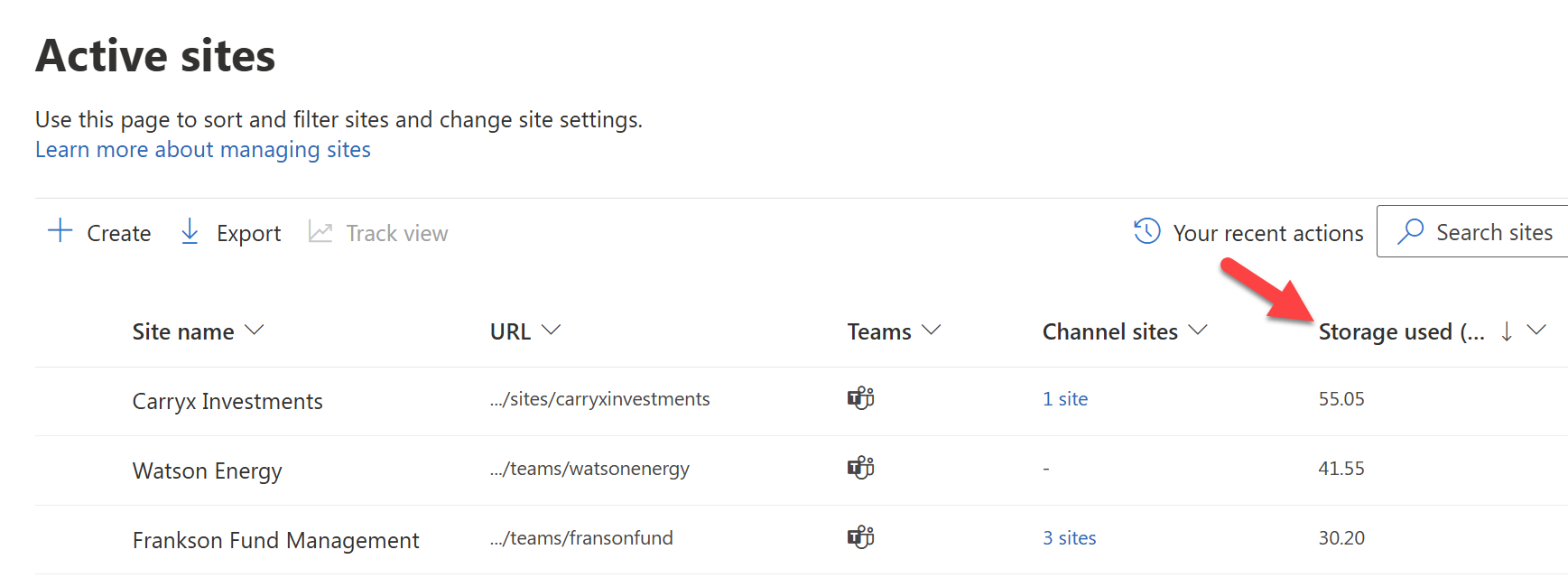
This top‑down view helps answer two critical questions:
- Where is our biggest storage problem?
- Is the issue long-term growth or a recent event (e.g., migration, bulk upload, sync error)?
For more advanced insight - like oldest files, inactive sites, file version consumption, or largest files - Microsoft 365 provides only partial visibility.
2. Delete or archive inactive sites
Inactive sites are one of the most common causes of runaway storage usage. A project site, department space, or old Teams team can retain tens or hundreds of gigabytes long after it stops being used.
How to find them (manually)
- Open the SharePoint admin center
- View Active sites
- Sort by Last activity
- Identify sites inactive for 3–12 months
- Check with the site owner before archiving or deleting
Options once identified
- Archive the site (if the content must be preserved)
- Delete the site (if not required)
If you want more powerful identification
➡️ Increase available SharePoint storage: Clean up inactive sites
3. Clean up large files not suited to SharePoint
Most users regularly upload files to SharePoint which do not benefit from collaborative functionality such as versioning and automation. These files are better suited to cheaper less functional storage
Types of files not ideally suited to SharePoint
- Personal Outlook backups (PSTs)
- Database files
- ISO images
- CAD files
- 8K media
How do identify
- Use the global SharePoint search to target specific file extensions
- Sort by largest descending
- Run PowerShell scripts targeting specific extensions
Options once identified
- Offload to cheaper storage
- Move to suitable LOB systems
Need an easier method?
➡️ Find and clean up large files to increase SharePoint storage
4. Trim excessive SharePoint version history
Version history is a hidden storage cost. Every time a document is updated, a new version is created. In libraries where heavy editing happens - marketing, legal, finance, design, engineering - version history can consume more storage than the document itself.
Typical problem areas
- Office documents updated multiple times per day
- PowerPoint decks with big deltas
- Automations that make background updates
Manual fix
You can set limits for future versions:
Library settings → Versioning settings → Keep the following number of versions
But this does not retroactively delete old versions. Removing historical versions involves:
- Manually finding files using scripting or search
- Running PowerShell scripts to trim to specific version target
The easier way
➡️ How to trim versions to increase available SharePoint storage
5. Empty the SharePoint recycle bins (both first and second stage)
Deleting a file doesn’t free space immediately. SharePoint has two recycle bins:
- First‑stage recycle bin (per site)
- Site collection recycle bin (second stage) – accessible only to admins
Both count towards your tenant’s storage - even if the file was deleted months ago.
Where to check
- Site → Recycle bin
- Site → Recycle bin → “Second-stage recycle bin”
- SharePoint admin center → “More features” → Storage (for overall view)
Many admins quickly recover gigabytes - sometimes terabytes - simply by emptying second‑stage recycle bins. But, bear in mind that this storage was going to eventually be freed up automatically anyway.
6. The limits of Microsoft’s built-in storage tools
Microsoft provides essential capabilities for basic oversight, but there are clear constraints:
For admins managing thousands of sites or terabytes of content, this becomes time-consuming and difficult to maintain.
7. Using SProbot to free up space more efficiently
When referring to SProbot, the content must reflect actual functionality described at https://www.sprobot.io/learn. The following summary strictly follows that requirement.
SProbot provides a SharePoint storage cleanup workflow designed around the exact challenges described above. It does this by:
7.1 Giving you a tenant-wide view of storage
From the dashboard and health check, you can see:
- Largest sites
- Tenant-wide version spread
- Unusual storage patterns
- Clear indicators of where to focus cleanup work
🔗 How to use the Dashboard and Health Check
7.2 Finding inactive files and content that can be removed
SProbot identifies:
- Sites containing mostly inactive content
- Detailed reports of inactive files within these sites
🔗 How to find and clean up inactive files
7.3 Highlighting sites that may no longer be required
You can quickly spot:
- Dormant team sites
- Unused project sites
- Sites with minimal activity but large storage consumption
🔗 Archive sites for an easy storage win
7.4 Helping you make faster data-driven cleanup decisions
SProbot focuses on surfacing the data needed to decide whether to:
- Delete
- Archive
- Move
- Trim versions
This reduces the manual effort required to locate “what to clean up” across large tenants.
(SProbot does not delete content automatically—admins remain fully in control of all actions.)
Mini-FAQ
What happens when SharePoint storage is full?
Although Microsoft usually unofficially offers a grace period, uploads eventually fail, workflows break, Teams channels stop accepting files, and users receive quota errors.
Will deleting files free space immediately?
No, the freed up space will only show once they have been automatically removed from both stages of the recycle bin.
Do retention policies help with storage cleanup?
In theory, yes. But in practice, no. Retention is for compliance, not storage optimisation.
Can versioning really consume terabytes?
Yes. In heavy editing environments, version history in most instances exceeds the size of the active file collection.