Answer in brief
PowerShell can handle parts of a SharePoint storage cleanup without extra software: trim jobs remove old versions one site at a time, and Microsoft's inactive files policy archives files nobody opens in the background. The scripts can be enough for a handful of large sites, if you have an admin with time to write, run and monitor them. A tool like SProbot earns its cost when you have many sites, no Advanced Management entitlement, or need to carefully track and account for savings.
- Site and library trim jobs are free, but run one site at a time.
- Tenant-wide trimming needs a SharePoint Advanced Management or Copilot licence and is in public preview.
- The inactive files policy needs a SharePoint Advanced Management entitlement and Microsoft 365 Archive, and is in public preview, configured with PowerShell only.
- None of Microsoft's routes shows savings in money or ranks sites by what they'd save.
- SProbot costs $235 per TB a year. If you're paying for extra storage at about $2,400 per TB a year, freeing about 10% of your tenant covers the SaaS cost in the first year, without accounting for the future reduction in costs which continues to accrue.
- Every route, SProbot included, takes days to weeks of elapsed time on a large tenant. What differs is how much of that time is yours.
What can you do with PowerShell alone?
The two big storage savings are old versions of large files people still edit, and files nobody has opened in years. Microsoft gives you these routes for each:
- Site and library trim jobs (
New-SPOSiteFileVersionBatchDeleteJob): delete existing versions in one site or library, by age, by count or with Microsoft's automatic algorithm. No extra licence. - Tenant-level trimming (
New-SPOTenantApplyFileVersionPolicyJob -TrimVersions): applies your tenant version policy to every site in one job, with a tenant-wide estimate first. Public preview; needs a SharePoint Advanced Management or Copilot licence. - The Apply-SPOVersions-Tool script: a menu-driven script written by a Microsoft engineer that runs the site-level reports, What-If estimates and trim jobs across many sites. Free, but sample code with no warranty.
- PnP PowerShell, file by file: report on versions and delete exactly the ones you choose.
- The inactive files policy (
New-SPOFileArchivePolicy): archives files nobody has opened for 6 to 48 months, at file level, across selected sites or all sites. Public preview; needs a SharePoint Advanced Management entitlement and Microsoft 365 Archive.
The step-by-step commands are in How to trim SharePoint version history: every route compared and the inactive files policy section of our Microsoft 365 Archive guide.
How do the scripts compare with SProbot?
| Site trim jobs | Tenant-level trimming | Inactive files policy | Apply-SPOVersions-Tool | SProbot | |
|---|---|---|---|---|---|
| Licence | None extra | SharePoint Advanced Management or Copilot | SharePoint Advanced Management, plus Microsoft 365 Archive billing | None extra | $235 per TB a year (free 14-day trial), plus Microsoft 365 Archive for archiving |
| Status | Generally available | Public preview | Public preview, PowerShell only | Sample code, "as is" | Generally available |
| Setup | SharePoint Online Management Shell and the SharePoint Administrator role | The same, plus the licence | The same, plus a policy per scope | Entra ID app registration with admin consent, and site collection admin rights on every site | Connect your tenant |
| Your time | One command per site, plus progress checks; a loop you write and monitor for a whole tenant | Data collection, an impact estimate and a trim job to run and monitor, with one policy for every site | Setup and simulation review, then it runs in the background; you see what it archived through PowerShell reports | Setup, then a menu | About 15 minutes |
| Simulation first | Only with a version usage report and What-If scripts per site | Yes, a tenant-wide estimate (ignores retention) | Yes, What-If mode | Yes, per site | Yes, savings per site before you run anything |
| Savings in money | No (bytes) | No | No | No | Yes, in dollars, sites ranked by savings |
| What you can target | A site or library; age, count or automatic mode | One policy for every site | Sites and file types; last access 6 to 48 months | Sites you choose; age, count or automatic | The sites with the most savings; keep the latest 25, 10 or 5 versions or only the latest; individual large files; inactive files at file level inside active sites, trimmed to the latest version by default |
| Undo | None: trimmed versions are deleted permanently | None | Reactivate files, free; stopping the policy doesn't reactivate them | None | None for trims; archived files reactivate in SharePoint |
Every route that trims or archives runs as background jobs that take days on a large tenant. Trim jobs skip versions under a retention policy or hold; Microsoft's jobs stamp an expiration date on them instead, and SProbot also doesn't process trims on held versions.
When are the scripts enough?
Stick with PowerShell when most of these are true:
- The problem is a few sites. If two or three sites hold most of your storage, a trim job on each and a look at their large files may be all you need.
- You already have the licence. With SharePoint Advanced Management, or a Copilot licence that brings it, you can spend time creating and running scripts to trim on individual sites within your tenant, or configure the inactive files policy to run automatically in the background, but with little visibility.
- Someone owns it. An admin who's comfortable in PowerShell has time to run the jobs, watch them and handle failures.
- You don't need a business case. Nobody has to approve the cleanup on cost, so savings in bytes are fine.
- You can accept one rule everywhere. A tenant-wide version policy suits you, and you don't need to treat large, busy files differently.
If that's you, start with the safe bulk-trim checklist and run a simulation before doing anything permanent.
Where do the scripts get hard?
Running one command is the easy part. The work around it is what grows with the tenant:
- Finding where the money is. Microsoft's reports show bytes per site or per version. Working out which sites would save the most, in money, means exporting CSVs and building the comparison yourself.
- Scale without the licence. Without Advanced Management, trimming every site means looping the site-level job over hundreds of sites and checking each one's progress.
- Being selective. The tenant-level job applies one policy to every site. Keeping full history on most files while trimming the large ones people edit daily means going file by file.
- Preview features. Tenant-level trimming and the inactive files policy are in public preview, so their commands and limits can change.
- Permanence. Trimmed versions skip the recycle bin. A mistake in a loop is permanent unless you have a backup.
- Keeping the scripts running. App registrations, module versions and permissions all need maintaining after the person who wrote the script moves on.
What does SProbot do instead?
SProbot is for tenants without a SharePoint Advanced Management or Copilot licence, and for admins who don't want to run and maintain PowerShell scripts. You connect your tenant, SProbot crawls every site, and it shows what each site would save, in dollars, by trimming old versions of large active files and archiving inactive files.
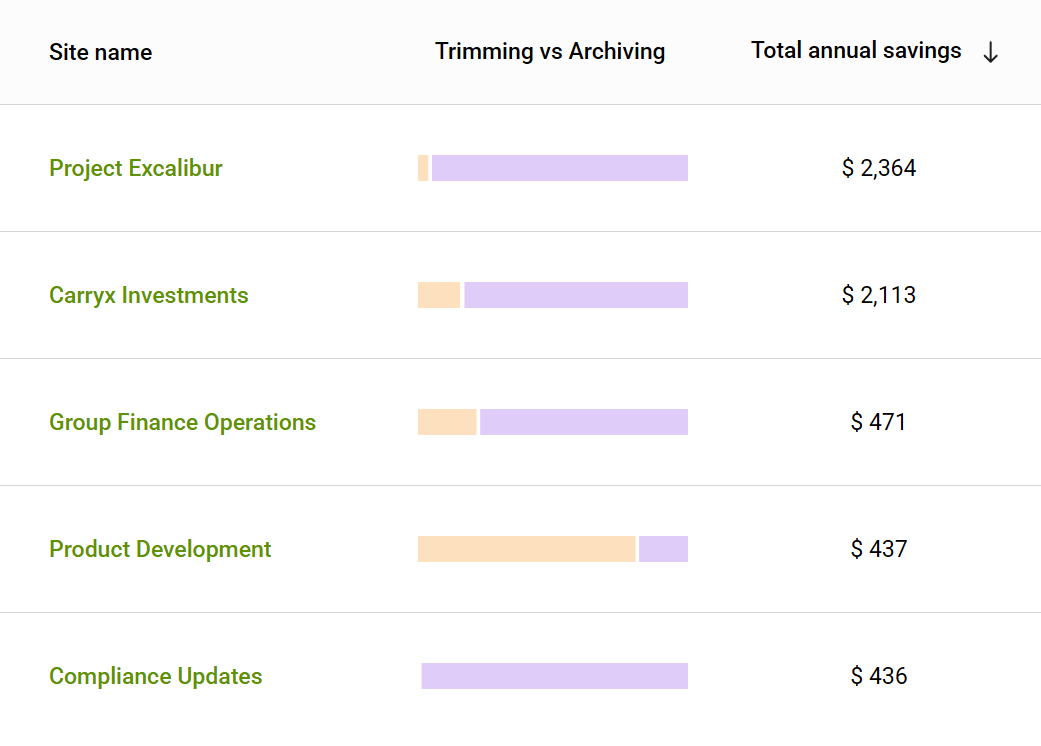
- Sites are ranked by savings, largest first, so you start where the money is.
- Bulk version trimming keeps the latest 25, 10 or 5 versions, or only the latest, across as many sites as you choose. To be selective, trim individual files from a site's large files report.
- Archiving works at file level: SProbot finds the inactive files inside sites that are still in use and archives just those, without taking any site offline. By default it also trims them to the latest version first, so you don't keep paying for old versions in the archive tier; Microsoft's routes archive files with every version.
- Jobs run in the background, and every action is recorded in the activity history.
What it saves is your time, not elapsed time. The crawl and the jobs still take days to weeks on a large tenant, but your part is about 15 minutes. It doesn't remove the need to check retention: SProbot doesn't process trims on versions held by a retention policy or hold.
What would your tenant save?
Connect your tenant and SProbot emails you a savings report based on your own data, and you can run bulk cleanup on 5 sites.
How do you work out whether a tool is worth it?
Compare what the tool costs with what the cleanup saves, then add the admin time you'd otherwise spend.
- Price your storage. Extra SharePoint storage costs about $0.20 per GB a month, roughly $2,400 per TB a year. If you're under quota, freed space saves nothing until you'd otherwise have bought more. See SharePoint storage pricing.
- Estimate what's recoverable. Old versions typically take 10-30% of a tenant, and archived content costs about 75% less to keep than active storage.
- Compare. SProbot costs $235 per TB of tenant storage a year, so it pays for itself once cleanup frees about 10% of your storage. Below that, or under quota, the scripts are the cheaper route.
For example, a 2,200-employee manufacturer that was over quota found 2.9 TB of trimmable versions in one site and 1.6 TB of archivable content in another, worth $9,400 a year. SharePoint storage cost per TB works through a full example, and the storage calculator runs the numbers for your tenant size.
See it before you decide
Book a demo to see the savings reports and bulk cleanup jobs on an example tenant.
For what Microsoft's own premium tooling covers, see SharePoint Advanced Management vs third-party tools.
FAQs
Can I clean up SharePoint storage with PowerShell for free?
Partly. Site and library trim jobs delete old versions one site at a time with no extra licence, and you can archive files by hand, library by library. Tenant-wide trimming needs a SharePoint Advanced Management or Copilot licence, and the inactive files policy needs Advanced Management and Microsoft 365 Archive. Both are in public preview.
When are PowerShell scripts enough for SharePoint storage cleanup?
When a few sites hold most of the storage, an admin has time to write, run and monitor the jobs, and nobody needs the savings shown in money.
What does SProbot do that the scripts don't?
It ranks every site by what it would save in dollars, then trims versions and archives inactive files in bulk across the sites you choose, without scripts. It also lets you trim individual large files, and archives inactive files at file level inside active sites, trimming them to the latest version by default.
Is SProbot faster than the scripts?
Not in elapsed time: its crawl and cleanup jobs still take days to weeks on a large tenant, like Microsoft's trim jobs. It saves your time: about 15 minutes of hands-on work instead of writing, running and monitoring scripts.
Can trimmed versions be recovered?
No. Versions removed by Microsoft's trim jobs or by SProbot are deleted permanently and skip the recycle bin. Only a backup taken beforehand, such as Microsoft 365 Backup, can bring them back.
Does SProbot work with retention policies?
Archiving does: archived files stay in their retention policy's scope. SProbot doesn't process trims on versions held by a retention policy or hold; Microsoft's trim jobs stamp an expiration date on held versions instead, so they go once the retention ends.
How much does SProbot cost compared with buying storage?
SProbot costs $235 per TB a year with a free 14-day trial. Extra SharePoint storage costs about $2,400 per TB a year, so SProbot pays for itself once cleanup frees about 10% of your storage, if you'd otherwise be buying more.