


Answer in brief: Medium-sized tenants typically see storage consumed by stale sites, oversized files, and version bloat from frequent edits. You can reduce usage with disciplined discovery, version trimming, and growth monitoring using Microsoft 365 reports and admin center tooling. In practice, once you’re managing hundreds of sites and years of content, a purpose-built analysis tool becomes the fastest, lowest‑risk way to find what to archive or delete and to keep version sprawl under control at scale.
Why SharePoint storage management becomes difficult at scale
Across medium-sized organizations, three drivers dominate:
- Inactive or abandoned sites. Project and team spaces linger after work ends, continuing to consume pooled tenant storage. The admin center exposes per‑site usage and last activity, but at scale this is time‑consuming to review.
- Large files. Media‑heavy decks, CAD/engineering files, and exported archives accumulate and are often copied or left untouched for years. Storage Metrics can help at the site level, but it’s manual.
- Version bloat. SharePoint keeps versions for recovery and auditing. With newer controls, admins can cap versions or use automatic limits, but existing libraries can carry years of versions unless you trim them.
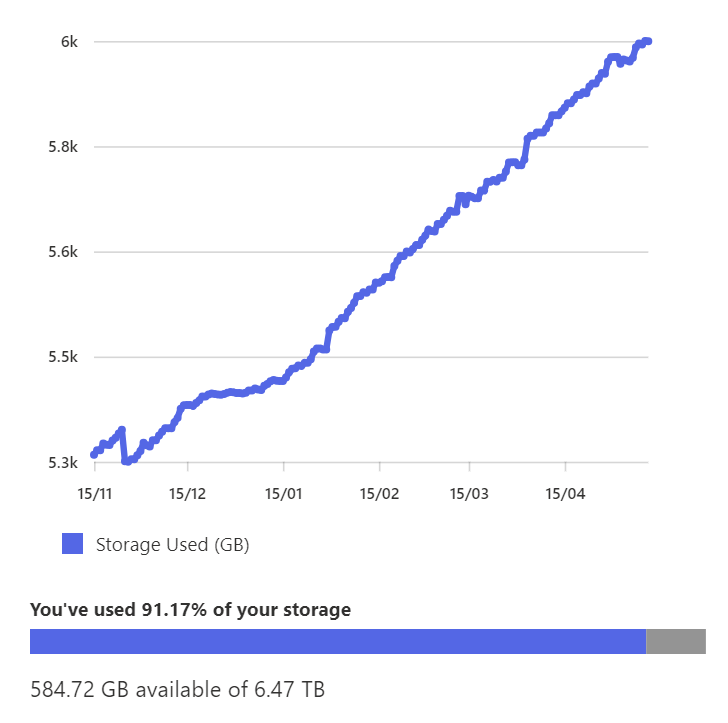
The cost isn’t only capacity. Fragmented visibility slows incident response and governance reviews, and without trend data you don’t spot spikes early. Microsoft’s storage report display a tenant‑level overview with usage trendlines, but it's very basic, refreshes every 48–72 hours and still requires follow‑up action.
Common misconceptions that lead to ineffective cleanup
- “Users will clean up their own content.” Relying on ad‑hoc user cleanups is unreliable at tenant scale. Microsoft’s reports and lifecycle tooling are designed for admin‑led monitoring and policy, not voluntary user campaigns.
- “Versions clean themselves up.” By default, libraries can retain large numbers of versions; you must configure version history limits and, for existing libraries, explicitly trim versions to reclaim space.
Practical, out-of-the-box ways to reduce SharePoint storage
Identify inactive sites for archival or deletion
Use the Active sites view in the SharePoint admin center to sort by last activity and storage used. Export data for review, then archive or remove sites that are confirmed inactive via your governance process.
Locate large unused files
Start with Storage Metrics inside sites and targeted queries (e.g., size filters) to find outliers. For broader sweeps, use scripts to list files over a threshold. Prioritize obvious candidates for deletion or archival.
Address version history growth
Adopt version history limits at org or site level (automatic or manual caps). Then run version trimming on existing content to align history with new limits. Remember that trimmed versions are permanently removed.
Monitor storage growth trends proactively
Review the SharePoint storage report for tenant‑wide total usage and trajectories; use the site usage view for per‑site details over 7–180 days. Set a rhythm (monthly/quarterly) to export and compare data so spikes are investigated quickly.
When medium-sized businesses outgrow manual cleanup
Manual checks (storage Metrics, site usage exports, ad‑hoc scripts) work for small estates. Teams typically outgrow them when:
- You manage hundreds of sites and can’t review activity or versions individually.
- Storage spikes recur with no quick way to pinpoint drivers across the tenant.
- You need repeatable reporting on large files, version hotspots, and inactive sites without hand‑built scripts.
At this point, specialized tools that continuously surface the “top problems” and package them into ready‑to‑action reports become far more efficient for both IT and business stakeholders.
How SProbot supports efficient SharePoint storage management
SProbot is designed for SharePoint storage and governance analysis at tenant scale. It helps you to:
- Surface large files and version-heavy hotspots so you can decide what to delete or archive first.
- Highlight inactive or low‑activity sites to feed your archival/deletion workflow.
- Track storage consumption over time with clear trend views that make spikes visible early.
- Support version cleanup initiatives by showing where versions dominate usage and guiding bulk reduction efforts.
(Note: SProbot identifies and reports on issues and opportunities; actions like trimming versions or deleting content should follow your organization’s governance and Microsoft 365 admin processes.)
Choosing whether you need a storage analysis tool
You will likely benefit from a tool if you check several of these boxes:
- 500+ sites, or multiple business units with their own workspaces.
- Frequent storage alerts or rapid month‑over‑month growth without clear cause.
- Need to evidence progress on cleanup to finance, security, or compliance stakeholders.
- Limited time to maintain custom scripts or to triage storage manually at the site level.
If your tenant is small and you run quarterly reviews with version limits already applied and trimmed, the built‑in reports may suffice.
Conclusion
Microsoft’s reporting and version controls are essential foundations, but medium-sized organizations often reach a scale where automated discovery and focused recommendations are the only practical way to stay ahead.
FAQ
What causes SharePoint storage to grow unexpectedly?
Inactive sites, large files, and retained versions are typical drivers.
Does trimming versions reduce storage immediately?
Yes. Deleted versions are permanently removed, reclaiming space. Always ensure that this is acceptable to business users.
How often should we audit storage?
At least quarterly for most tenants, monthly if you’re near limits. Use SProbot's forecast for early warning.
Can inactive sites be identified automatically?
Yes. Use admin center activity data and, where licensed, inactive site policies to detect and notify owners. Even easier, use SProbot's inactive sites review.
Where do I find the biggest files quickly?
Start with site‑level Storage Metrics and, for scale, use CLI/PowerShell scripts to list files over a size threshold. For the most comprehensive reporting, use SProbot's "Sites with large files" review and granular large file reports within sites.