

TLDR
If you’re trying to increase SharePoint storage, start by confirming whether you’re running out of tenant pooled storage (most common) or whether it's a site quota issue. Microsoft 365 tenants typically get 1 TB + 10 GB per licensed user, and sites can grow up to 25 TB if the tenant pool allows it. Then choose your path:
- Need space today? Buy a small buffer of add-on storage, then optimize.
- Want the cheapest “increase” possible? Reclaim space (versions, large files, inactive sites, recycle bins).
- Have lots of old sites you must retain? Archive inactive sites with Microsoft 365 Archive.
📦 Example: A tenant with 500 users gets 6TB of total storage.
If your organization is approaching its SharePoint storage limit, you may be wondering how to increase it. While Microsoft offers ways to expand your capacity, there are also smart workarounds that can help you avoid hitting the ceiling in the first place.
First step: Understand what “storage limit” you’re actually hitting
SharePoint storage problems usually fall into one of two categories:
- Tenant pooled storage is nearly fullYour organization’s SharePoint storage is pooled across sites and typically calculated as: 1 TB + 10 GB per licensed user.
- A specific site quota is too low (manual quota mode)Even though SharePoint sites can scale up to 25 TB, a manually capped quota can stop growth earlier than expected.
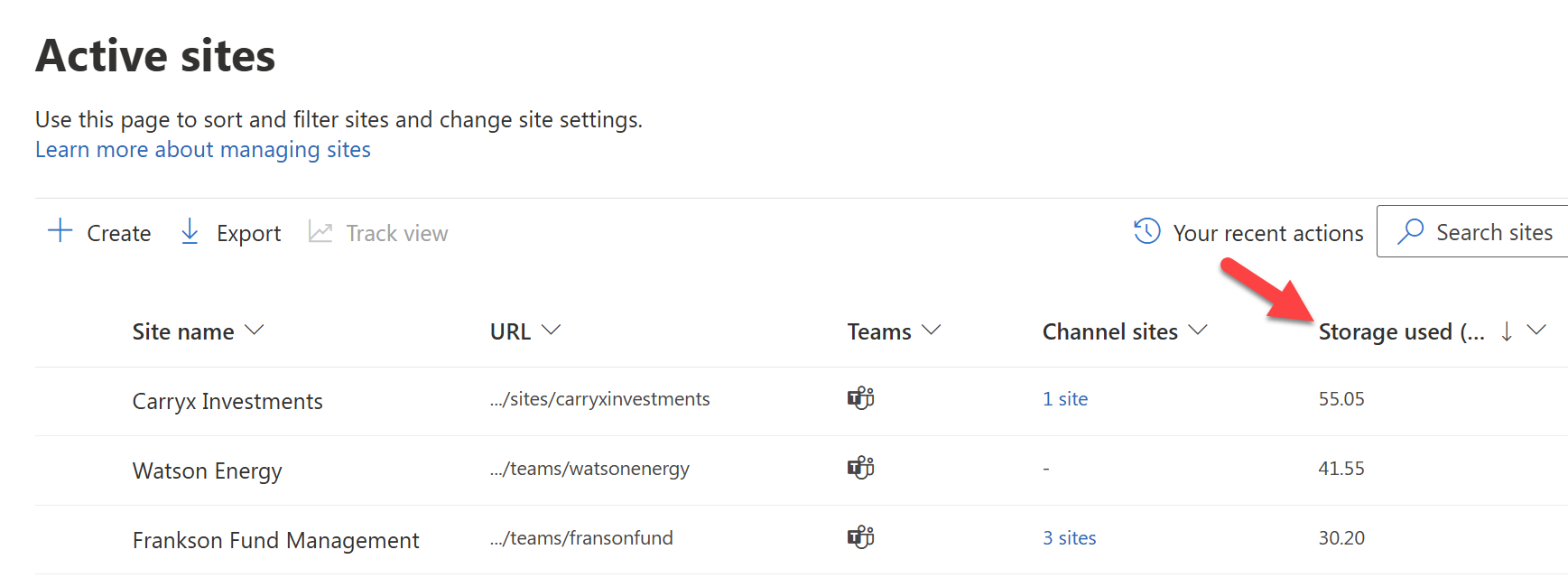
If you’re not sure which it is, start with the fastest visibility step: Use the Active sites view in the SharePoint admin center sorted by Storage used (GB).
The 3 best ways to increase SharePoint storage (with pros & cons)
Option 1 - Buy additional SharePoint storage (fastest, but ongoing cost)
If you’re close to full and users are being blocked, the quickest way to increase capacity is to purchase Microsoft’s add-on storage in the Microsoft 365 admin center.
Typical cost: commonly $0.20–$0.24 per GB/month (pricing can vary by region and billing channel), which is roughly $204 per TB/month.
This option is best for:
- Emergency headroom to prevent disruption
- Fast-growing tenants where optimization alone won’t keep up
What to do next:
- Buy a small buffer (e.g., 200-500 GB)
- Immediately run cleanup + lifecycle work so you don’t keep needing to buy storage every quarter
Deep dives
🔗 Need more SharePoint storage? Here’s how to add it
🔗 SharePoint storage pricing (2026): Plans, add-ons, costs & options
Option 2 - Reclaim space (the “free” way to increase SharePoint storage)
In many tenants, the biggest “storage increase” comes from removing storage drivers that don’t add business value - especially:
- Version history bloat (hundreds of versions per file)
- Large unused files (media, exports, PSTs, installers)
- Inactive or orphaned sites (old project/Teams workspaces)
- Recycle bins (deleted content still counts until purged)
This option is best for:
- Mid-size and large tenants where storage spend is climbing
- Teams-heavy environments where growth is constant
Three quick win actions you can apply (in order of impact) to reclaim space:
- Archive or delete inactive sites (often the biggest single win)
- Trim version-heavy files and libraries (then set sensible version limits going forward)
- Target “big + old” files first (highest immediate GB return)
Deep dives
🔗 SharePoint storage limit exceeded? 6 Proven ways to reclaim space
🔗 Find and clean up large files to increase SharePoint storage
🔗 Increase available SharePoint storage: Clean up inactive sites
Option 3 - Archive inactive data (best long-term cost control)
If you must retain content for compliance or future reference, archiving is the middle ground between “keep everything live forever” and “delete it.”
Microsoft 365 Archive is designed for site-level archiving (moving entire sites into a cold tier). It can help reduce active storage pressure and keep clutter (and Copilot scope) down.
Billing nuance (important): Microsoft 365 Archive is pay‑as‑you‑go, and billing depends on your tenant’s total storage position (active + archived).You can use our archive savings calculator to forecast figures for your tenant.
This option is best for:
- Lots of old project sites that must be retained
- Tenants with “cold data” sitting in active SharePoint for years
Deep dives
🔗 Archive old SharePoint data to free up space - Deep dive
🔗 How Microsoft 365 Archive helps reduce SharePoint storage cost
Recommended sequence (what most mid-market tenants do)
For most organizations, the most reliable approach is:
- Create a safety buffer (small add-on purchase if needed)
- Reclaim high-impact waste (versions, large files, inactive sites)
- Continually archive inactive sites and files as they age
How SProbot helps you increase SharePoint storage (without guessing)
The hard part of cleanup isn’t actually running cleanup actions (very often in the form of scripts) - it’s knowing where the storage is really going and what’s safe to act on first. SProbot helps by surfacing:
- Version-heavy sites and files
- Large files which shouldn't be in SharePoint
- Inactive files within active sites
- Orphaned sites which are potential cleanup candidates
FAQ
How much SharePoint storage do we get by default?
Most Microsoft 365 tenants get pooled SharePoint storage calculated as 1 TB + 10 GB per licensed user, and sites can scale up to 25 TB if the tenant pool allows.
Does deleting files free up storage immediately?
Not always - deleted items can remain in recycle bins and still count toward quota until permanently removed.
Should we buy storage or clean up first?
If you’re red-lining, buy a small buffer first—then clean up so you don’t keep paying monthly for avoidable bloat.
Does Microsoft 365 Archive reduce SharePoint storage usage?
Yes, site-level archive is currently available for lifecycle control and cost optimization, with file-level archiving available from July 2026.