


Answer in brief: The most efficient way to monitor and manage SharePoint storage is to combine Microsoft’s native reporting tools with automated insights, cleanup workflows, and file‑level visibility. Use the SharePoint Admin Center for high‑level quota and site‑level data, complement this with PowerShell for deeper reporting, and rely on a purpose‑built tool like SProbot when you need tenant‑wide storage intelligence and guided cleanup that goes beyond what Microsoft provides.
Why efficient SharePoint storage management matters
As SharePoint Online usage grows, versions accumulate, inactive files pile up, and business units expand their usage, storage becomes a cost and governance pressure point.
Without efficient monitoring and management, admins face challenges such as:
- Sudden storage‑limit caps that affect file uploads
- Inaccurate or incomplete reporting across sites
- Difficulty identifying heavy contributors or inactive content
- Bloated site collections caused by excessive versions or unused libraries
- Compliance risks when old data is kept longer than needed
Efficient monitoring is not only about avoiding red storage bars. It’s about maintaining performance, cost predictability, governance hygiene, and end‑user experience.
1. How SharePoint storage works (quick refresher)
Understanding the storage model helps you choose the right monitoring approach.
Tenant storage pool
SharePoint Online allocates storage on a base + users + add-on model:
- A base 1TB per tenant
- +10GB per licensed user (most business and enterprise SKUs)
- Optional additional storage, purchased per gigabyte per month
Each site then draws from this shared pool.
Per‑site storage limits
Modern SharePoint sites can grow up to 25TB each, but you can choose to apply manual limits if needed (useful for governance and cost control).
Main storage consumption culprits
A surprisingly large percentage of the storage consumption on most tenants is unnecessary and can be avoided. Below are the primary suspects.
Versioning
Versioning is excellent for collaboration, but without limits, it can consume 50–90% of a library’s storage.
Versioning does not only save the delta between versions, it creates a full copy each time. This means that even if an item's content length/complexity stays practically the same over time, its size will still grow the same amount with each version saved.
Large non-collaborative files
Large files of types which don't benefit from SharePoint's co-authoring, versioning and metadata functionality (ISO images, PSTs, CAD files etc) can easily consume a significant amount of storage without any real benefit.
Inactive and outdated project sites
Inactive sites are often among the largest because they typically belong to long‑completed projects, legacy teams, or initiatives that ran for years but then stopped suddenly. They often contain:
- Years of files
- Media, PDFs, and design assets
- Backups and zip archives
- Old versions of documents
Recycle bins (first- and second‑stage)
Files can linger in the first and second‑stage recycle bins for up to 93 days, consuming storage until purged.
2. Monitoring SharePoint storage with Microsoft’s native tools
Microsoft provides a set of built‑in reporting capabilities. These are the foundation - but they have important limitations you need to be aware of.
2.1 SharePoint Admin Center for basic info
This is the primary UI for storage visibility and provides the basic set of tools most admins are familiar with and use daily.
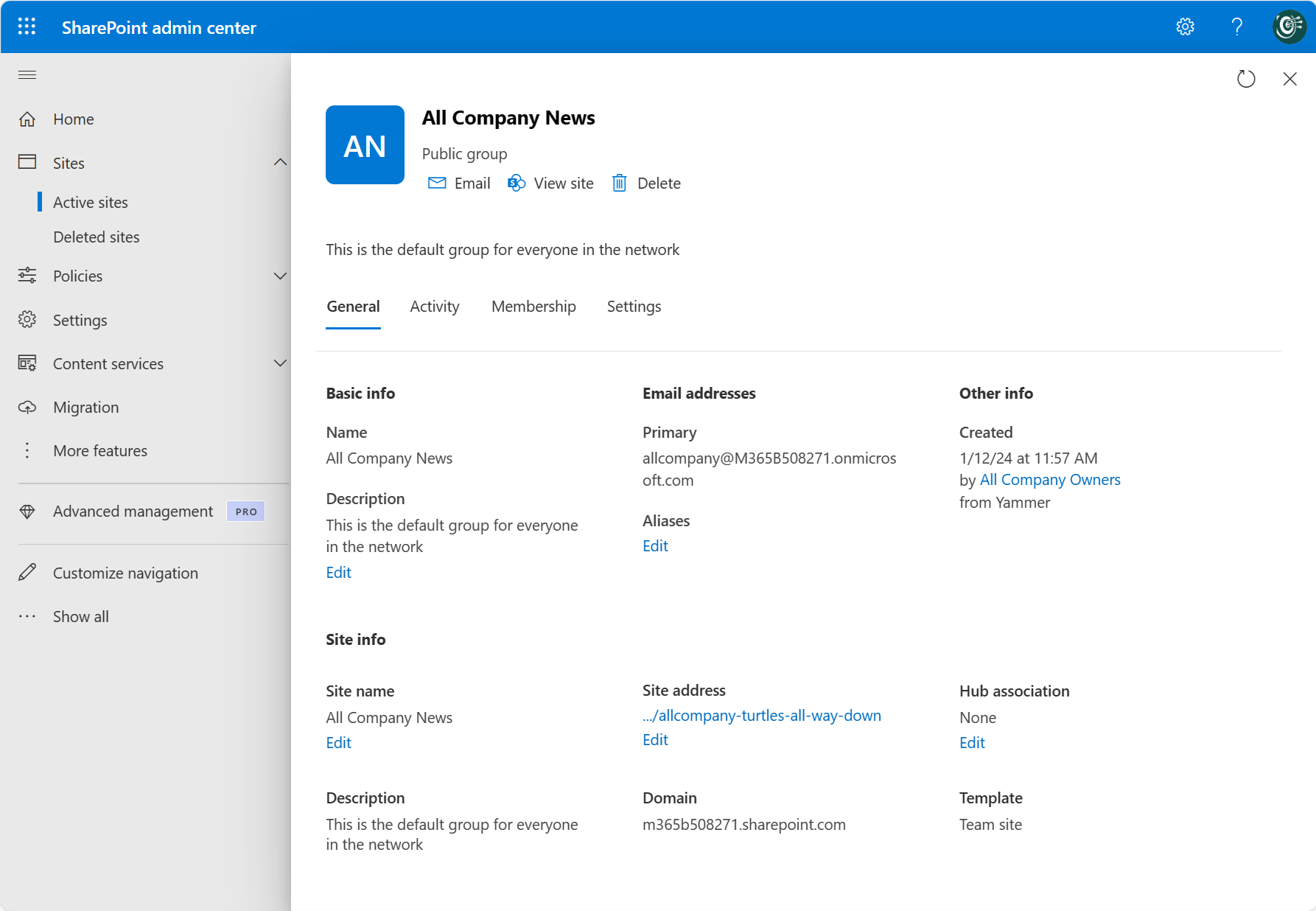
You can monitor:
- Total tenant storage available and consumed
- Per‑site storage usage
- Total tenant storage over the last 6 months
- Recycle bin size
- Site details (template, last activity, owners)
For most admins, the Admin Center is helpful for day-to-day operations but not enough to make cleanup decisions confidently.
2.2 PowerShell + Graph API for deeper insights
Many admins extend native reporting using PowerShell or Graph API calls to retrieve:
- Drive item sizes
- Library statistics
- Version counts
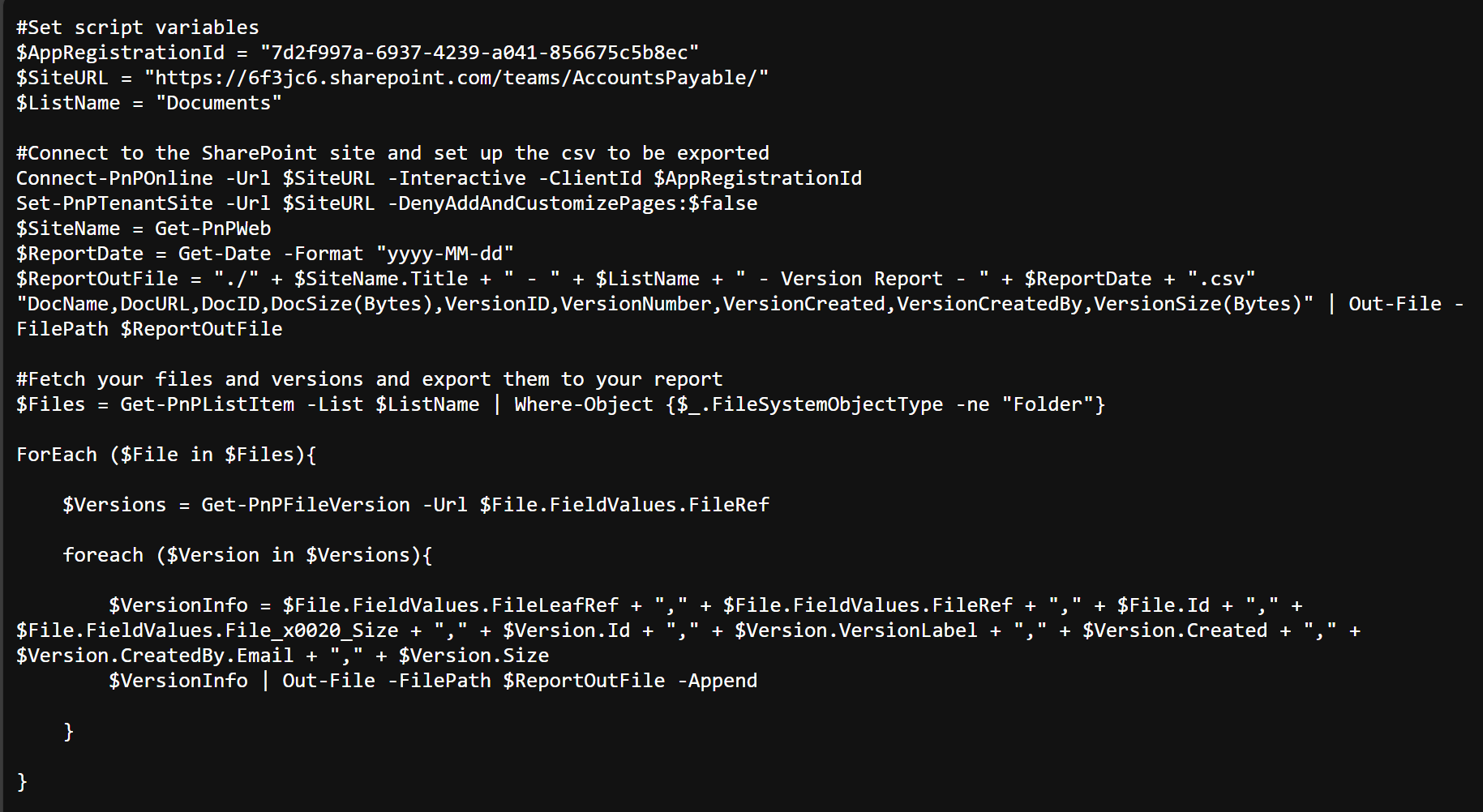
For large environments however, PowerShell becomes difficult to manage. Scripts require maintenance, API calls can be rate limited, and it is difficult to maintain cohesive dashboards which provide visibility of the entire tenant.
It is also not easy to automate cleanup actions reliably and with full audit trails.
3. Limitations of the native toolset
With Microsoft’s native tools, storage administration of more than a few dozen sites quickly becomes complex. The most common challenges include:
3.1 Lack of file‑level visibility
The OOTB tools are good at providing high-level visibility, but admins often want to answer questions like:
- Which files are over 500MB?
- Which sites contain files that have the most versions?
- Which files have been inactive for 180 days or more?
3.2 Limited reporting and export format
Native data exports are usually basic CSV-only and miss deeper insights based on common issues unless you know exactly what you're looking for. They are also hard to use for stakeholder communication.
3.3 No multi-site comparison for cleanup prioritization
With the native reports, it's not easy to answer questions which span across sites, like:
- Which sites generate the most waste?
- Which sites have the highest volume of inactive files?
- Which sites have runaway version growth?
- Which departments consume the most space?
3.4 No unified view
Data is scattered across several admin center locations, resulting in significant effort just to assemble a complete picture of storage health.
- SharePoint Admin Center
- M365 Admin Center usage reports
- Site usage pages
- Library usage pages
- PowerShell or Graph API exports
- Audit logs (for activity context)
4. How SProbot helps
The previous steps are achievable manually — but at scale, the time commitment becomes a barrier. SProbot fills the operational gaps left by native tools and removes the need to maintain scripts or spreadsheets.
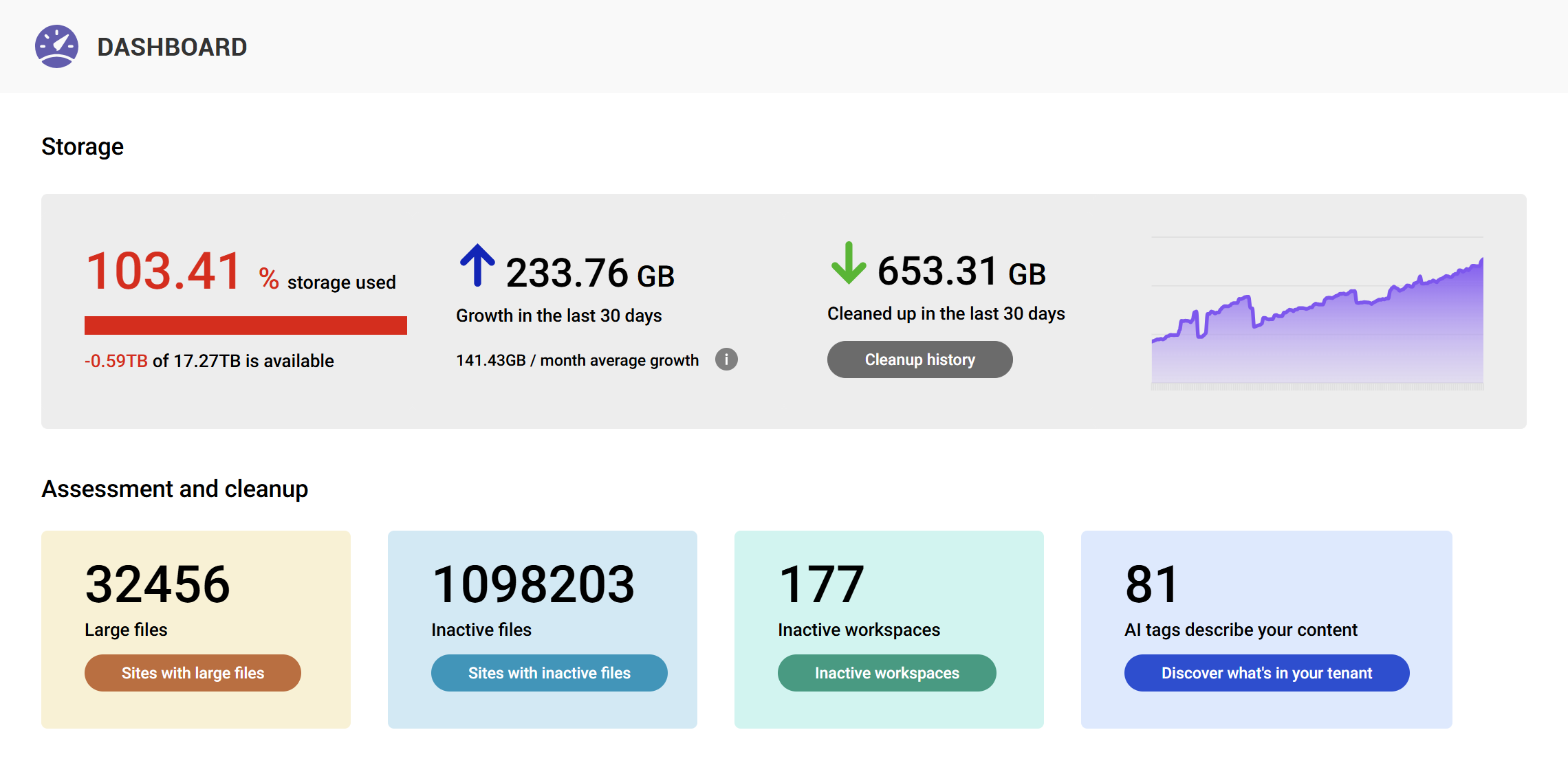
4.1 Automated storage visibility
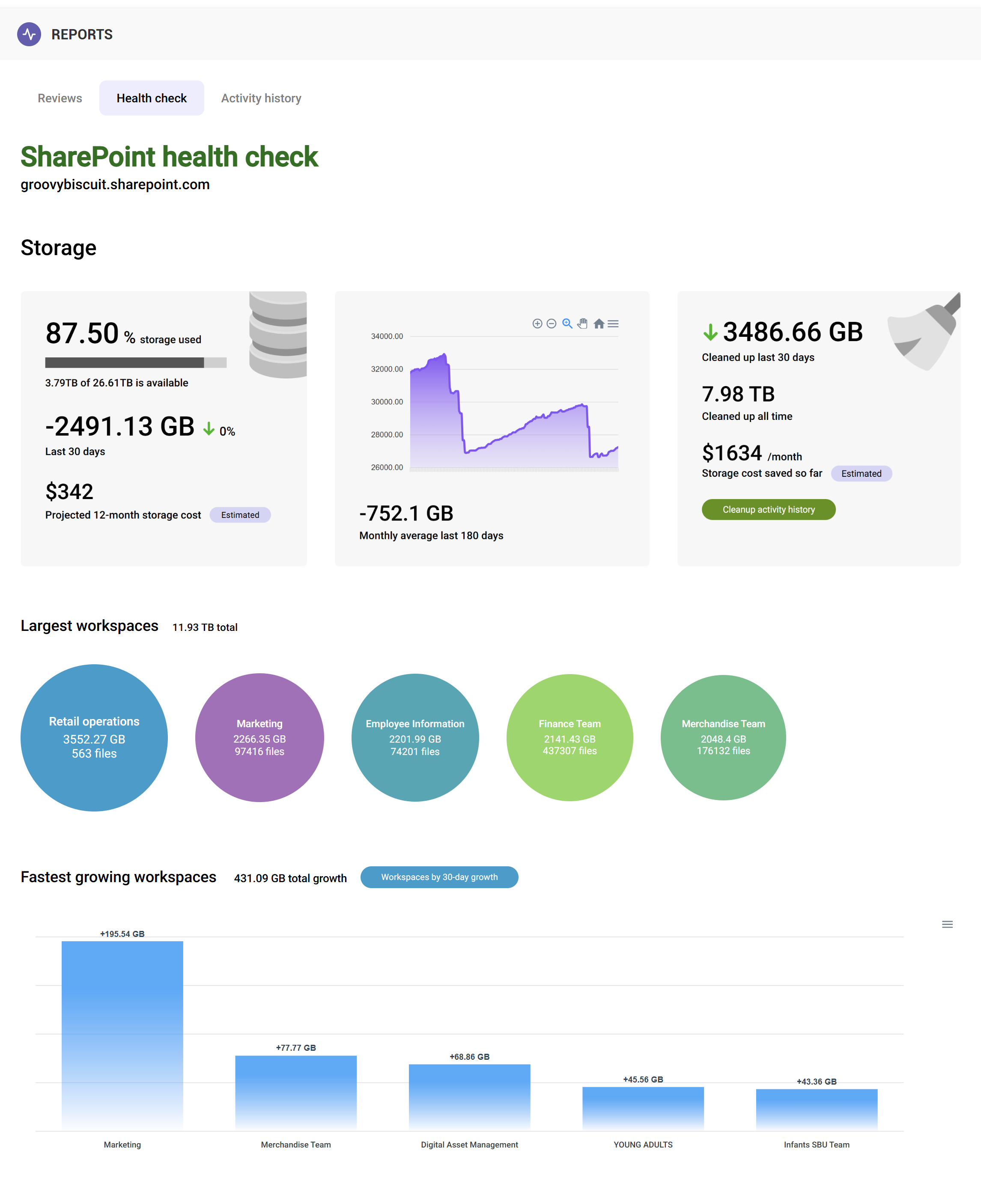
Using SProbot’s dashboard, you get a tenant‑wide storage view, including:
- Total usage vs quota
- Largest sites
- Sites growing fastest
- Sites with heavy version consumption
- Sites with high numbers of inactive files
📊 How to use SProbot's Dashboard and Health Check
This solves the common issue of having to combine the admin center + scripts + spreadsheets just to build a basic overview.
4.2 Identify high‑value cleanup opportunities automatically
Instead of admins needing to hunt for issues, SProbot presents common metrics in a single screen across storage, security, content and activity.
- Sites with excessive versions
- Libraries with oversized files
- Sites containing large volumes of inactive files
- Opportunities to delete/archive unused content
4.3 Guided cleanup workflows
Based on the approved Learn content, SProbot provides workflows that help you:
- Reduce version counts quickly
- Find and clean up inactive files
- Identify large files that may need to be archived
- Prioritise sites consuming the most space
🧹Full guide to how you can use SProbot to free up storage
SProbot does not delete content automatically — instead, it provides actionable reports and safe cleanup options, giving admins full control and an audit trail.
4.4 Consolidated, exportable reports
Admins often struggle to present storage information to business units.
SProbot generates:
- Clear summary reports
- Deep‑dive file‑level reports
- Version‑count reports
- Inactive file reports
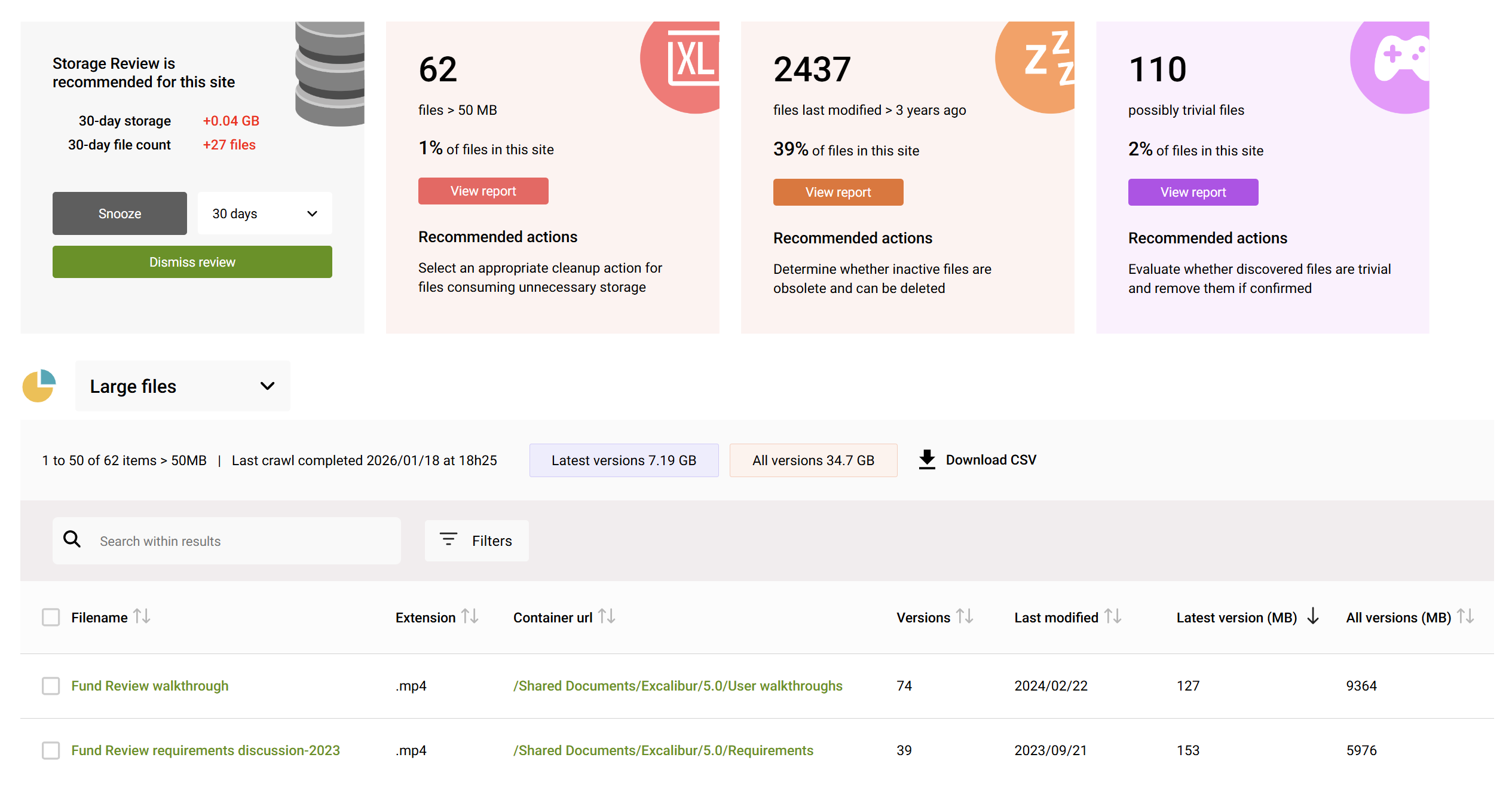
These can be exported and shared during governance reviews — turning storage management into a predictable process, not firefighting.
7. Conclusion
Efficient SharePoint storage management requires visibility, governance, and continuous review. Microsoft’s native tools give you a solid start, but they fall short when you need:
- File‑level insights
- Version‑level reporting
- Inactive content discovery
- Multi‑site comparison
- Guided cleanup workflows
A balanced approach combines:
- SharePoint Admin Center for a data baseline
- SProbot for tenant‑wide intelligence and actionable cleanup opportunities
If you're trying to get ahead of storage growth rather than reacting to it, this three‑layer model provides the most reliable and scalable results.
FAQ
How often should I check SharePoint storage?
Monthly is a minimum; large tenants (10TB+) benefit from weekly or automated checks.
Is version trimming safe?
Yes, as long as you keep a sensible number of versions (50–200 depending on the library)
Does deleting items from the recycle bin free space immediately?
Yes, but both stages must be emptied to reclaim space.
How can I see which files in my tenant are largest?
Microsoft does not offer file‑level storage reporting. Tools like SProbot help surface large and inactive files easily.
Why does storage spike suddenly?
Common causes include large file uploads, mass migrations, sync client errors, or unchecked version growth.