


TLDR: In most instances, the best way to increase the storage capacity of a SharePoint environment is to reclaim the space already consumed before buying additional storage. This means identifying oversized sites, unused large files, excessive version history, inactive sites, and unwanted content that should not be stored in SharePoint.
Tenant‑wide storage is pooled, so the only effective way to increase capacity without purchasing additional storage is to reduce consumption. Tools such as the SharePoint admin center and SProbot help admins locate and remediate the content that contributes most to storage growth.
Understanding why SharePoint storage fills up
The main contributors to unnecessary storage consumption
SharePoint storage consumption grows for predictable reasons, usually unrelated to active collaboration. These typically include:
- Stale or inactive sites that remain online long after a project or team has stopped using them.
- Large unused files, such as media exports, data dumps, or outdated project deliverables, that occupy disproportionate storage relative to their current value.
- Version bloat, where libraries retain dozens or hundreds of historical file versions that no longer serve document lifecycle requirements.
- Unwanted or unsuitable files, including PSTs, application installers, database exports, and raw data archives that should not live in SharePoint.
- Orphaned sites created for short-term initiatives but never archived or deleted when the work was completed.
These scenarios matter because SharePoint storage is allocated as a single tenant-wide pool. Every oversized or unnecessary item reduces the total available capacity for the organisation. Microsoft documents this pooled allocation model in its storage documentation.
Why growing storage matters
When storage reaches the assigned quota, organisations face several operational and financial impacts:
- Reduced headroom for new content across all sites.
- Increased costs, because additional SharePoint storage is billed per GB per month according to Microsoft’s pricing tables.
- More complex governance, as managing content lifecycle becomes harder when oversized sites and uncontrolled versions accumulate.
- Greater difficulty identifying risks, because as content volume increases, so does the surface area for potential compliance or permission/security exposure issues.
Common misconceptions about increasing SharePoint capacity
Misconception: site quotas help manage tenant storage
Site quotas can limit storage per site, but they do not affect the tenant's overall capacity. Reducing or configuring quotas does not free tenant storage when most operational scenarios involve the ongoing creation of new teams and their associated SharePoint team sites. This is why focusing on tenant-level consumption is essential.
Misconception: user-driven cleanups are effective at scale
Relying on end users to delete or reorganize files rarely produces meaningful reductions. Users lack visibility into storage-heavy sites, inactive areas of the tenant, or long-term version accumulation.
Misconception: buying more Microsoft storage is the only solution
Most organisations can reclaim large amounts of storage before purchasing more capacity. Admins often discover oversized sites and unused large files that are easy to address. Purchasing extra storage should follow an evidence-based cleanup effort.
Practical steps to meaningfully increase SharePoint storage capacity
Identify inactive or orphaned sites
Start with a tenant-wide view of activity:
- Use the SharePoint admin center to review site activity indicators.
- Check when each site was last accessed.
- Prioritize sites with high storage but minimal or no recent activity.
- Decide whether the site should be archived or deleted based on organisational retention requirements and business ownership.
- Review Microsoft’s guidance on archiving and deletion to understand the differences (https://learn.microsoft.com/sharepoint/sites/delete-site-collection).
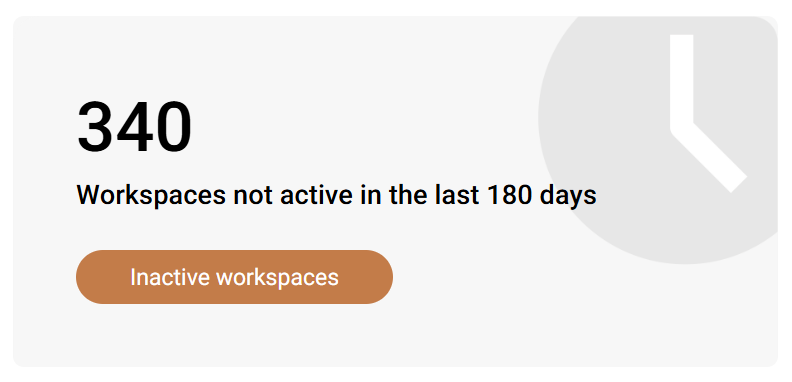
Inactive sites are often among the largest contributors to wasted tenant storage.
Find large unused files
Large unused files accumulate easily. Examples include historical video assets, oversized PDFs, or legacy project exports.
A structured approach:
- Run storage reports to surface files above a size threshold (for example, files > 250 MB).
- Identify when they were last accessed.
- Verify business ownership to determine whether they can be archived or deleted.
- Relocate non-collaboration files to more appropriate systems, such as backup storage or dedicated archival platforms.
Reduce version history bloat
Excessive version history is one of the least visible causes of waste. Recommended actions:
- Review libraries with high version counts.
- Use Microsoft’s versioning settings to adjust limits.
- Use PowerShell to trim historical versions where appropriate.
Version history cleanup often surfaces significant amounts of reclaimed space.
Monitor growth trends and set alerts
Storage spikes usually come from:
- Bulk file migrations
- Automated data exports dumped into SharePoint
- Teams or projects that generate large media
- Large temporary working files accidentally stored in SharePoint
The SharePoint admin center provides trend charts to identify sudden growth patterns. Regular monitoring prevents long-term unchecked expansion.
How SProbot helps you regain SharePoint storage
Automated large file detection
SProbot scans your SharePoint environment and surfaces oversized files across all sites. Reports include file size, version count and size, and last activity, helping admins identify high-impact cleanup opportunities quickly.
Inactive and stale site reporting
SProbot identifies sites that have not been used recently and highlights those that consume substantial storage. This makes it easier to target sites suitable for archiving or deletion.
Version size insights for cleanup planning
SProbot includes reporting on sites with significant version history spread (the difference between latest and all versions). It helps administrators understand where versions contribute disproportionately to storage and where version trimming is likely to be most beneficial.

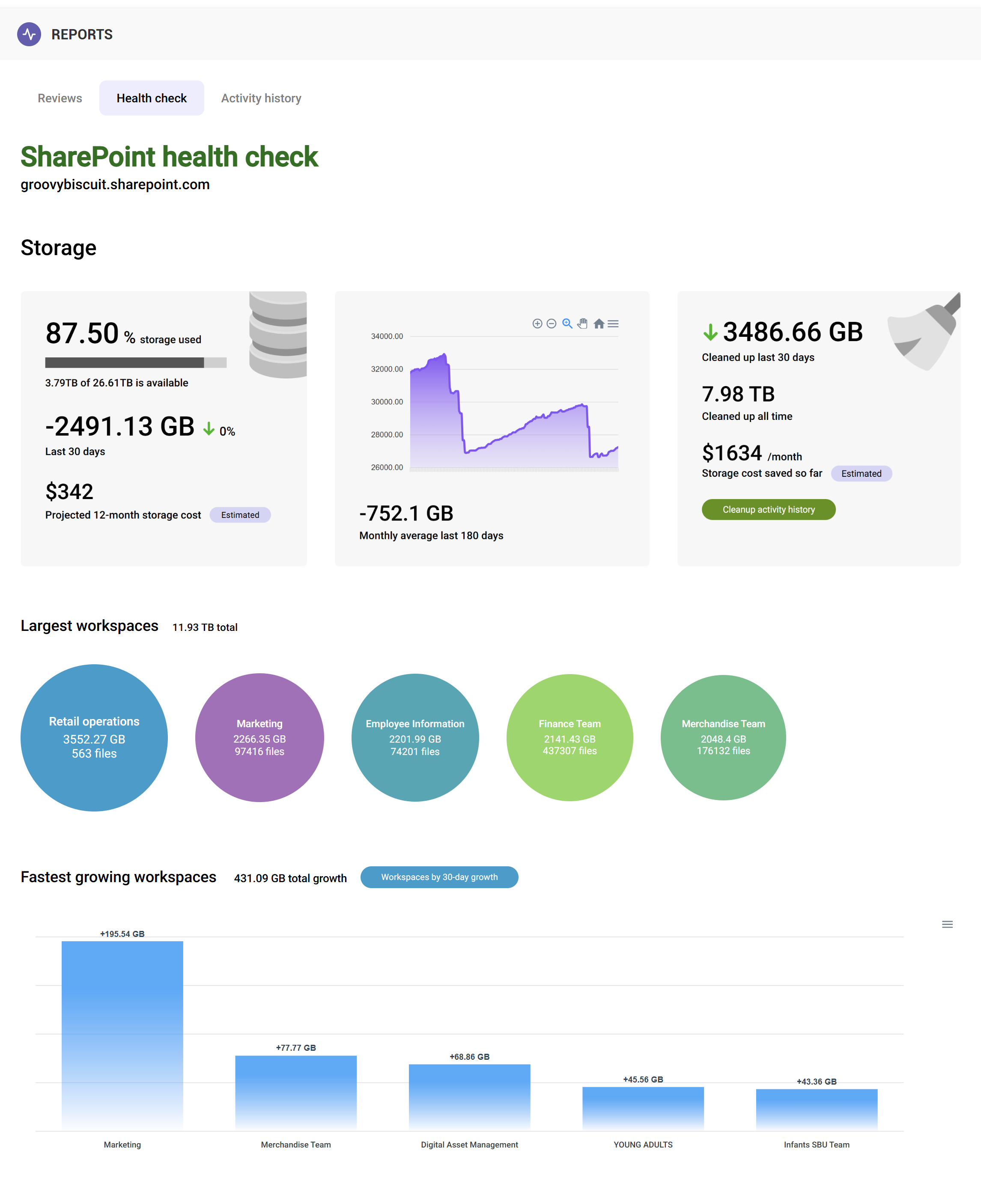
Storage growth analytics
By tracking how sites grow over time, SProbot enables administrators to spot spikes and long-term patterns. Trends reveal which sites require immediate attention and which departments drive storage expansion.
Bringing it all together
Increasing SharePoint storage capacity is not a matter of changing quotas or asking users to tidy up. You regain capacity by identifying and addressing the content that consumes the most space:
- Unused or stale sites
- Oversized files
- Excessive version history
- Unwanted or mislocated files
- Abnormal storage growth patterns
Native tools can help, but SProbot accelerates the process through automated discovery, environment-wide reporting, and clear insights into where cleanup efforts will have the greatest impact.
FAQ
What is the fastest way to regain SharePoint storage?
Target oversized files and inactive sites. These usually deliver the biggest reductions with the least effort.
Does archiving a site free up space?
Archiving alone does not reduce storage unless the archived site is moved out of SharePoint or deleted. Archival within Microsoft 365 does however reduce storage cost, as archived sites are stored at a lower cost tier ($5/GB/month instead of $0.20/GB/month).
How much storage can typically be reclaimed?
Most environments can reclaim 10 to 30 percent, but it varies significantly based on historical usage patterns.
Do retention policies impact cleanup?
Yes. Retention requirements may prevent the deletion of certain files or versions. Always check policies before cleanup.
Should I buy additional Microsoft storage?
Only after cleanup. Many organisations discover they do not need to purchase extra storage once wasteful content is removed.