


TLDR: You cannot set storage limits for different users in SharePoint. SharePoint Online uses pooled tenant storage that is consumed by sites and their content, not by individual users. Your time is best spent reducing usage where it accumulates: oversized or inactive sites, large and unused files, and excessive version history. Use the SharePoint admin and Microsoft 365 usage reports to monitor growth, then act on a regular cadence. SProbot accelerates this by surfacing oversized sites and files, inactivity, and version‑related storage so you can prioritize cleanups with confidence.
Why this question comes up
SharePoint storage pressure is typically driven by a few hotspots resulting from day‑to‑day collaboration:
- Inactive or orphaned sites that retain project payloads long after the work ends
- Large files such as CAD, video, and archives that accumulate silently
- Version bloat where libraries keep hundreds or thousands of copies per file
- Growth spikes from bulk migrations or automated dumps
Because storage is pooled at the tenant level, a handful of oversized sites can meaningfully affect your headroom and may push you toward buying extra capacity.
Misconceptions to avoid
- “I can cap SharePoint storage per user.”
SharePoint storage is allocated as a tenant pool and consumed by sites. Microsoft’s service description documents a pooled model and a per‑site maximum, not per‑user caps. - “Site quotas will solve tenant‑wide storage pressure.”
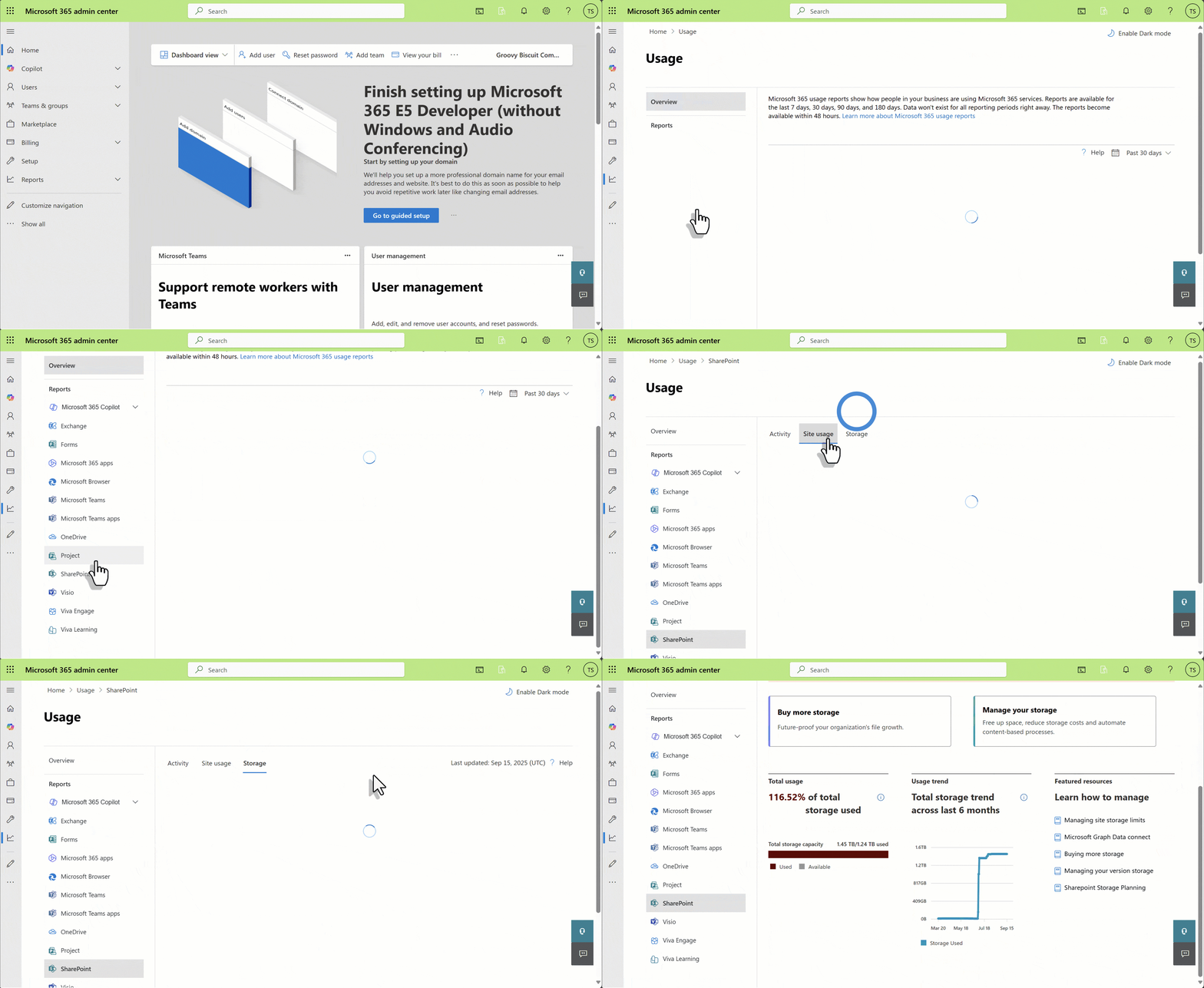
Quotas can restrict growth on individual sites but do not reduce existing consumption or identify what to remove. The more sustainable approach is discovery, prioritization, and cleanup guided by reports. Use the Storage tab in Microsoft 365 usage reports or a 3rd-party storage tool to understand trends and act. - “Versioning overhead is minor.”
Version history can be a major storage driver. Microsoft now provides organization, site, and library‑level version history limits and controls to manage this.
Effective ways to reduce SharePoint storage
Identify inactive or orphaned sites
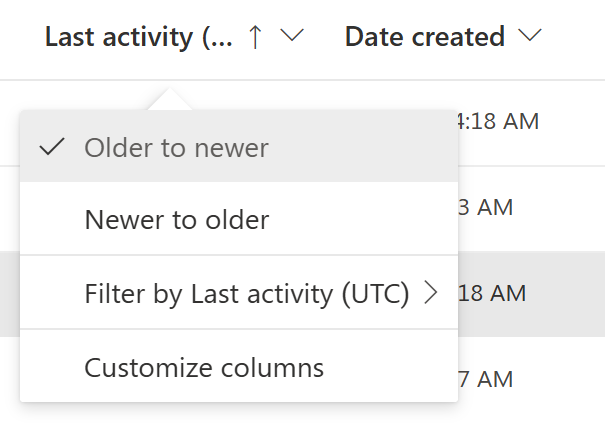
- Inventory and classify: Use the SharePoint site usage report and the Storage report in the Microsoft 365 admin center to identify sites with little or no recent activity and significant size.
- Confirm ownership and retention: Before archiving or deleting, validate business ownership and applicable retention or legal holds.
- Action and log: Archive or remove content per policy and record decisions for audit.
Find large unused files
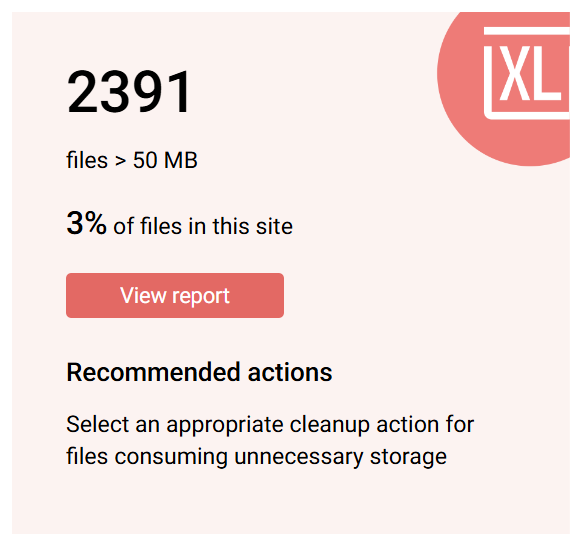
- List large files: Start with site‑level Storage metrics and targeted queries. If you need scripted discovery, use community‑supported scripts to enumerate files above a size threshold.
- Prioritize “large and cold”: Combine size and last modified to target candidates for archive or deletion after owner sign‑off.
- Avoid re‑accumulation: Educate owners on what belongs in SharePoint and what should live in alternative archives.
Triage version bloat and trim safely
- Assess version storage: Use Microsoft’s version history limits documentation to guide where version counts and age can be reduced without impacting recoverability.
- Apply controls: Set organization defaults, override at site or library where needed, and trim existing versions where appropriate. Microsoft’s controls support defaults at organization level and overrides for sites and libraries.
- Review impact: After trimming, re‑measure storage to confirm reclaimed space and adjust limits for future growth.
Monitor growth and set an operational rhythm
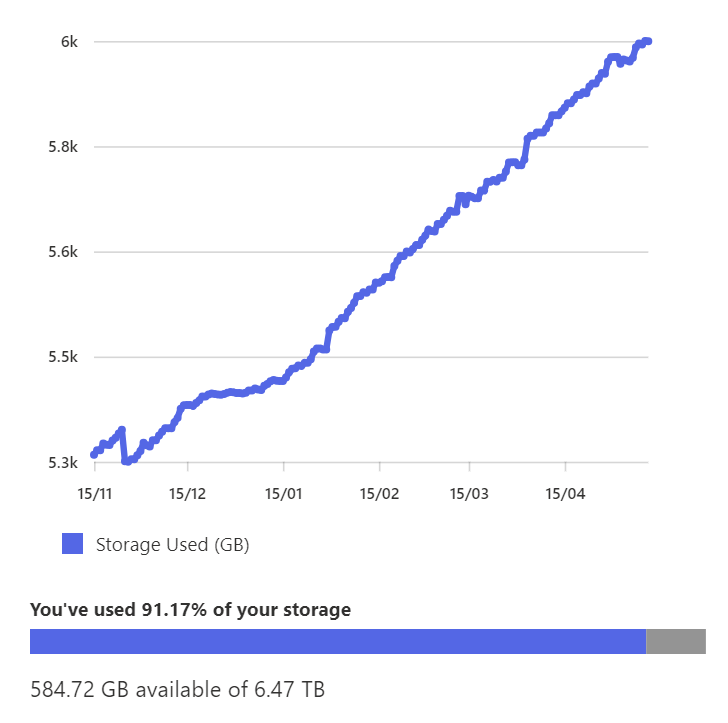
- Track growth: Use the Storage tab in the Admin Center to monitor tenant‑level usage and trends. Expect a 48–72 hour delay in report refresh.
- Monthly cadence: Export usage and site reports, review the top growth contributors, and queue owner validations.
How SProbot helps
Oversized sites and files surfaced automatically
SProbot reports show the largest sites and files across your tenant so you can focus on the few hotspots that drive most consumption.
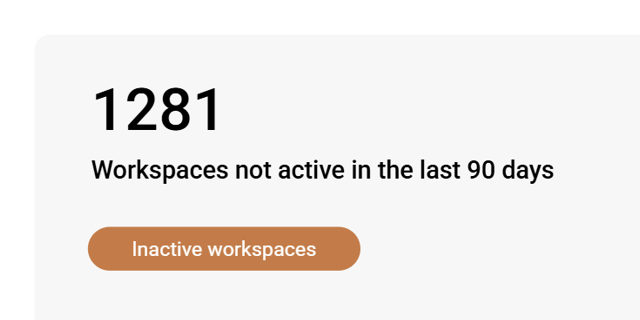
Inactive and orphaned site insights
SProbot highlights sites with little or no recent activity to accelerate archive or deletion workflows with owners.
Version storage insights
SProbot pinpoints locations with heavy version storage consumption, helping you target trimming in SharePoint where it will have the greatest impact.

Regular reporting and shareable summaries
Receive monthly reports and use the Health Check to get a tenant-wide status overview.
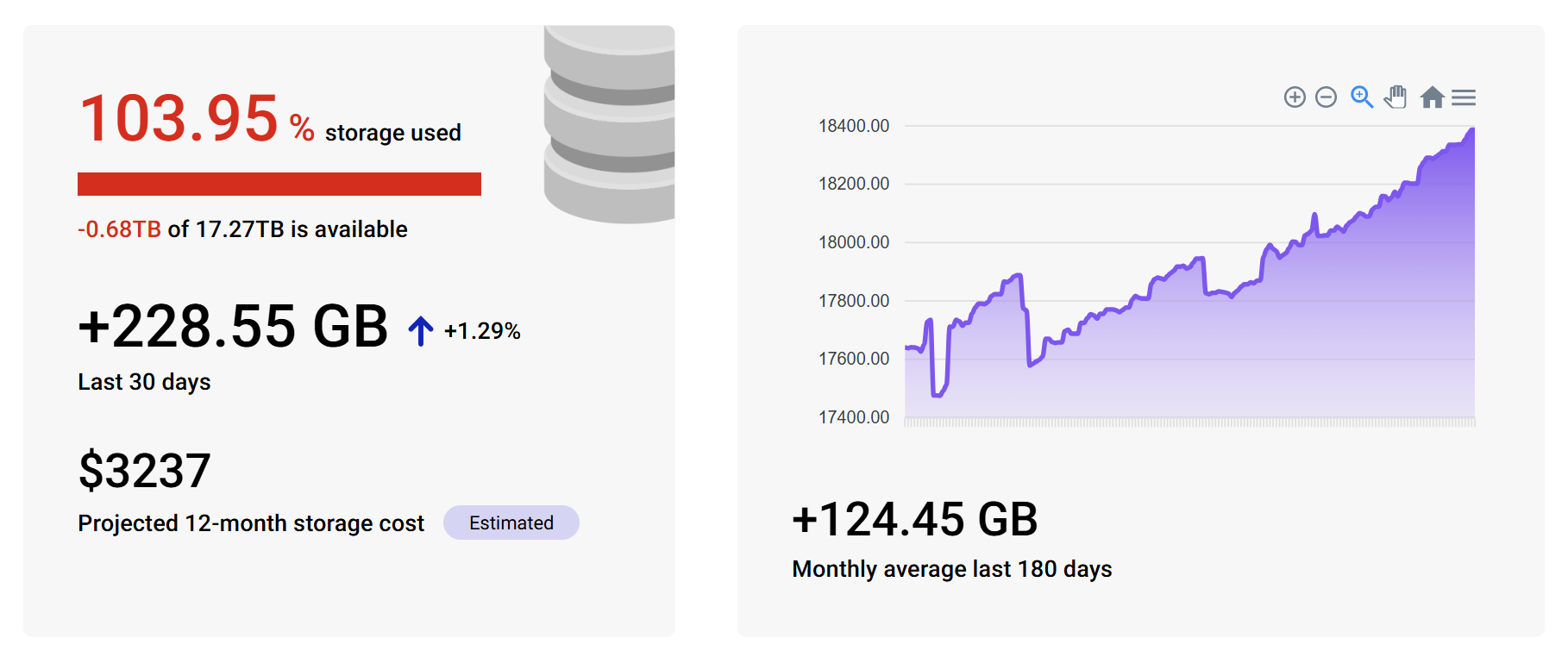
Growth monitoring
SProbot trend summaries make sudden spikes visible, reducing time‑to‑investigate and helping you prevent avoidable overages.
Conclusion
You cannot assign SharePoint storage limits per user. SharePoint storage is a pooled tenant resource, and consumption is driven by sites and their content. The fastest path to savings is operational: find inactive sites, large cold files, and excessive versions; then track growth and make cleanup part of your monthly routine. SProbot provides the focused visibility and repeatable reporting to execute this with confidence.
FAQ
Can I allocate more storage to a specific department or person?
Not directly. SharePoint storage is pooled and consumed by sites. You can set per‑site caps if you manage site storage manually and assign users access only to their designed site, but this does not reduce existing usage and is not technically a per‑user limit.
What happens if we exceed our tenant storage?
Your environment can be placed at risk of read‑only behavior until usage is reduced or capacity is purchased. Monitor storage and act before you approach limits.
How big can a single SharePoint site be?
Up to 25 TB per site. The tenant limit is the base allocation plus additional storage granted per license, with more available to purchase.
Is trimming versions safe?
Use Microsoft’s version history limits to set defaults and overrides. Always confirm business and retention needs before trimming existing versions using SProbot or scripting.